
Put Tin inside your own product with the Agent API
Issue an API key in Studio and your server, scripts, or automation tools can hand an agent work with a single HTTP request. We follow Tin from the first key to a multi-turn conversation.
Tin is the agent that turns scattered thoughts into clear next steps. Most people talk to Tin in the endue chat. Open up the API and the same Tin can work inside something you built: behind a “Make it a plan” button in your notes app, in a script that runs every morning, or in an automation that fires whenever a form comes in.
Tin over the API is the same agent you chat with. It uses the same instructions, skills, connectors, and memory, and usage counts toward your account. There is no server to host and no model to wire up.
How it fits together
- In Studio, you issue an API key that only works for Tin.
- Your server sends Tin a request with that key. The body can be a single sentence saying what you need.
- Tin sends back its answer. The exchange is also saved in your endue conversation list, so you can read it on the web later.
Good for
- A feature in your own app. Send a user’s note to Tin and show the plan it returns on your own screen. Your users never need to know endue exists.
- Jobs that run on a schedule. A cron job sends yesterday’s unfinished tasks, and Tin boils them down to three things for today. Your code decides where the result goes: an intranet post, your database, a chat message.
- No-code automation tools. Any tool that can send an HTTP request, such as Zapier, Make, or n8n, can call Tin without code.
If you only need the result inside endue, a routine is simpler. Reach for the API when the result has to land in your own system.
What you need
- An endue account and one agent. This walkthrough uses Tin.
- Somewhere to send requests from: a terminal, your product’s server, or an automation tool that can make HTTP requests.
- A safe place for the key, such as an environment variable or a secrets manager on your server.
Step 1. Open the API in Studio
Open Tin and switch to Studio at the top to see the agent’s configuration. In the “01 Requests come in” column there is an API card. Click it and the API panel opens on the right.
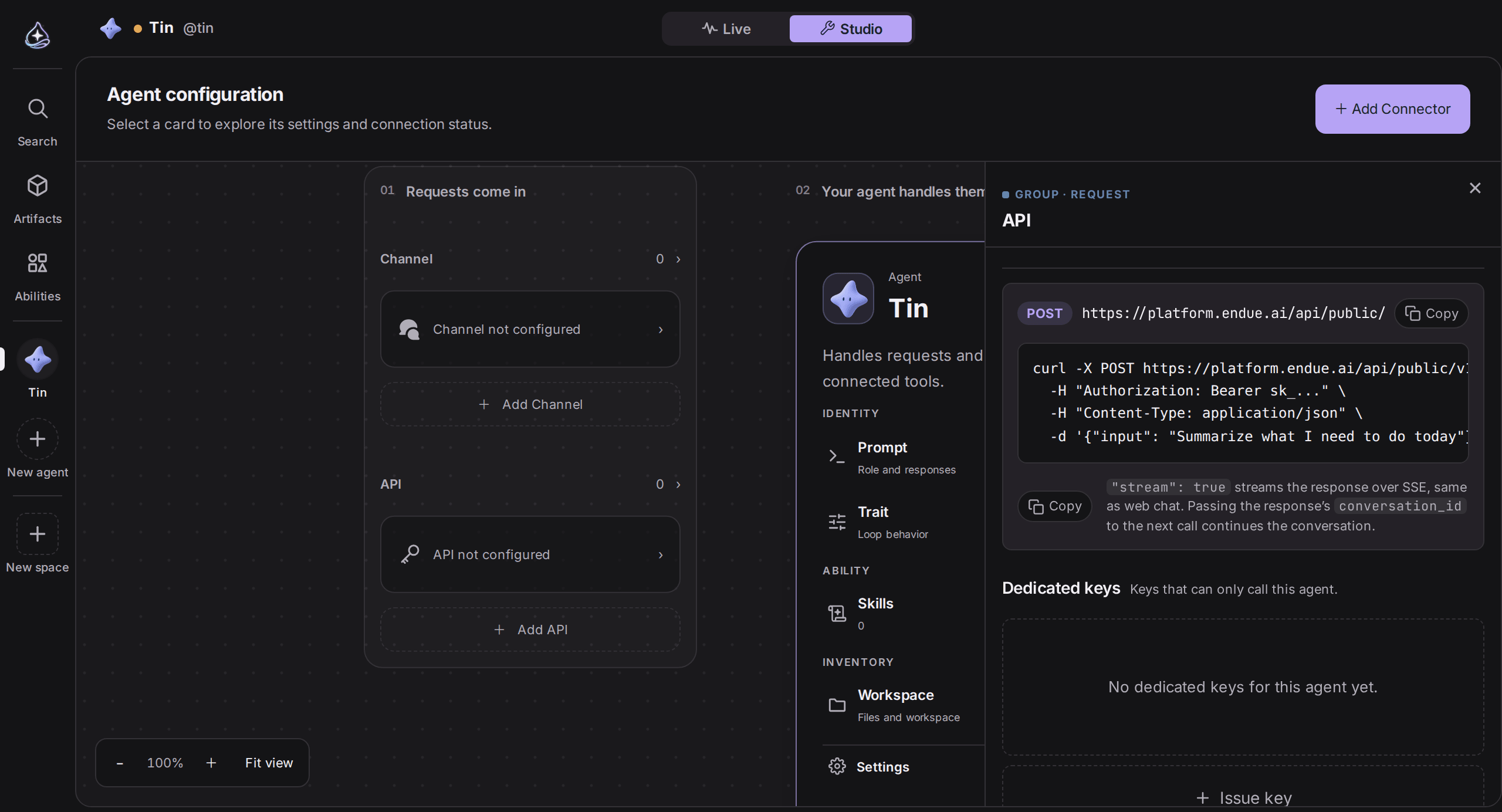
The POST address at the top of the panel is Tin’s endpoint. The curl sample below it copies with one click and already contains Tin’s agent ID.
Step 2. Issue a key for Tin
Click Issue key and fill in two things.
- Key name. Say where the key will be used, for example “Planner app server”. The name shows up next to conversations that came in through this key, and when you have several keys you will know at a glance which one to revoke.
- Expiration. Choose no expiration, 30, 90, or 365 days. A short window is the safer choice while you are testing.
Click Issue and a key starting with sk_ appears exactly once. You cannot see it again after closing the box, so copy it straight into a safe place. If you lose it, revoke it and issue a new one. The sample request at the top of the panel now includes the new key too, so you can copy it and test right away.
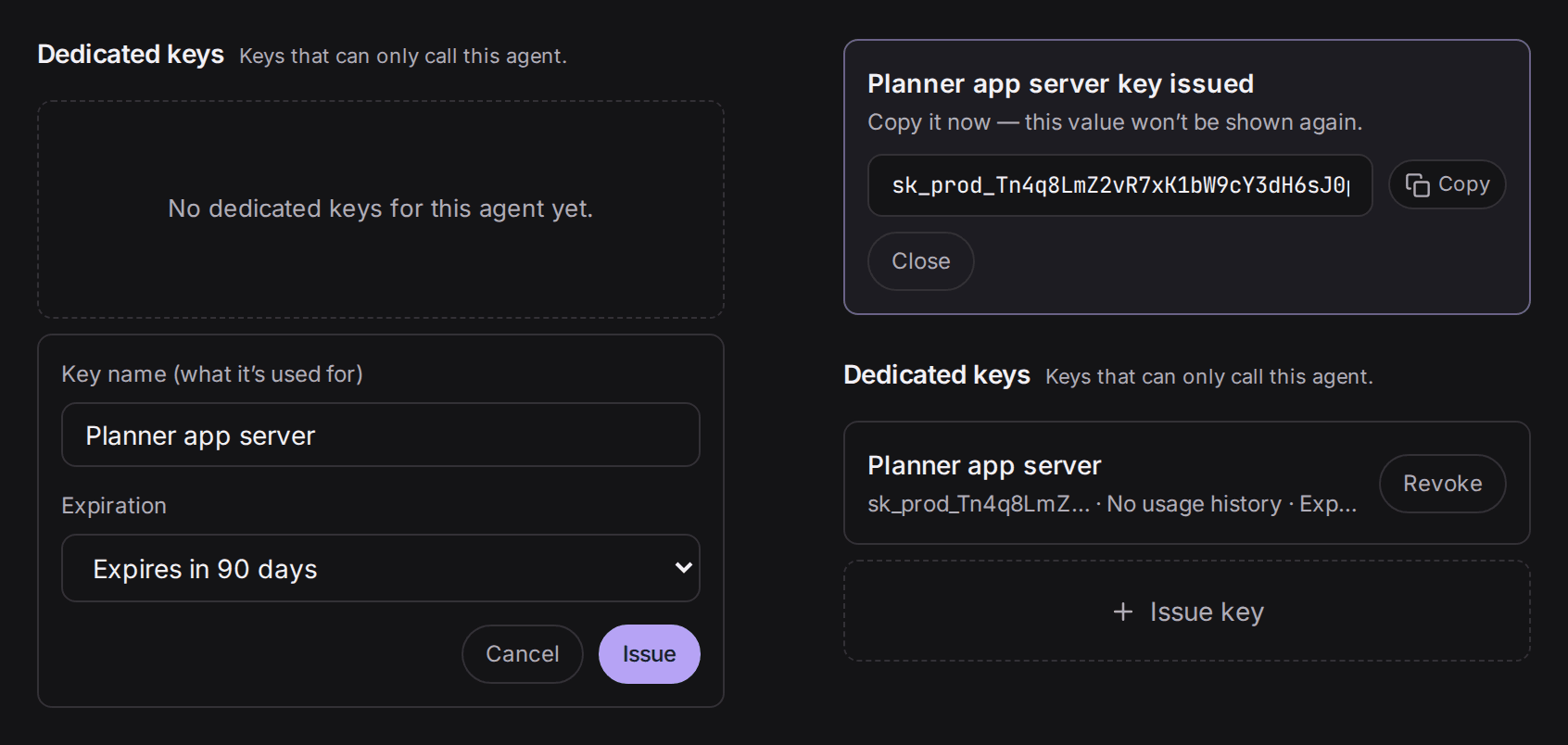
A key made here is dedicated to Tin. It cannot call your other agents. Account-wide keys that can call every agent are issued separately under Settings › Account › API Keys, but if you only need one agent, the dedicated key is the safer pick.
Step 3. Send your first request
You can try it straight from a terminal. Keep the key in an environment variable instead of typing it into the command. Replace AGENT_ID with the address you copied from Studio.
export ENDUE_API_KEY="sk_..."   # the key from step 2

curl -X POST https://platform.endue.ai/api/public/v1/agents/AGENT_ID/invoke \
  -H "Authorization: Bearer $ENDUE_API_KEY" \
  -H "Content-Type: application/json" \
  -d '{"input": "Turn this into a plan for this week: I want to start a small newsletter for our cafe. I have about 5 hours this week."}'
When Tin finishes, you get a response like this.
{
  "success": true,
  "data": {
    "run_id": "...",
    "session_id": "cnv_...",
    "conversation_id": "cnv_...",
    "agent_id": "...",
    "status": "completed",
    "finish_reason": "final",
    "output_text": "Here's a week that gets the first issue out without eating your weekend. ...",
    "usage": { "input_tokens": 1830, "output_tokens": 264, "total_tokens": 2094 }
  }
}
Three fields matter most.
output_text: Tin’s answer, the part you show on your screen.session_id: the conversation’s id. Send it back with your next request to keep talking.conversation_idcarries the same value, and it is the name the hint in Studio uses.status:completedmeans Tin answered in full.incompletemeans it ran out of steps or stopped at a point that needed a person’s decision. Try again with a more specific request.
Step 4. Keep the conversation going
Say your user replies “I can’t do Wednesday.” Send that along with the session_id from the previous response, and Tin revises the plan it already made.
{
  "input": "I can't do Wednesday. Move that part to Thursday and redo the plan.",
  "session_id": "cnv_..."
}
Leave session_id out and a new conversation starts. To keep one conversation per user or per note, store the session_id in your database next to it.
Step 5. Wire it into your product
Picture a “Make it a plan” button in a notes app. One rule matters above the rest: the code that calls Tin lives on your server. A key placed in a browser or mobile app can be read by anyone who looks. Your screen talks to your server, and your server talks to Tin.
On a Node.js server it looks like this.
// Server code. The key comes from an environment variable.
const TIN_URL = 'https://platform.endue.ai/api/public/v1/agents/AGENT_ID/invoke';

export async function askTin(input, sessionId) {
  const res = await fetch(TIN_URL, {
    method: 'POST',
    headers: {
      Authorization: `Bearer ${process.env.ENDUE_API_KEY}`,
      'Content-Type': 'application/json',
    },
    body: JSON.stringify(sessionId ? { input, session_id: sessionId } : { input }),
  });
  const body = await res.json();
  if (!res.ok) throw new Error(body.error?.message ?? `HTTP ${res.status}`);
  return { plan: body.data.output_text, sessionId: body.data.session_id };
}
A Python script for the morning run is even shorter.
import os
import requests

res = requests.post(
    "https://platform.endue.ai/api/public/v1/agents/AGENT_ID/invoke",
    headers={"Authorization": f"Bearer {os.environ['ENDUE_API_KEY']}"},
    json={"input": "Left over from yesterday: reply to the quote, order coffee beans, blog draft. Give me three things to do today."},
    timeout=120,
)
res.raise_for_status()
print(res.json()["data"]["output_text"])
By default the call waits until Tin has finished and returns everything at once. A request that needs real thinking can take tens of seconds, so give it a generous timeout. If you want the text to appear as it is written, like in a chat, add "stream": true to the request. You then receive the same SSE stream web chat uses: run_created, then delta events with pieces of text, then done.
Every call is on record in endue
Conversations that come in over the API collect under the API group in Tin’s sidebar. The caller’s message is labeled “API caller”, and the key it came through is shown next to the title. If an answer looked off, this is where you see exactly what Tin was asked and what it said.
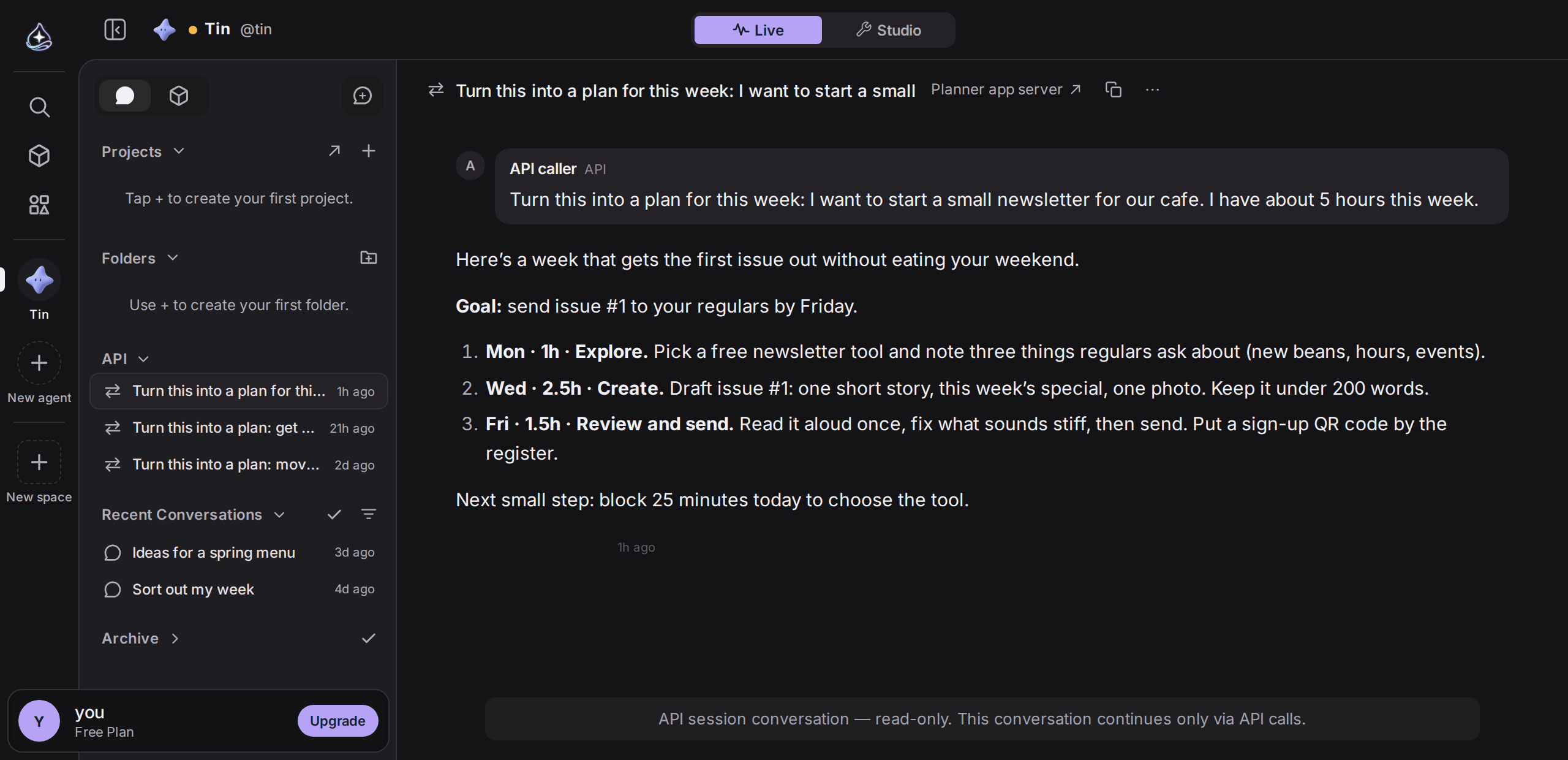
These conversations are read-only in endue. The only way to continue one is another API call with the same session_id.
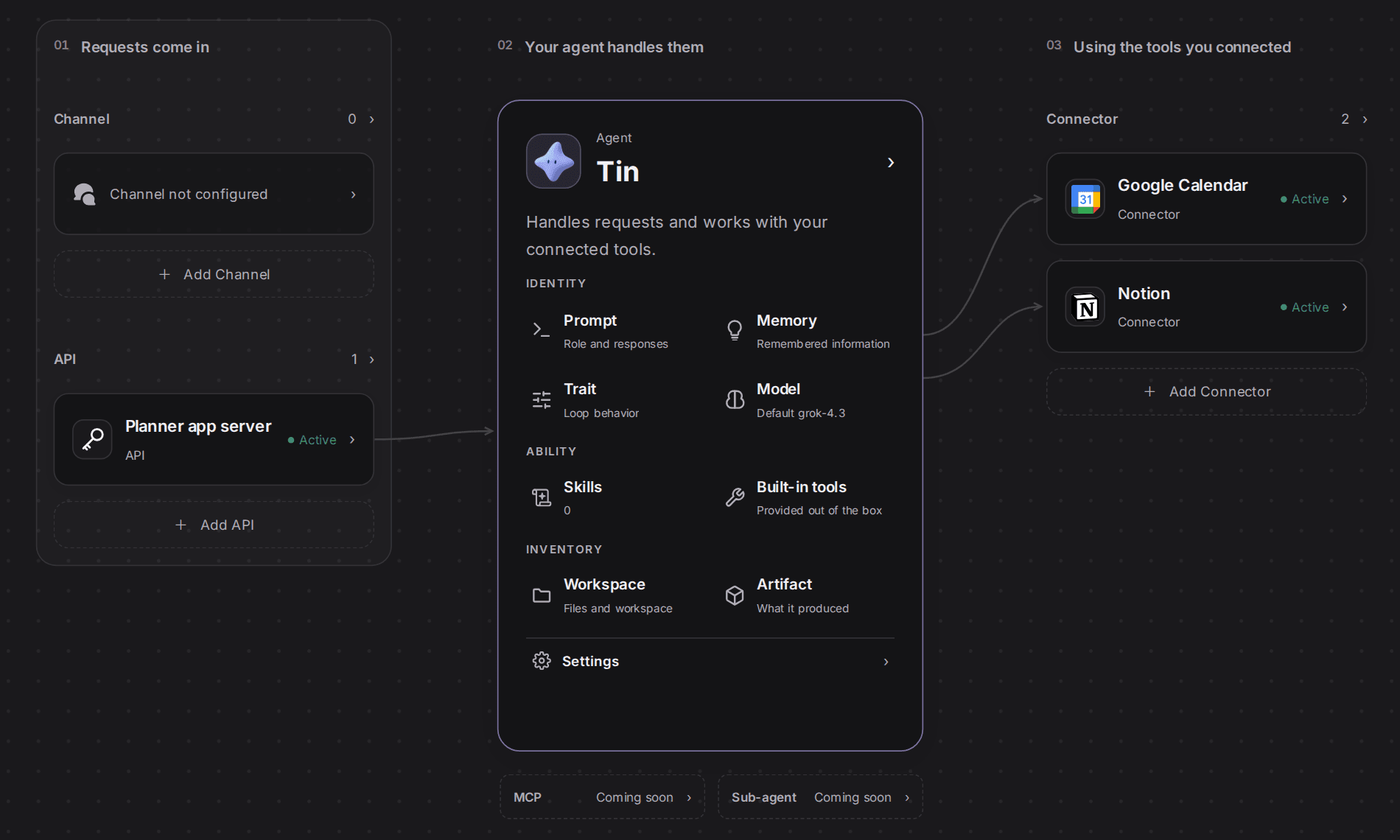
Studio’s configuration view changes too. The new key appears on the API card as Active, with a line running to Tin.
Before you rely on it
Nobody is sitting in front of an API call, so endue treats it as an unattended run.
- Actions that send something out or delete something, like sending an email, are refused instead of waiting for approval. Read-only actions, like looking something up, work as usual.
- If Tin needs to ask a question, nobody is there to answer. Put what it needs up front: deadlines, available time, the format you want back.
It works best when Tin hands back drafts and plans, and your own code does the sending and saving.
Keeping keys safe
- Keys stay on the server. Never in browser code, a mobile app, or a git repository.
- One key per place it is used. With separate keys like “Planner app server” and “Morning summary script”, a leak means revoking one key, not all of them.
- Revoke fast. Press Revoke in the API panel and requests with that key are blocked within a minute.
- Set an expiration. Keys that are about to expire, or already have, are flagged in the panel and in Studio.
What the status codes tell you
401: the key is missing, wrong, expired, or revoked.403: you called Tin with a key dedicated to a different agent.404: the agent ID is wrong, or thesession_idbelongs to another agent.409: an earlier request on the same session is still running. Send again once it finishes.402: you have reached your plan’s usage limit. Check what is left on the Usage page.
Request fields and limits are covered in detail in the Agent API docs.