
Add an agent to your website without building a chat UI
Embed on your site, part of endue Live, opens an agent chat window inside your own website with one line of code. It can sit as a button in the corner or right in the middle of your contact page. Using a made-up bakery site, this guide goes from registering the address to pasting the code and choosing where the window goes.
Sometimes you want an “Ask us anything” window on your website. Building one yourself is a lot of work. You have to draw the chat screen, stream the answer as it is written, fit it to phone screens and store the conversations. The window often turns into a bigger job than the agent.
Embed on your site in endue Live cuts that job down to one line of code. Register your site’s address in Studio, paste the code it gives you into your site, and you are done. The agent answering inside the window is the same agent you built in Studio.
The window that opens on your site is the same chat screen as on endue.live. To get a feel for it first, say hello to Tin at endue.live/@tin.
This guide uses the website of a made-up neighborhood bakery, Haru Bakery. The owner has already built an agent that knows the opening hours, today’s bread and how to order a cake.
What visitors see
Once the code is in place, a button appears in the corner of the site. You choose its text and its look.
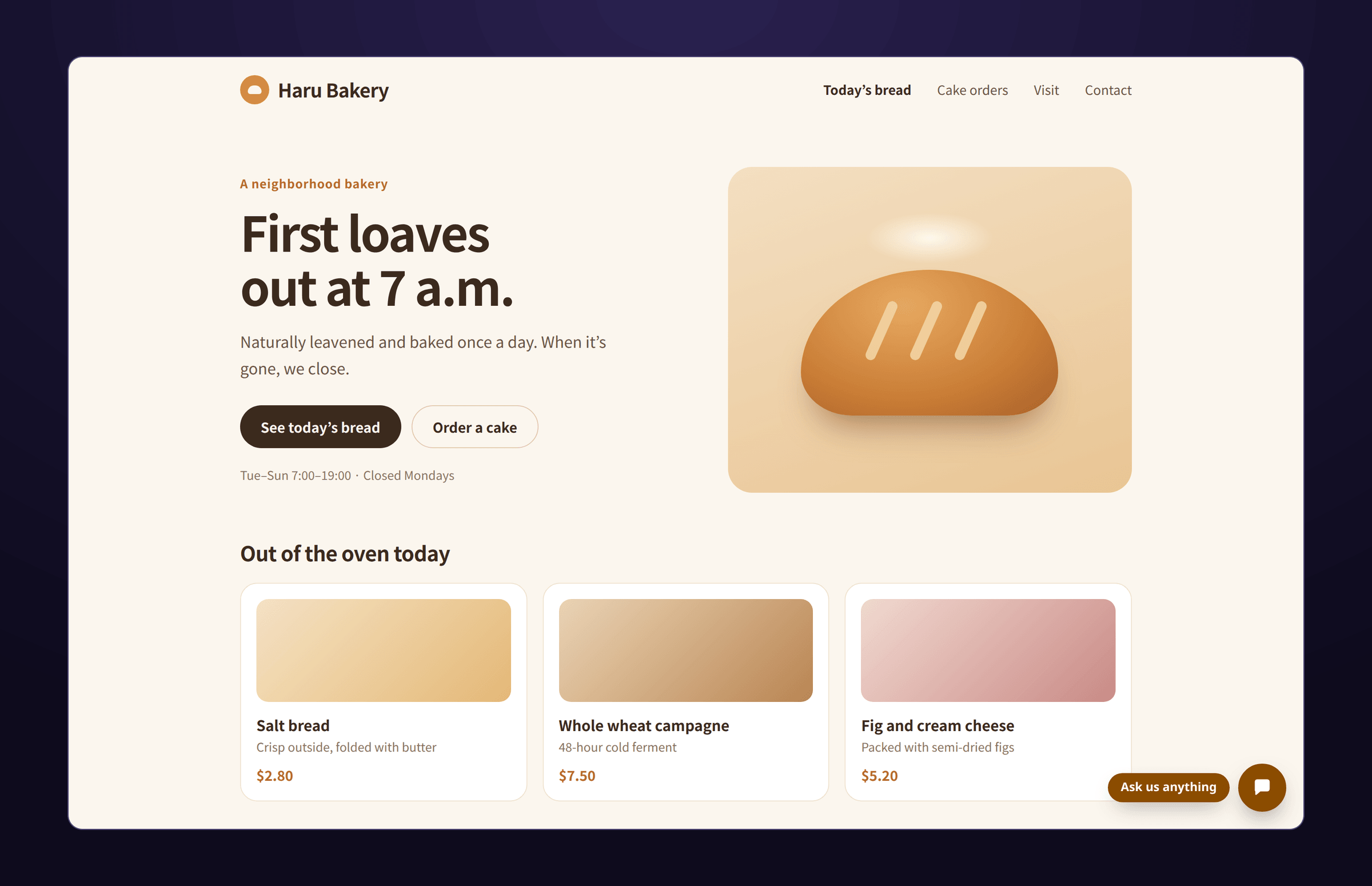
Clicking the button opens the window right there. Visitors ask without leaving the page, and the answer appears as it is written. On a phone the window fills the screen.
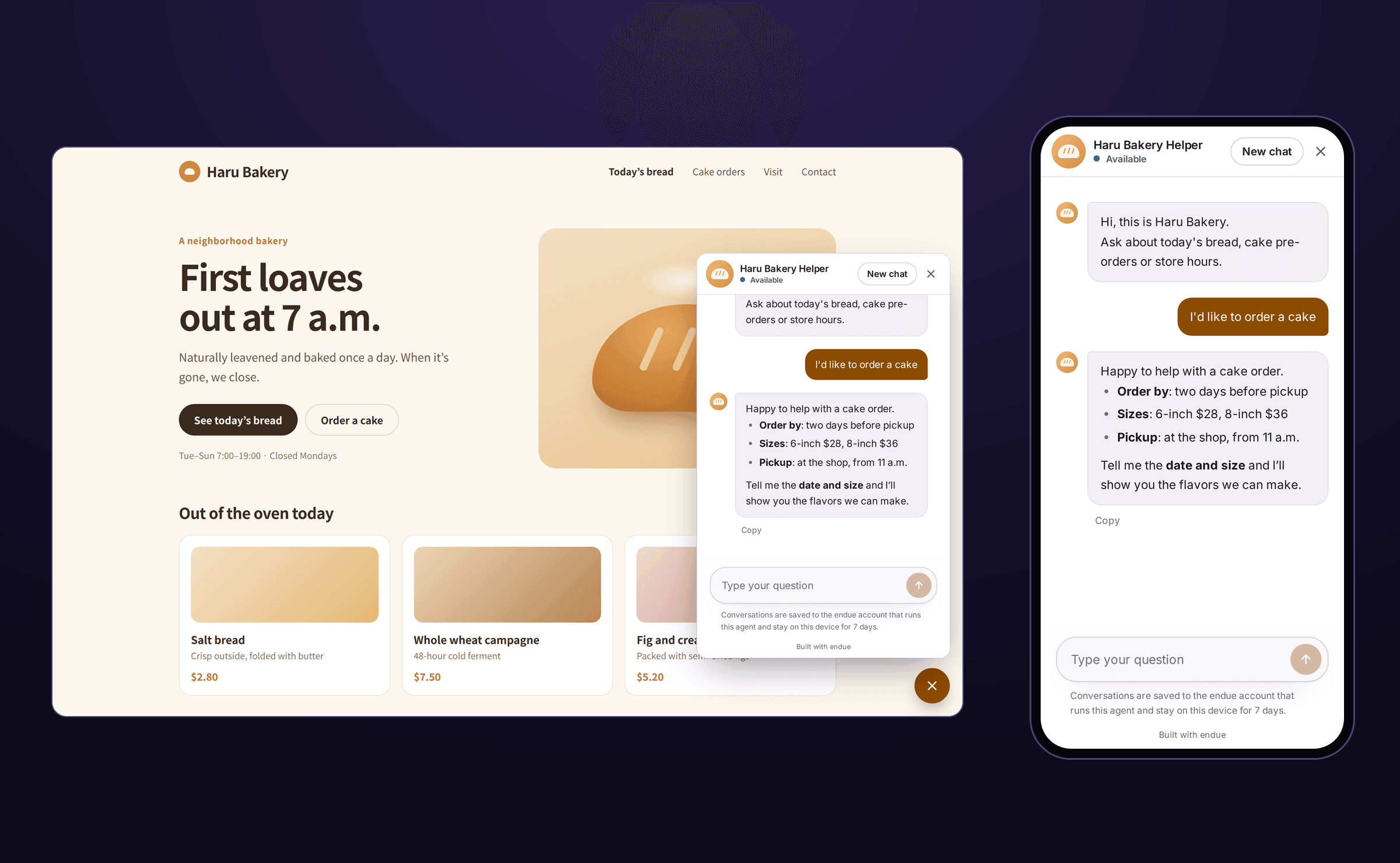
The conversation carries over when a visitor moves to another page. They can ask while looking at the menu, go to the order page, open the window again and find the conversation still there.
How to add it
1. Turn on Live
Embedding runs on top of endue Live. Turn on Publish on endue.live in the Live panel in Studio first. If Live is new to you, start with Serve your agent to many people with endue Live.
2. Register your site’s address
In the Embed on your site row of the Live panel, click Set up. Turn on Turn on for sites and add your site’s address under Allowed sites.
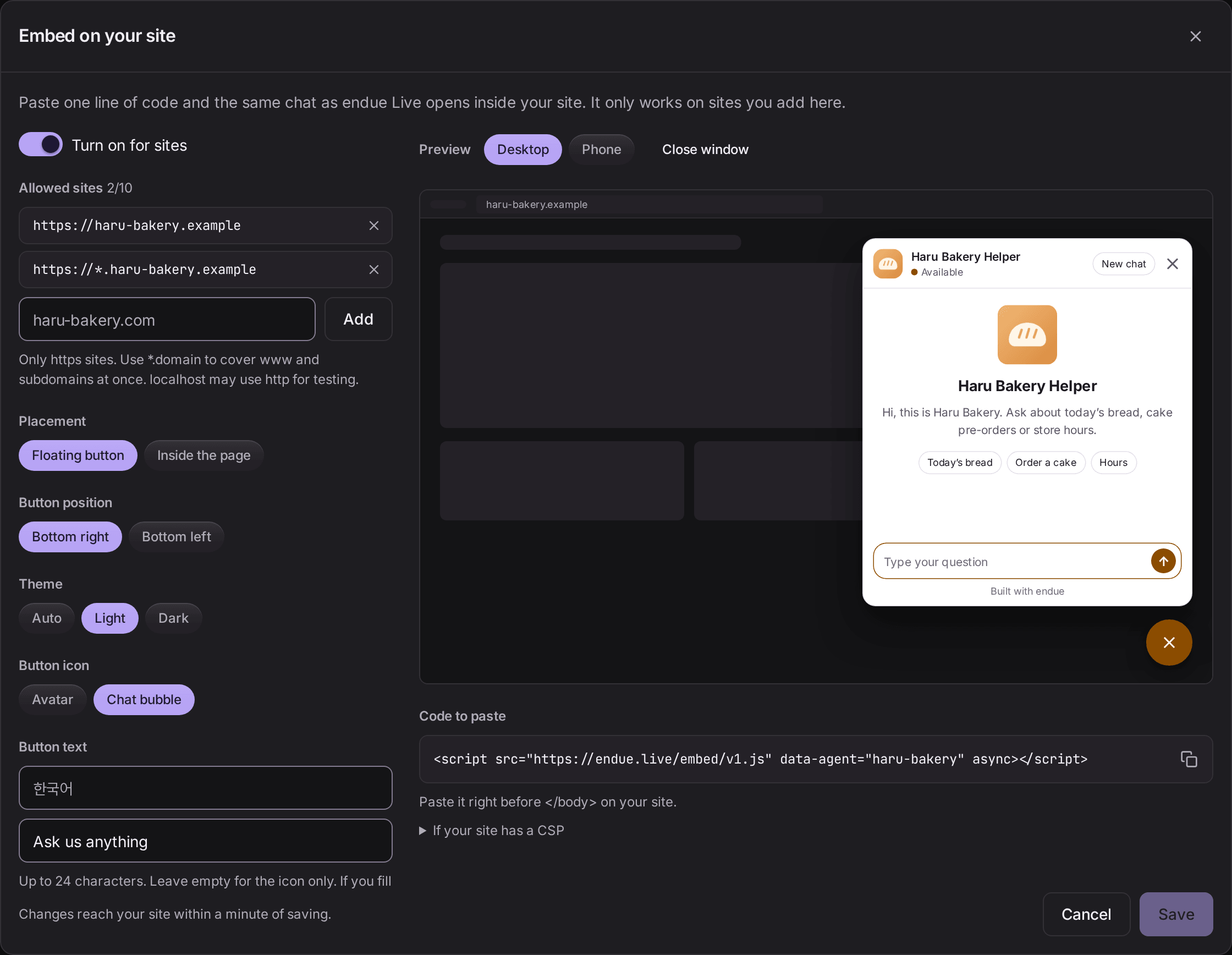
- Only sites that start with
httpscan be added. - To cover
wwwand other subdomains, add one more entry in the form*.domain. The second row in the screen above is an example. - You can add up to ten sites.
- To test on your own computer before going live, add
localhost.
3. Paste the code
Copy Code to paste at the bottom of the screen and paste it right before </body> on your site.
<script src="https://endue.live/embed/v1.js" data-agent="haru-bakery" async></script>The value after data-agent is your agent’s handle. Studio fills it in for you, so copy the line as it is. If you use a site builder, paste it into the field that takes your own code. It is usually called something like “Custom code” or “Embed HTML”.
4. Choose the look
On the same screen, choose the button’s position, its icon, its text and whether the window is light or dark. Switch the preview on the right between desktop and phone to check both. The accent color, the welcome message and the conversation starters are shared with Customize page.
Click Save and your site picks up the change within a minute. If you change the text or the color later, you don’t need to paste the code again.
Put it where it helps
There are two placements.
Floating button stays in the corner of the screen and opens from any page. It suits a help desk for the whole site. Paste the code once, in a place that is included on every page.
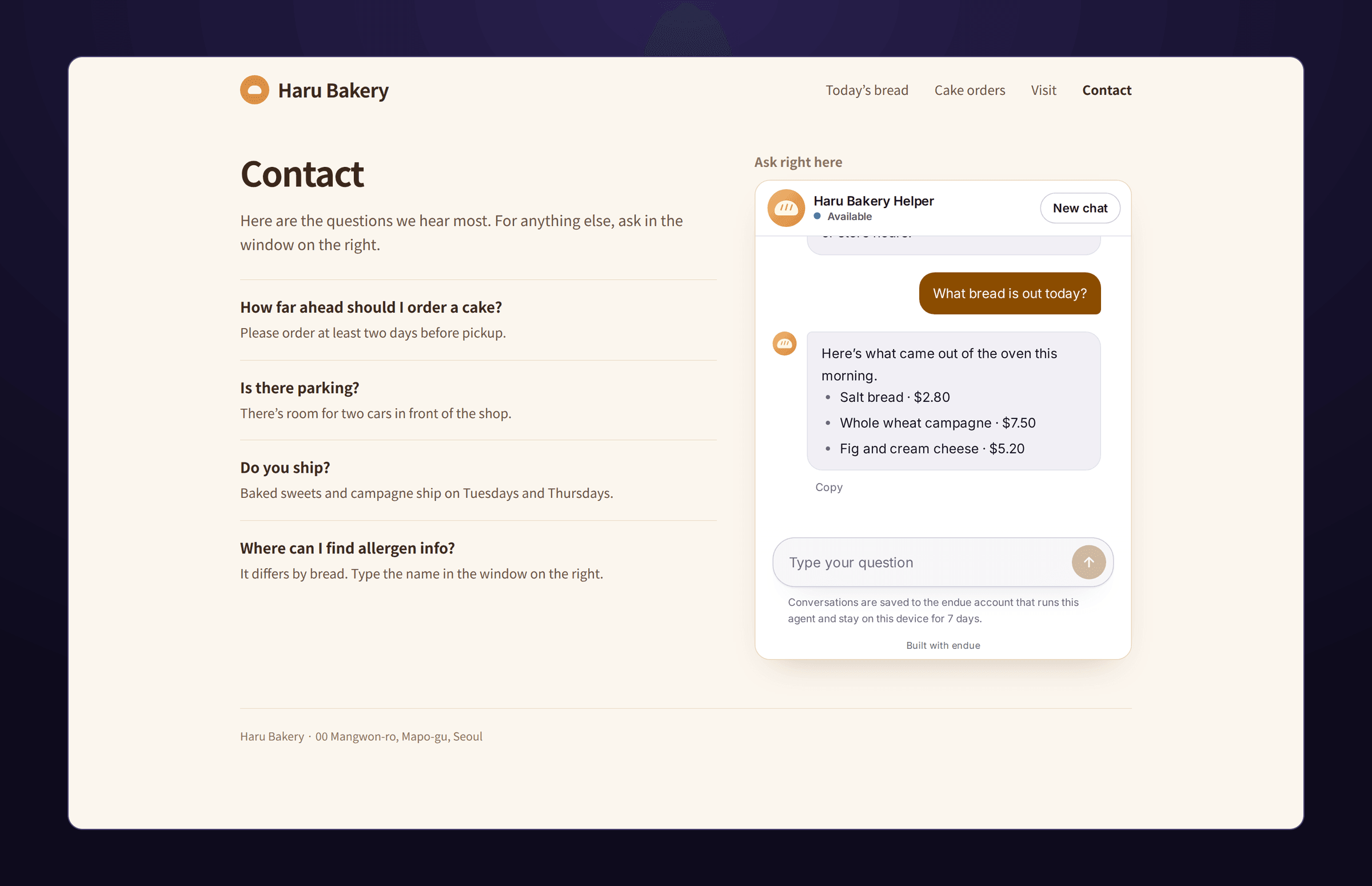
Inside the page puts the window straight into a fixed spot on a page, with no button. It suits the places visitors come to ask questions, such as a contact page or next to your FAQ. When you switch the placement to “Inside the page”, the code becomes two lines.
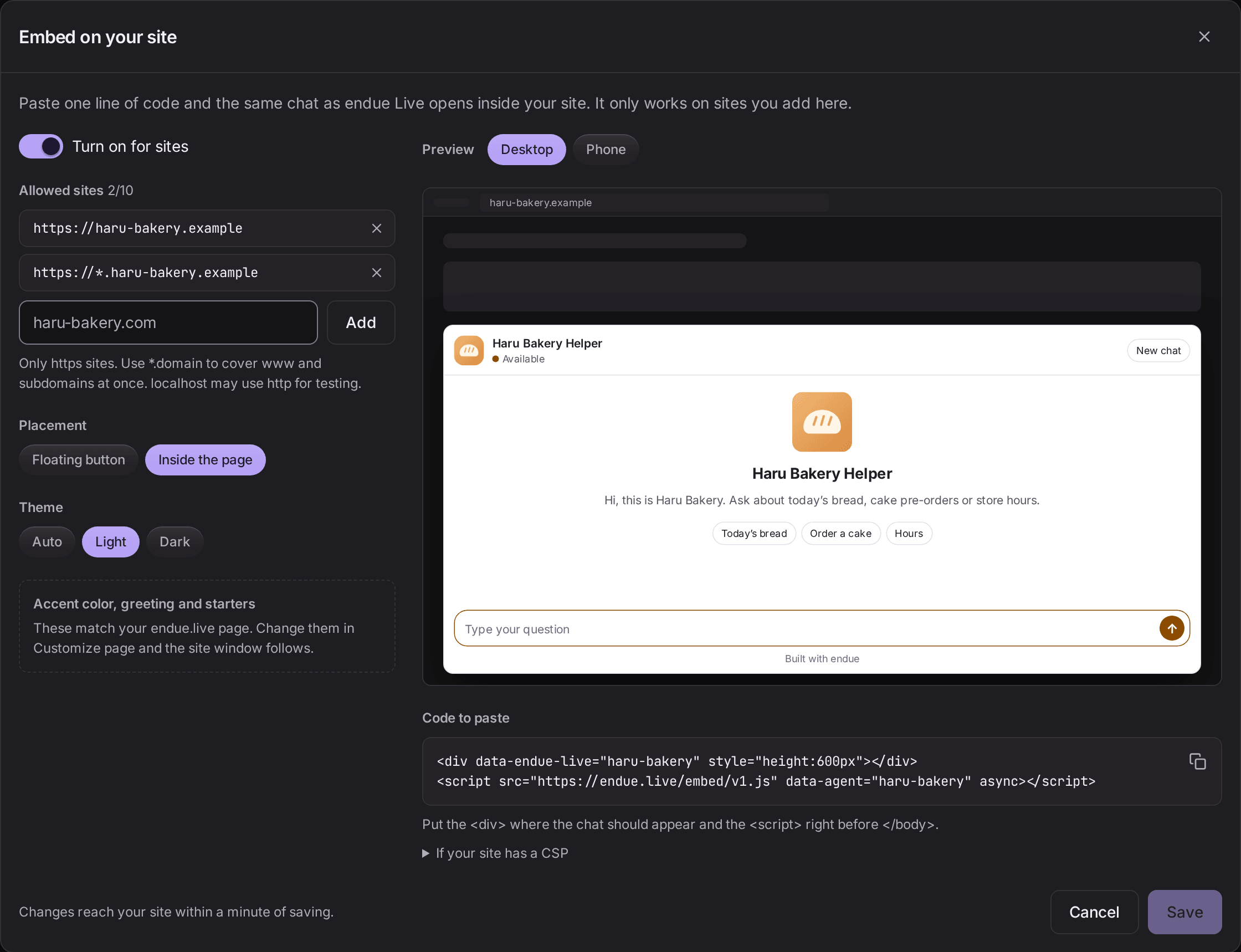
<div data-endue-live="haru-bakery" style="height:600px"></div>
<script src="https://endue.live/embed/v1.js" data-agent="haru-bakery" async></script>
Put the <div> where the window should appear and the <script> right before </body>. The height value sets how tall the window is. Below is the contact page of Haru Bakery, with frequent questions on the left and the window on the right.
You can also put a different agent on each page. An agent that helps with orders goes on the order page, and one that explains open positions goes on the careers page. Turn on Live and register the site for each agent, then paste each agent’s code into its page.
It only opens on your site
Anyone can read the code you pasted. What if someone copies it into their own site? Nothing happens. The window opens only on sites the owner registered, and on any other site the button doesn’t even appear.
In a visitor conversation, the agent can do exactly as much as it can on endue.live. Actions that need approval do not run, and the owner’s personal memory can’t be read. There is also a limit on how many messages one person can send per minute. The usage comes out of the owner’s plan allowance.
Where to look afterward
Conversations from your site are also collected under Live visitors in the agent’s conversation list. Read what customers ask, and work the frequent questions into the instructions and the conversation starters. For how much it was used, check the Live row on the Usage tab in Studio.
If the window doesn’t show
- Check that the address matches what you registered. If you registered only
haru-bakery.exampleand the site opens aswww.haru-bakery.example, the window won’t appear. Add*.haru-bakery.example. - Check that both switches are on. They are “Publish on endue.live” in the Live panel and “Turn on for sites” in Embed on your site.
- Check that you saved. Save, wait about a minute, then reload.
- Open the browser console. The reason the window couldn’t be drawn is logged in one line that starts with
[endue Live]. - If your site has a CSP, expand “If your site has a CSP” on the settings screen. Add the three lines it shows to your site’s policy.
- Don’t put an endue.live address in an iframe yourself. endue.live pages don’t load inside a frame on another site. Use the code above.
Get started
Pasting one line of code takes a few minutes. Spend the time you saved on what your agent tells customers, and how.
- See what the window feels like first: endue.live/@tin
- New to Live: Serve your agent to many people with endue Live