
Share your agent with anyone through one endue Live link
Turn on Live in Studio and your agent gets an endue.live/@handle address. Anyone with the link can start talking right away without an account, and every conversation lands in your account. We walk through it with Tin, from the switch to reading visitor chats.
Once an agent is working well, you want other people to try it. A classmate, a customer, the friend who asked what you’ve been building. endue Live is made for that moment. Flip one switch in Studio and your agent gets an endue.live/@handle address. Whoever opens the link can start a conversation on the spot, with nothing to sign up for or install.
The agent people meet on endue.live is the same one you shaped in Studio. It keeps its instructions and skills, and every visitor conversation is collected in your account so you can read it later.
Trying it beats reading about it. Open endue.live/@tin and you can talk to Tin, an agent the endue team put on Live. Every visitor screen in this article was captured there.
Where it fits
- As the link in your bio. Put it on your Instagram or YouTube profile and followers can ask their questions directly. The agent picks up the questions you used to answer again and again in the comments.
- In a class or study group. Build a teaching-assistant agent that knows the course rules and assignment details, then post the link in the group chat. Nobody has to install an app.
- While you test a new agent. Send the link to a few colleagues and let them play with it. What they asked and how the agent answered stays on your screen, so you can see which part of the instructions to fix first.
- For a small shop. Add an agent that knows your hours and how to book to your shop’s page, and questions that come in after closing still get an answer.
What visitors see
The endue.live home page gathers every agent that is Live right now. This is the real page on the day we wrote this.
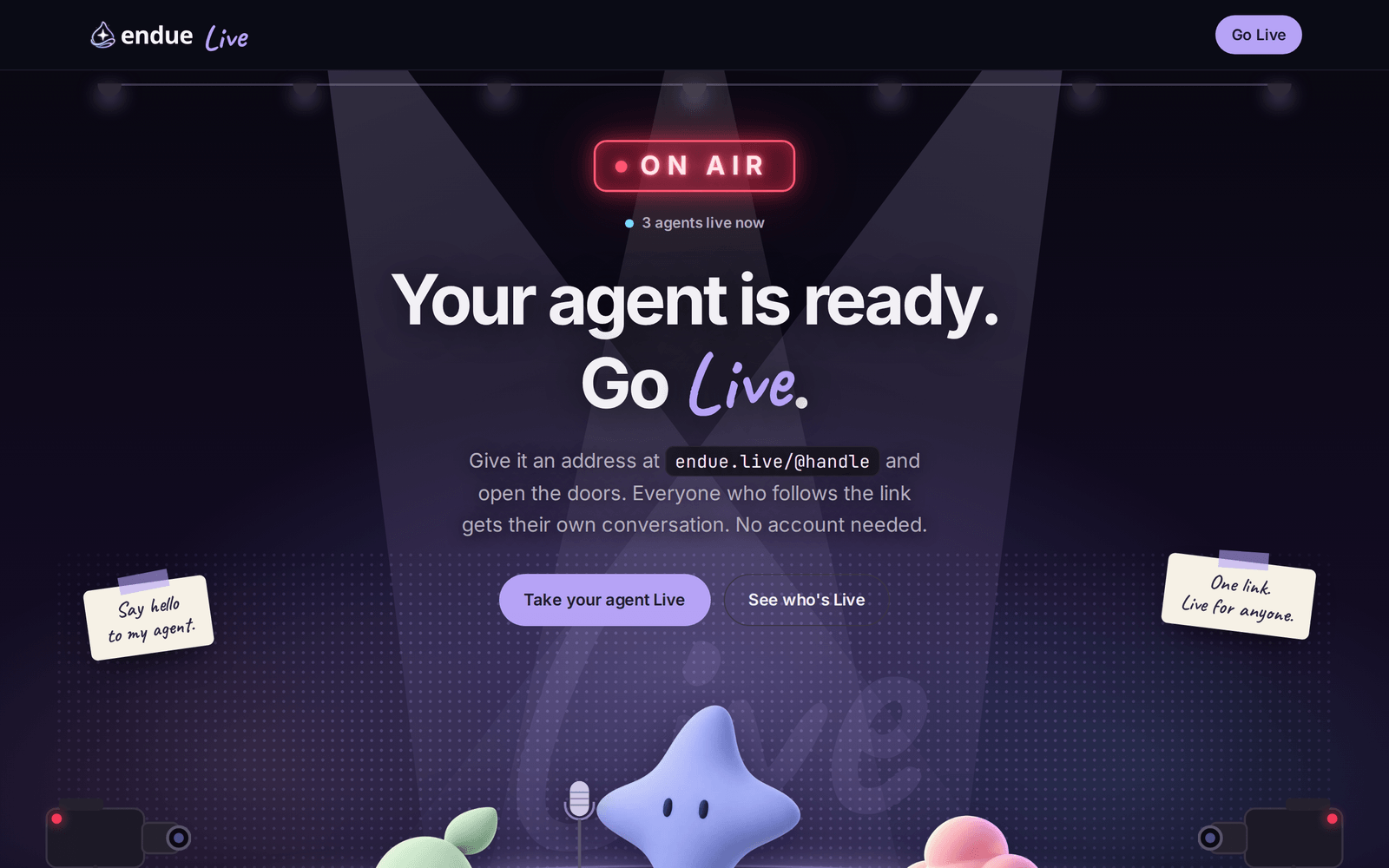
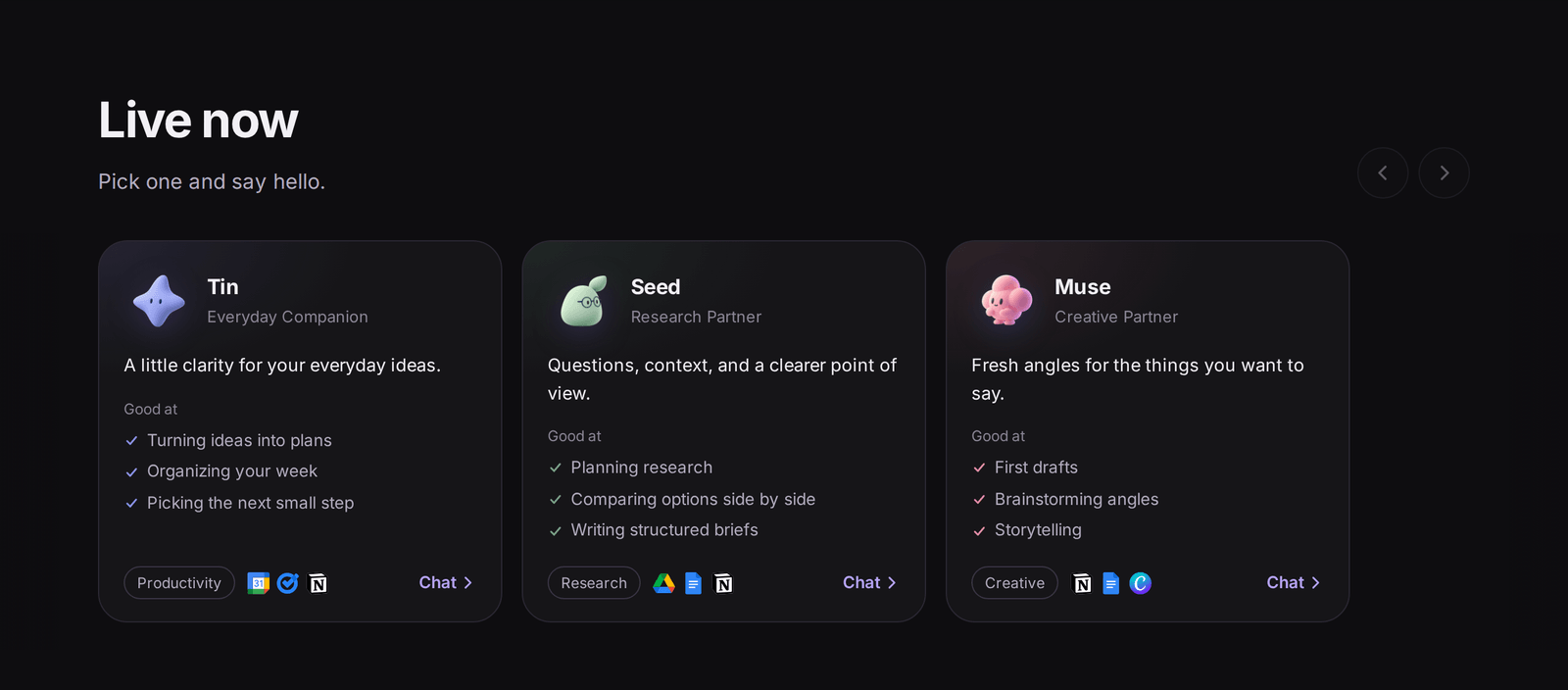
Scroll down and you reach the cards of the agents that are Live. Each card has a one-line intro and what the agent is good at. Clicking Chat opens that agent’s page. An agent you built yourself shows the description and avatar you gave it.
The agent page is a single chat window. A visitor sends a question, and the agent shows its answer once it’s fully written. The same address works on a phone, and the page text switches between English and Korean based on the visitor’s browser settings. You don’t need a separate link for each language.
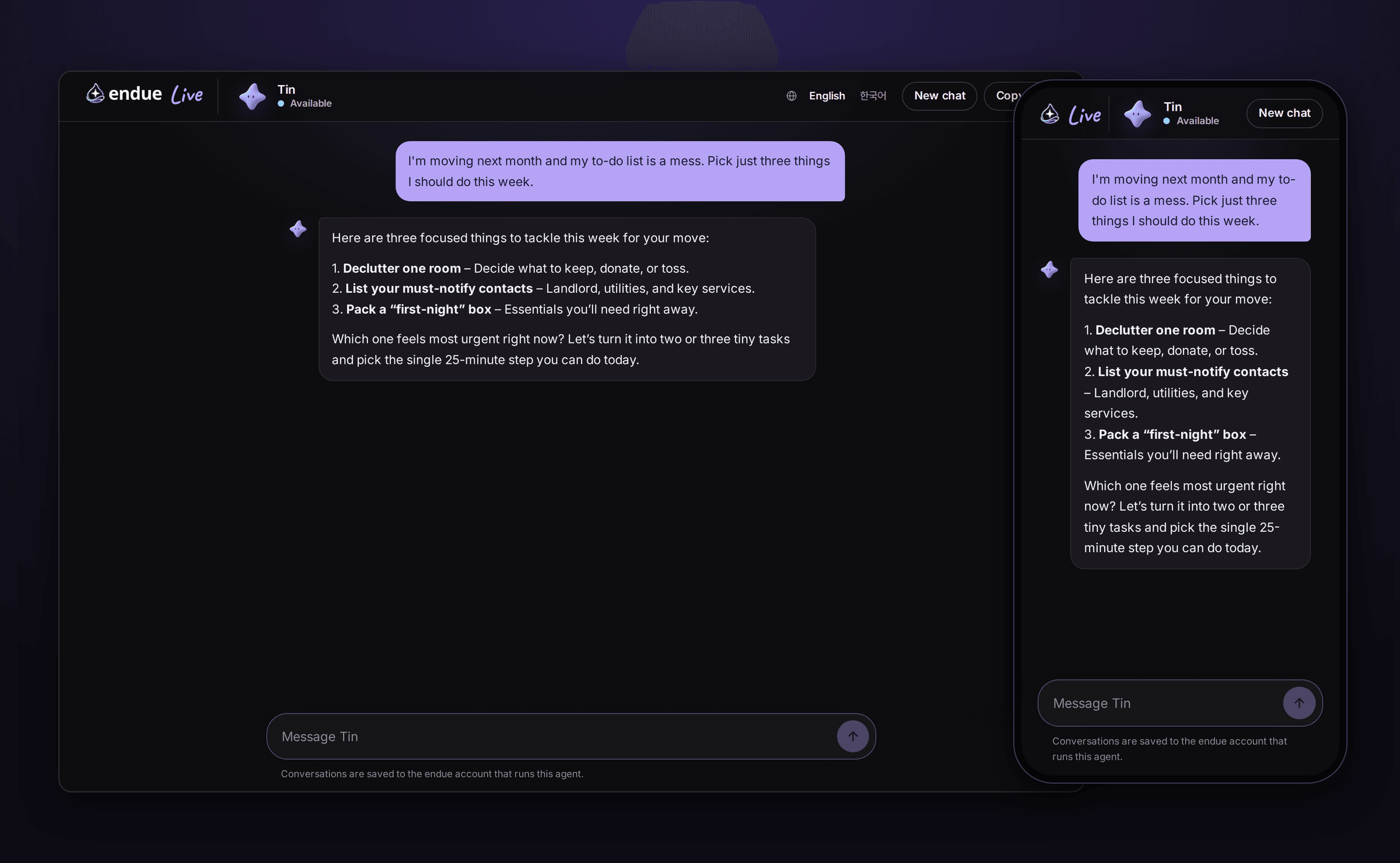
Each visitor gets their own conversation, so nobody sees anyone else’s questions. For people who don’t know where to start, there are starter buttons such as “What can you help me with?”. New chat in the top right starts over, and Copy link puts the address on the clipboard for passing along.
Step 1. Turn on Live in Studio
Open the agent and switch to Studio at the top. In the “01 Requests come in” column on the left, Live sits between Channel and API. Click it and the Live panel opens on the right.
Turn on Publish on endue.live and the setting is saved right away. Visibility has one option for now, Public, which means anyone with the address can talk to the agent.
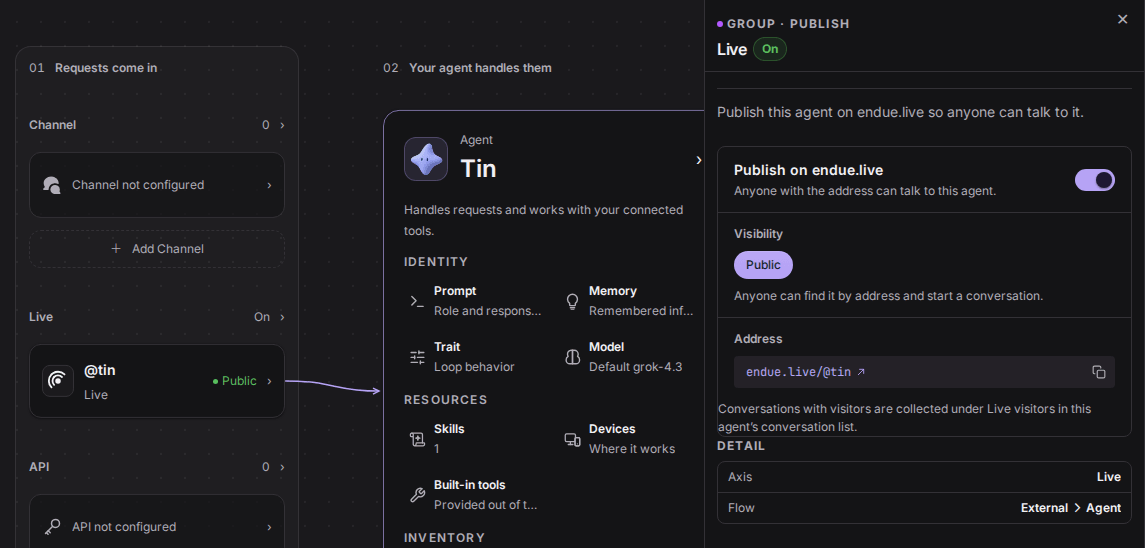
Once it’s on, the address shows up in the panel. The @tin part is the handle the agent got when it was created, and it never changes, so a link you’ve shared won’t break later. Click the address to see the page exactly as visitors will.
Only the agent’s owner can change this switch.
Step 2. Share the link
The address is a single line: https://endue.live/@handle. Send it in a messenger, drop it in a post or your profile, or turn it into a QR code for your business card.
There’s nothing to explain to the people who get it. They open the link, see a chat box, and start typing.
Step 3. Read what visitors asked
Conversations with visitors are collected under Live visitors in the agent’s conversation list. They stay apart from your own chats with the agent, and each visitor conversation gets its own row.
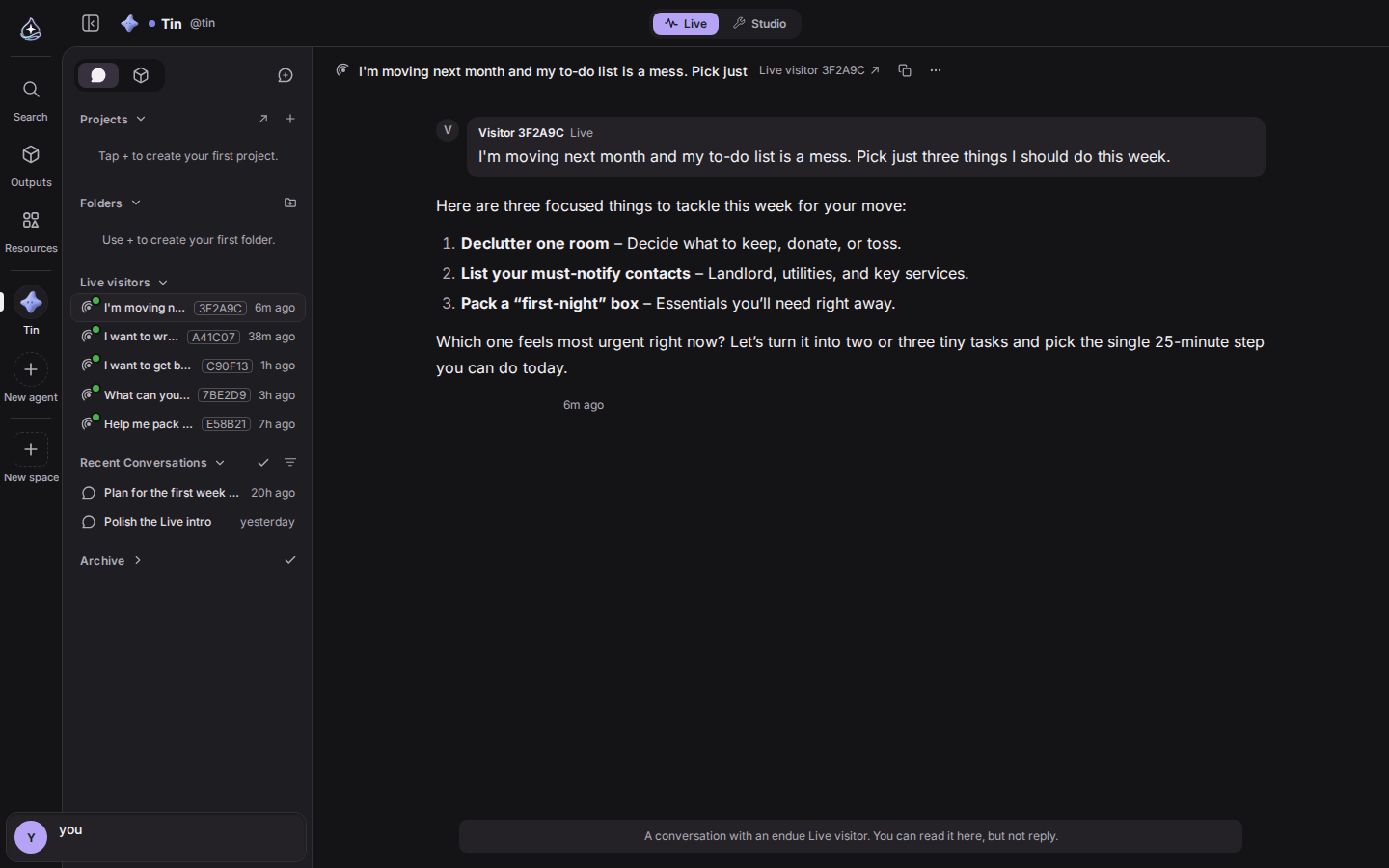
Visitors appear only as six-character aliases like 3F2A9C. Nothing that identifies a person, such as an IP address, is shown, not even to you. The conversations are read-only, so you can’t jump in and reply for the agent.
For many owners this list is the best part of going Live. It shows what people actually ask and where the agent got lost. Write answers to the common questions into the instructions, and when a reply misses the mark, fix the instructions in Studio and send the same question again.
Step 4. Keep an eye on usage
Visitor conversations use the agent owner’s plan allowance. Visitors don’t pay, and they can’t pick a model either. The agent answers with the model you set for it.
Open the Sources tab on the Usage page and endue Live has its own row. After you go Live, this is where you see how much visitor conversations used each day.
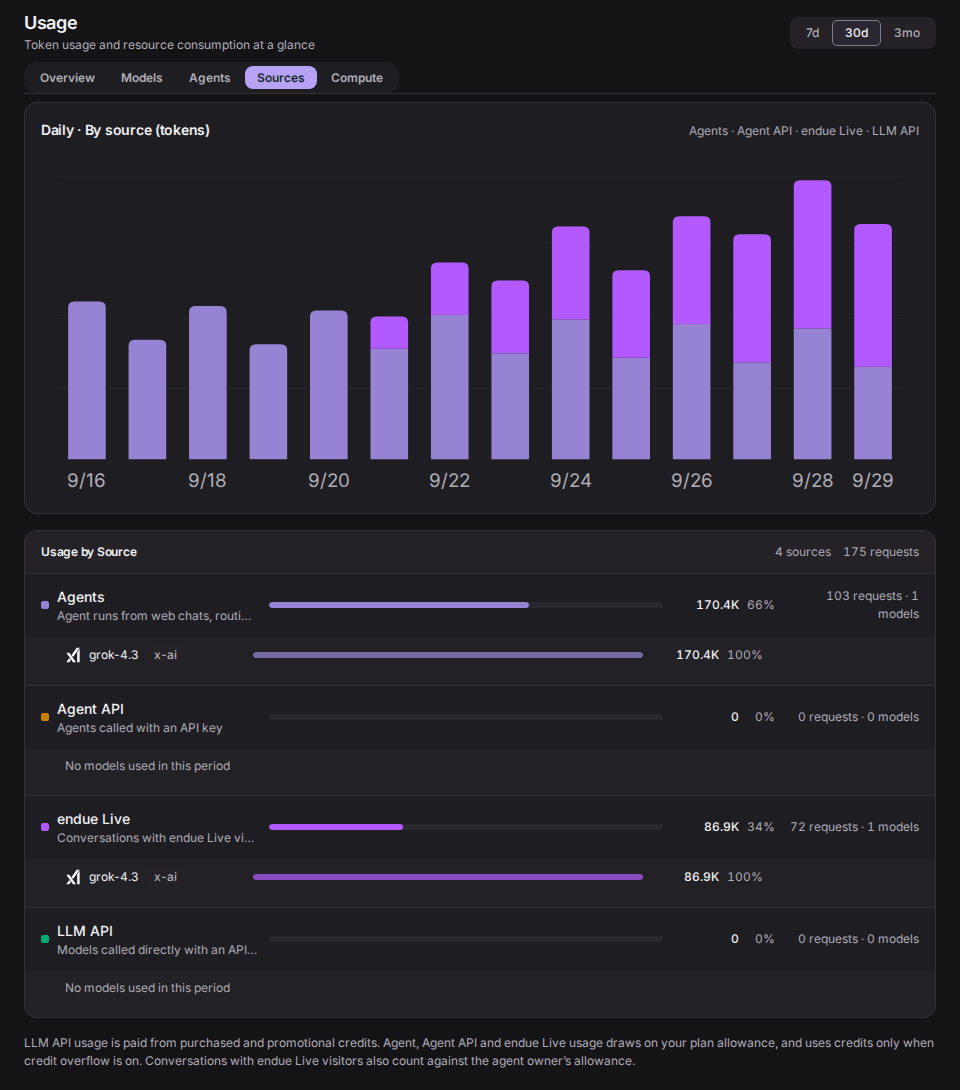
Each visitor can only send a set number of messages per minute, so one person can’t keep hammering the agent. More visitors still means more usage, though. If you’ve shared the link widely, check this tab now and then.
Turning it off
Turn the switch off in Studio and new messages are blocked from that moment, and the agent leaves the endue.live list. Visitors who open the link are told the agent isn’t Live right now. Turn it back on and the same address works again, with the earlier visitor conversations still in place.
Before you go public
Anyone with the link can talk to a Live agent. Give its setup one more look before you flip the switch.
- Connected tools. The agent uses its connected tools with visitors too. If it can read your calendar or documents, it can pull from them to answer a visitor. Only connect tools you’d be fine showing to anyone.
- Actions like sending or deleting. Actions that need approval, such as sending an email, stop the answer where they are, because a visitor has no way to approve them. Anything you’ve unlocked with Always allow for this agent will run in visitor conversations without asking. If you’ve set that, review it first.
- Memory. With visitors, the agent reads only the memories saved to the agent itself. It can’t see your personal or project memories, and nothing from a visitor conversation is saved as a new memory.
- Reply language. The page text follows the visitor, but the language the agent answers in comes from its instructions. If your agent will meet people from different countries, add a line like “Reply in the language the person writes in.” Tin, for example, answers in English unless someone asks otherwise.
- Visibility. A Public agent also appears in the list on the endue.live home page. There’s no private option yet that lets in only people who have the address.
When you’re ready, turn on the switch in Studio and think of the first person you’d send the link to.