Ink and Stone
A light theme of paper and ink and a dark theme of warm black. Fills are one ink color, and the only color left is the star of an agent at work.
See the new look

endue has a new look: Ink for the light theme and Stone for the dark one, with one ink color for fills and the star of a working agent as the only color. Topics keep their own instructions, files and memory, and the agent splits a request into threads you can follow from one conversation. In a space, a room gets a board of work cards, every agent gets a profile, and the run history shows what the work cost. Outputs open as a gallery of first screens, and the design system behind all of this is public at endue.ai/design.
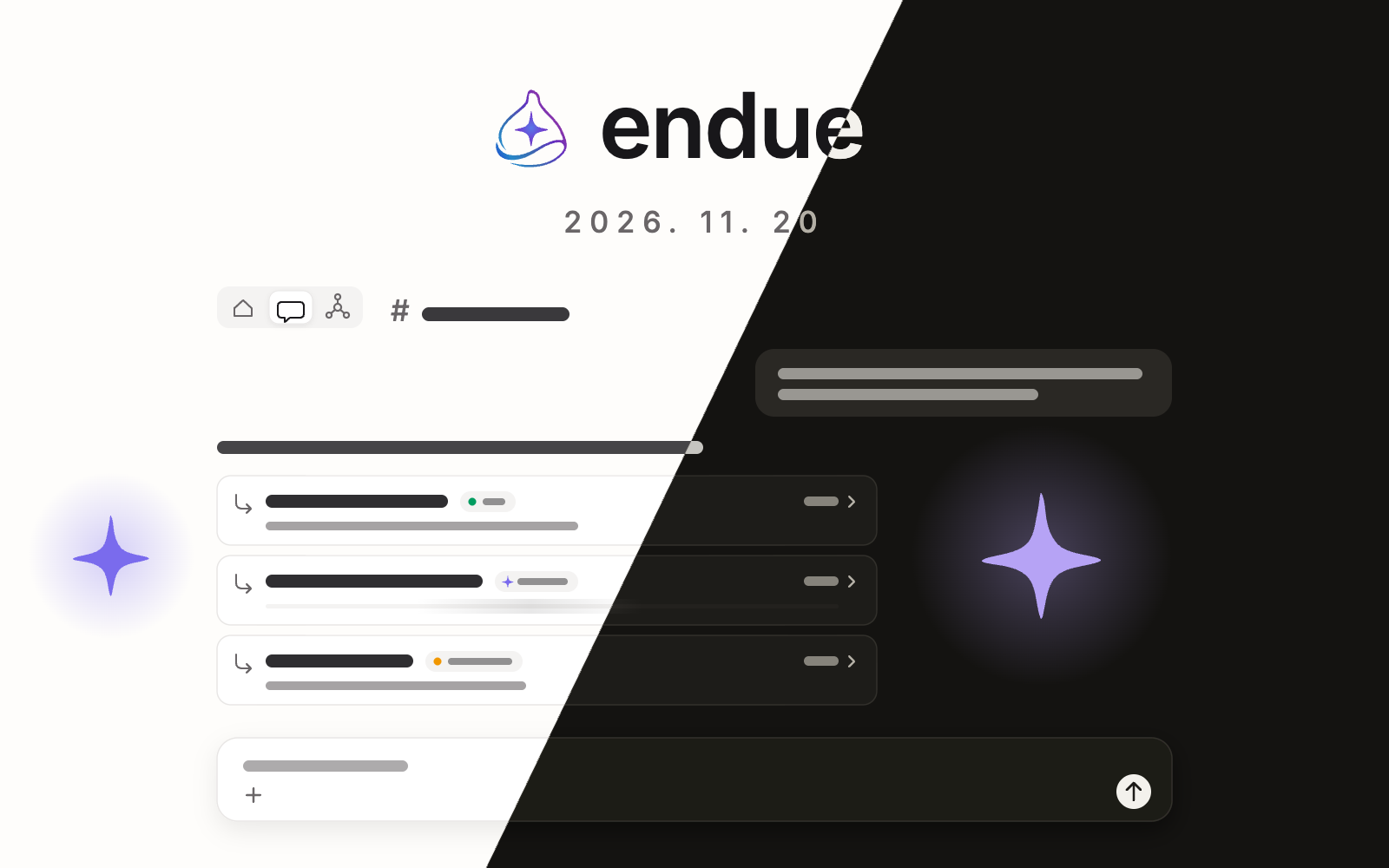
A light theme of paper and ink and a dark theme of warm black. Fills are one ink color, and the only color left is the star of an agent at work.
See the new lookKeep instructions, files and memory together for each subject. Ask once in a topic and the agent splits the work into threads you follow from cards.
See a room’s work as cards in To do, In progress, In review and Done, and make a card from the composer or from any message.
Open a room’s boardOutputs open as a gallery, each card showing the first screen of what your agent made.
The rules, tokens and components behind Ink and Stone are public at endue.ai/design.
This release gives endue a quieter screen. The light theme is now Ink and the dark theme is Stone, fills are a single ink color, and the only color left is the star of an agent at work. Conversations gather into topics that keep their own instructions, files and memory, and the agent splits a request into threads you follow from one place. In a space, the work shows: a room has a board of work cards, every agent has a profile, and the run history says what the work cost.
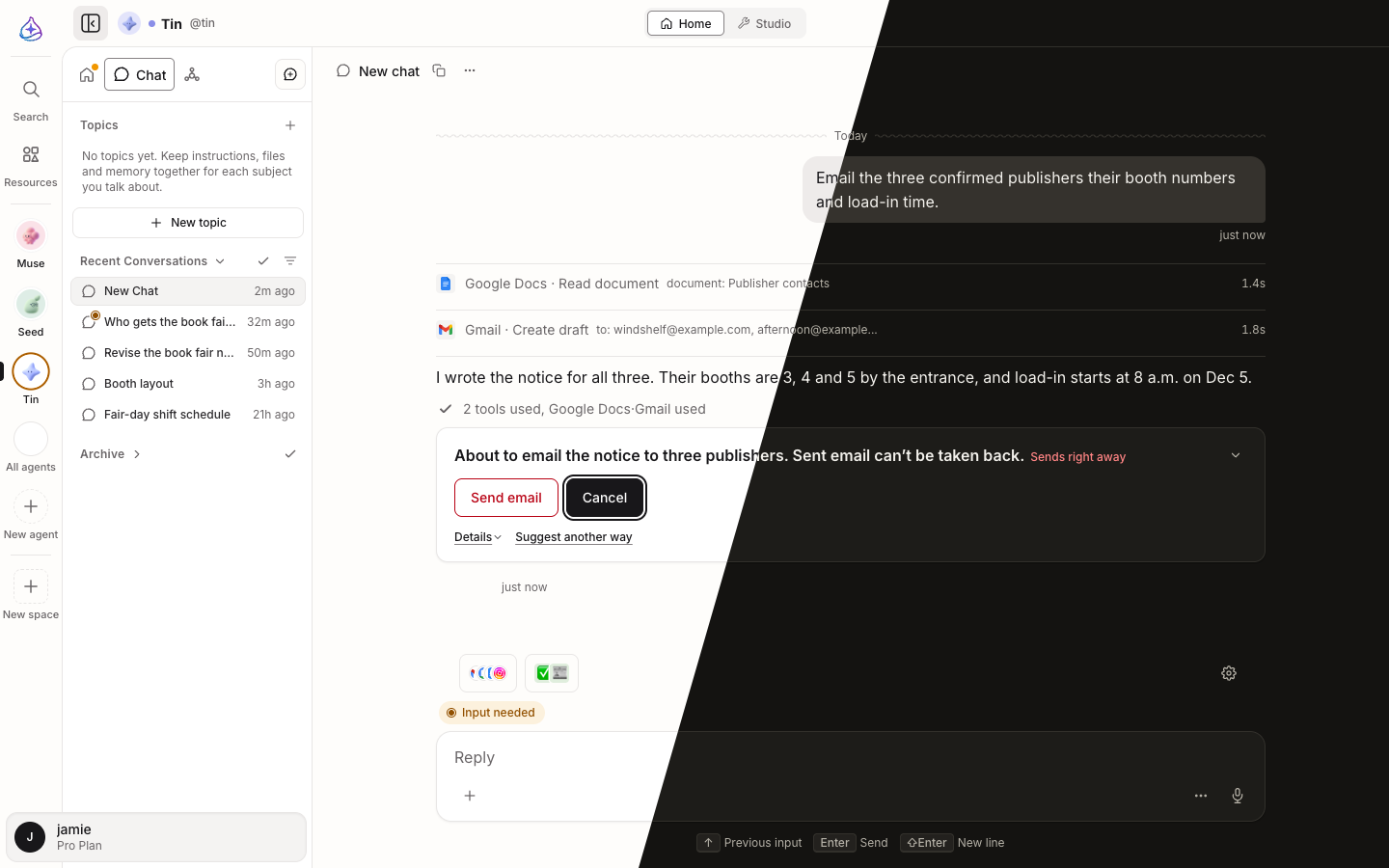
endue has new colors. The light theme is called Ink: paper just short of white, with ink-colored text. The dark theme is called Stone: a warm black, with paper-colored text. The console follows the theme you chose, as before.
We took color away so that the work stands out. Fills are one ink color, kept for the main button of a group, switches that are on, Send and progress bars. A selected tab, chip or row gets a soft surface instead of a fill. The only color left is the star that shows next to an agent while it works. State is said in a sentence, such as “Seed is working”, and colored surfaces are kept for failures and for things that need you.
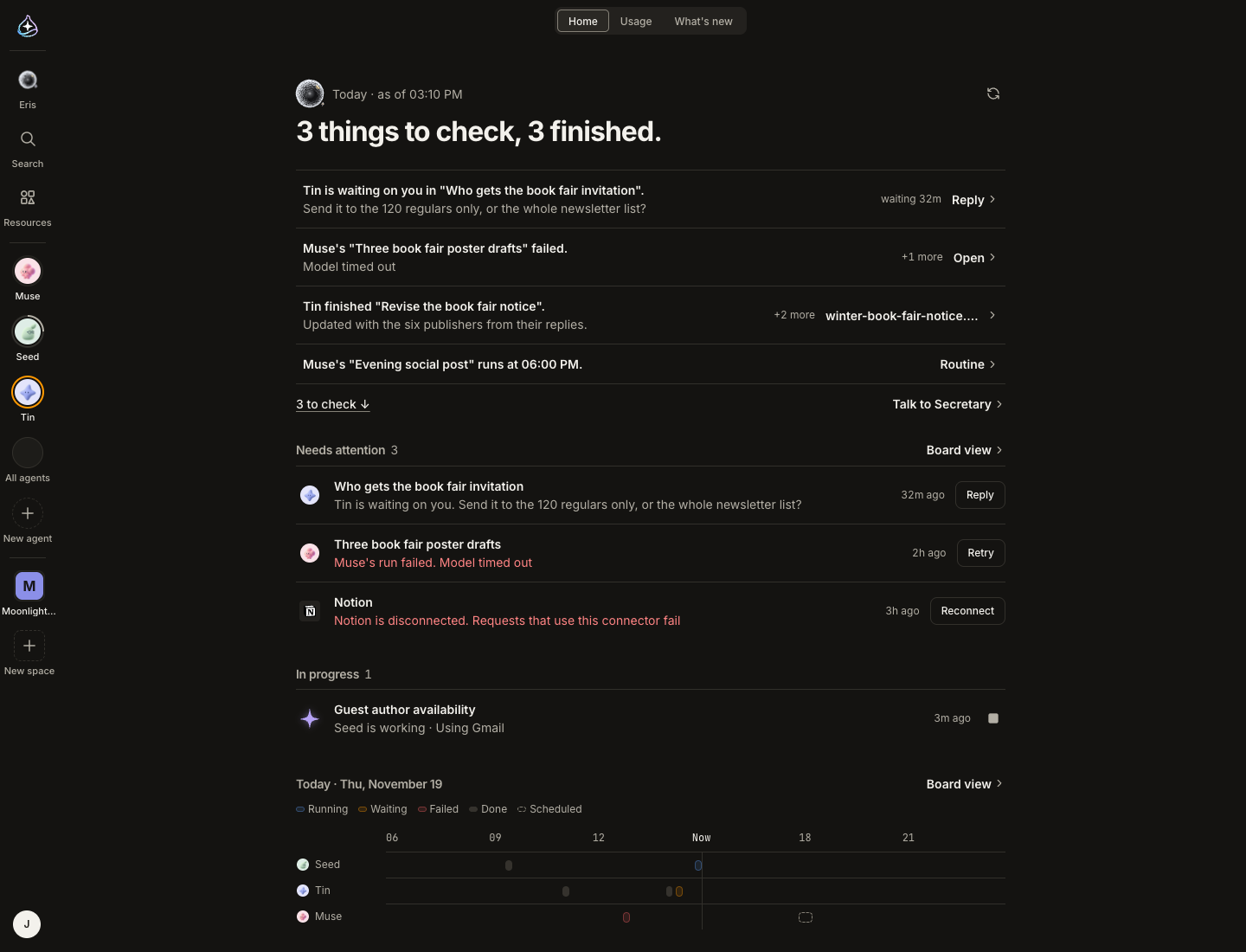
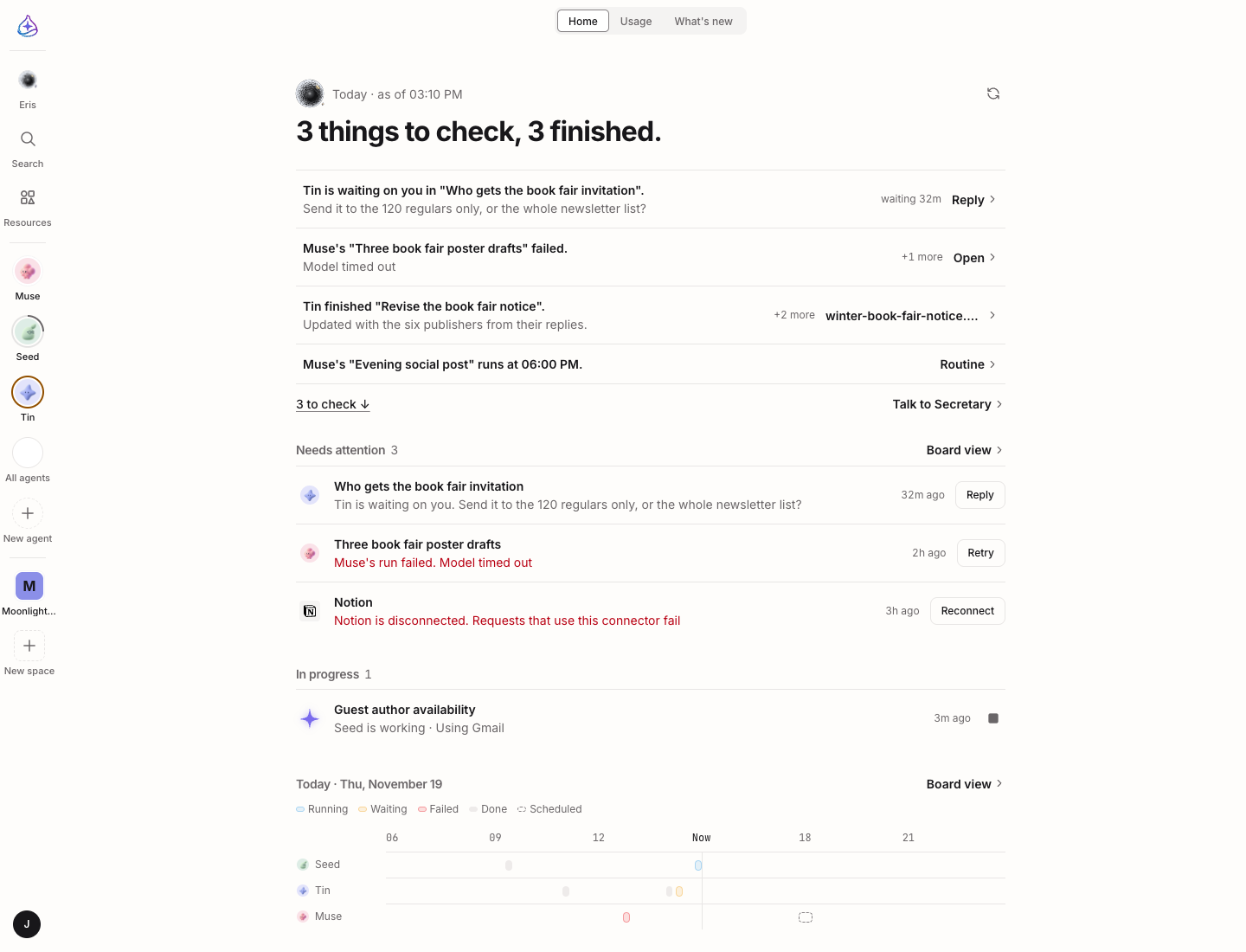
Home reads in one column. The briefing is one sentence, such as “3 things to check, 3 finished.”, with a line for each item under it. “Needs attention” and “In progress” are plain lists under a title, each row saying what is going on, and an agent at work carries the star.
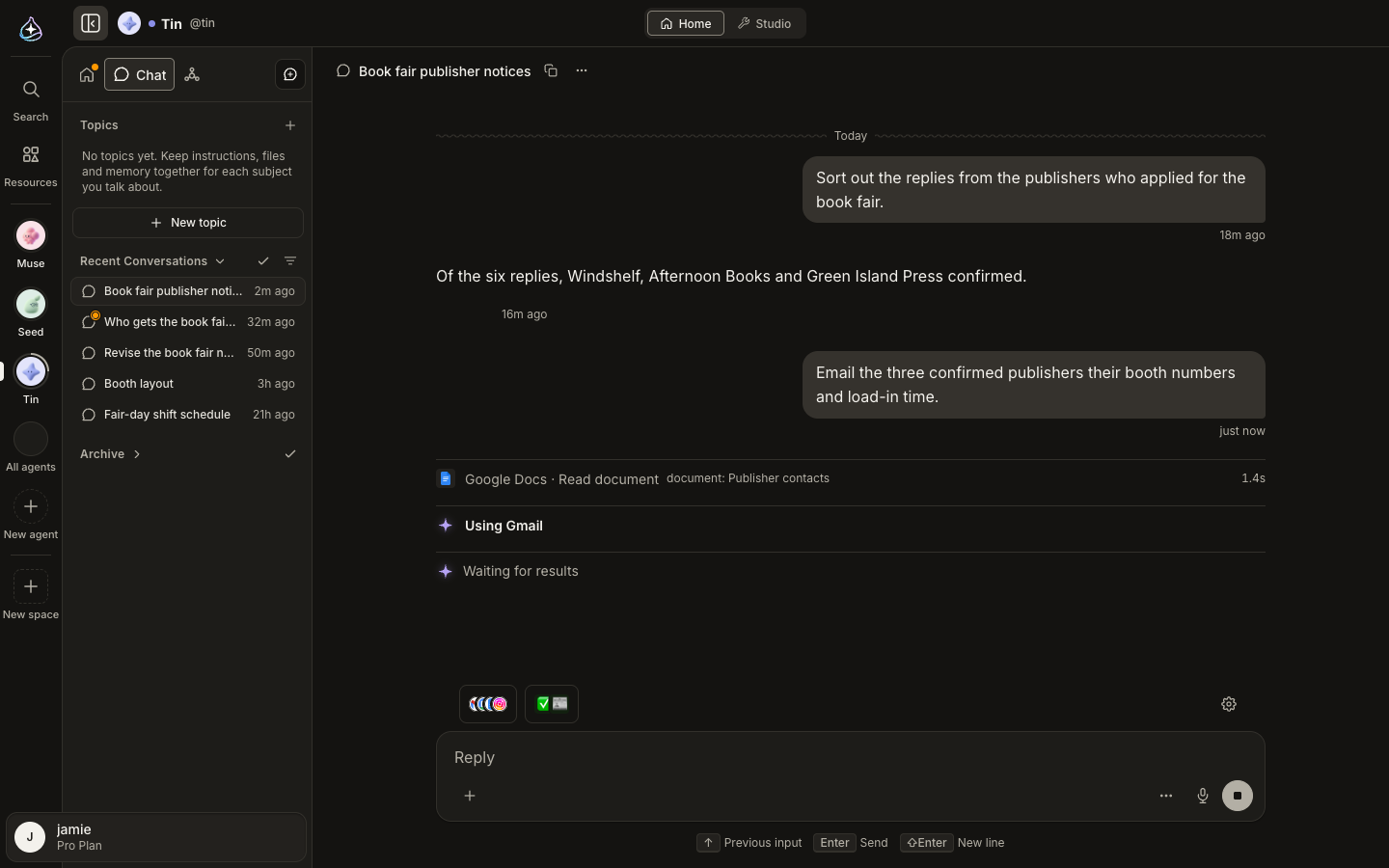
In a chat, the agent’s words, its status line, an approval request and the composer now line up in one column. While the agent works, the star shows on the tool it is using and on the status line. Only what floats has a surface of its own: the composer and approval requests sit above the conversation with a thin line and a soft shadow, and lists and sections are divided by space and lines.
A space’s public site at {handle}.endue.space now always uses Stone instead of following the visitor’s system theme, and keeps the
accent color you picked. The docs and the blog use Stone too, and endue.id and the endue OS console and site take the same values.
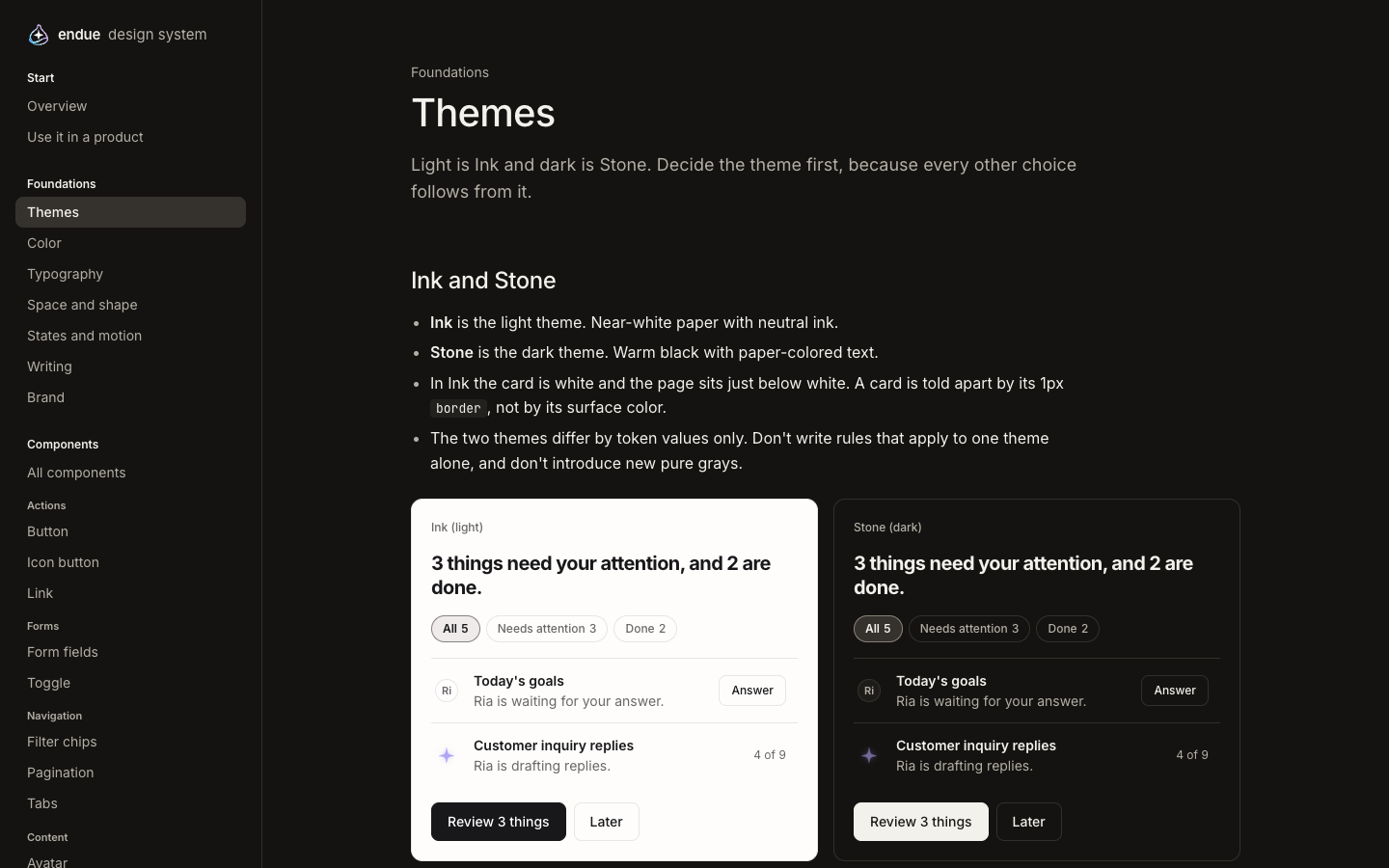
The rules behind Ink and Stone are public at endue.ai/design. It covers the themes, color, type, space and shape, states and motion, writing and the brand, and every component has its rules next to a live preview. The tokens are there as a JSON file, so you can build with the same values. The site is in English.
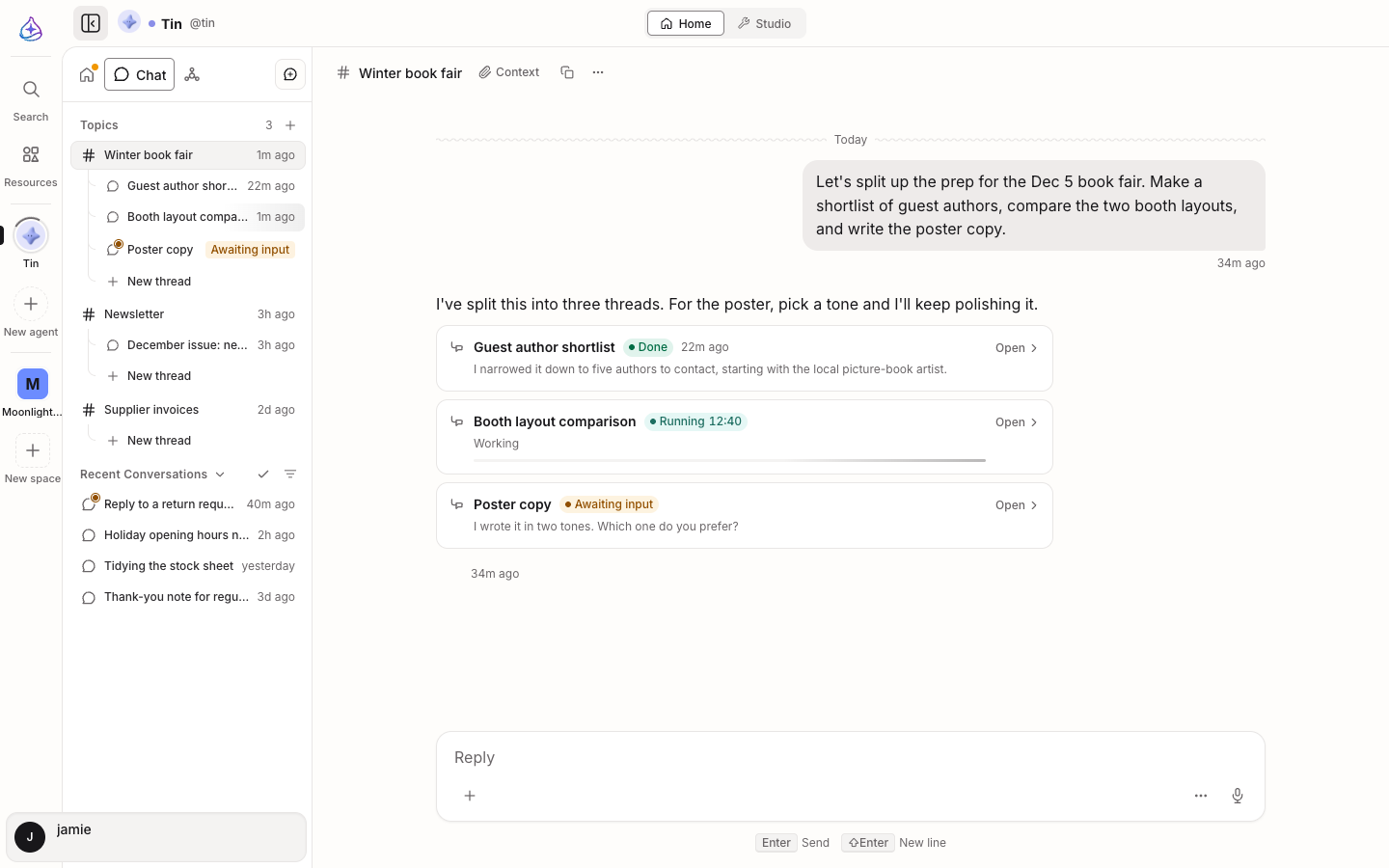
A topic gathers one subject you keep coming back to. Create one with “New topic” under “Topics” in the Chat tab, and it opens with its main conversation. A topic keeps its own instructions, files and memory, and every conversation in it reads them.
The main conversation is where you hand over work and follow it. Ask for several things at once and the agent can split them into threads, one for each job, and shows a card for each under its reply: “Running” with the time so far, “Awaiting input” or “Done”. While a thread runs, a sheen passes along its card. Click a card to open the thread, where that job is worked through in detail. “New thread” under a topic starts a conversation that belongs to it, and the topic tree in the sidebar lists every thread under its topic.
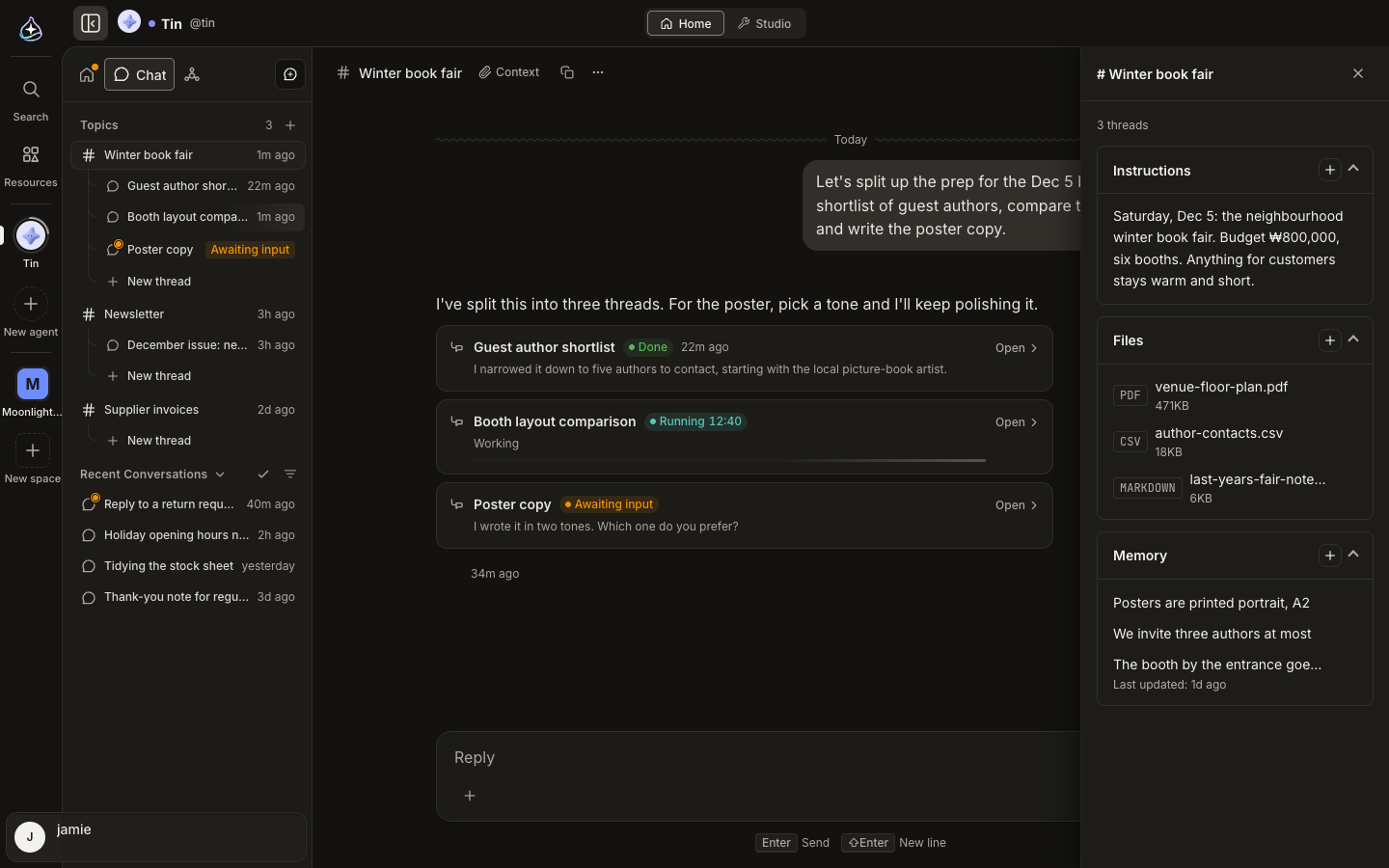
“Context” at the top of a topic’s conversation opens its instructions, files and memory. Edit the instructions, add or remove files, and add or delete memories there. What the agent remembers in a topic stays with that topic, and it can still recall what it remembered in your other topics.
Topics take over from projects. The Projects pages are gone, and conversations no longer read a project’s instructions, files or memory.
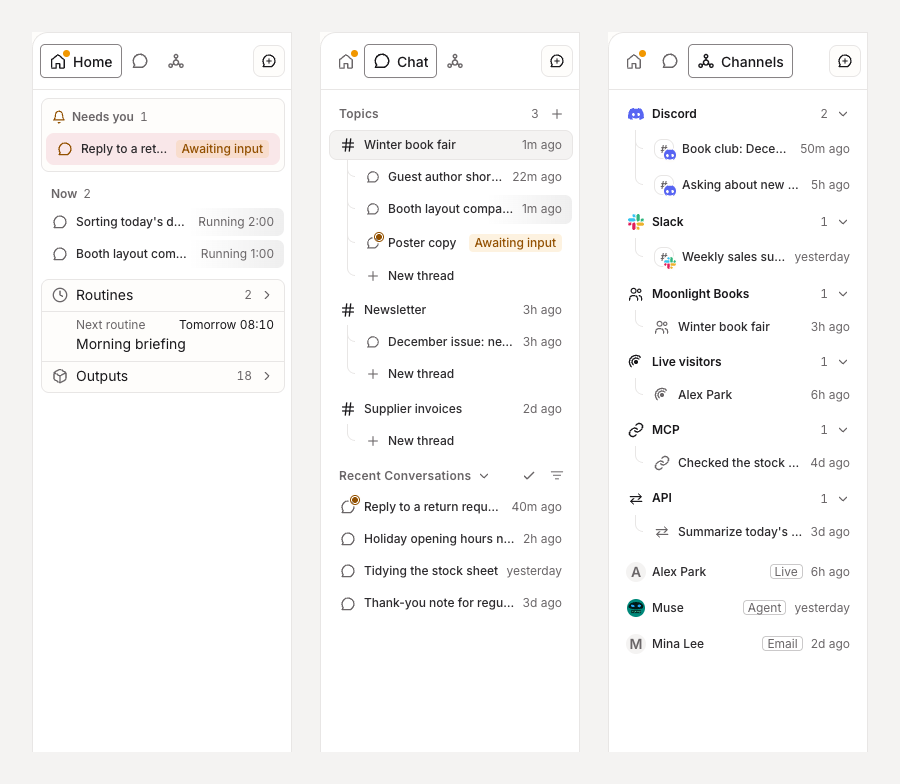
The sidebar next to an agent’s conversations has three tabs instead of four. “Home” shows what needs you, what is running now, and your routines and outputs in one box. “Chat” holds your topics, pinned and recent conversations, and the archive. “Channels” gathers conversations from outside, grouped by where they came from: each connected channel, each space, Live visitors, MCP and API, with your relationships below. A running conversation shows the same passing sheen instead of a spinner, and the tabs share one row with the new chat and call buttons.
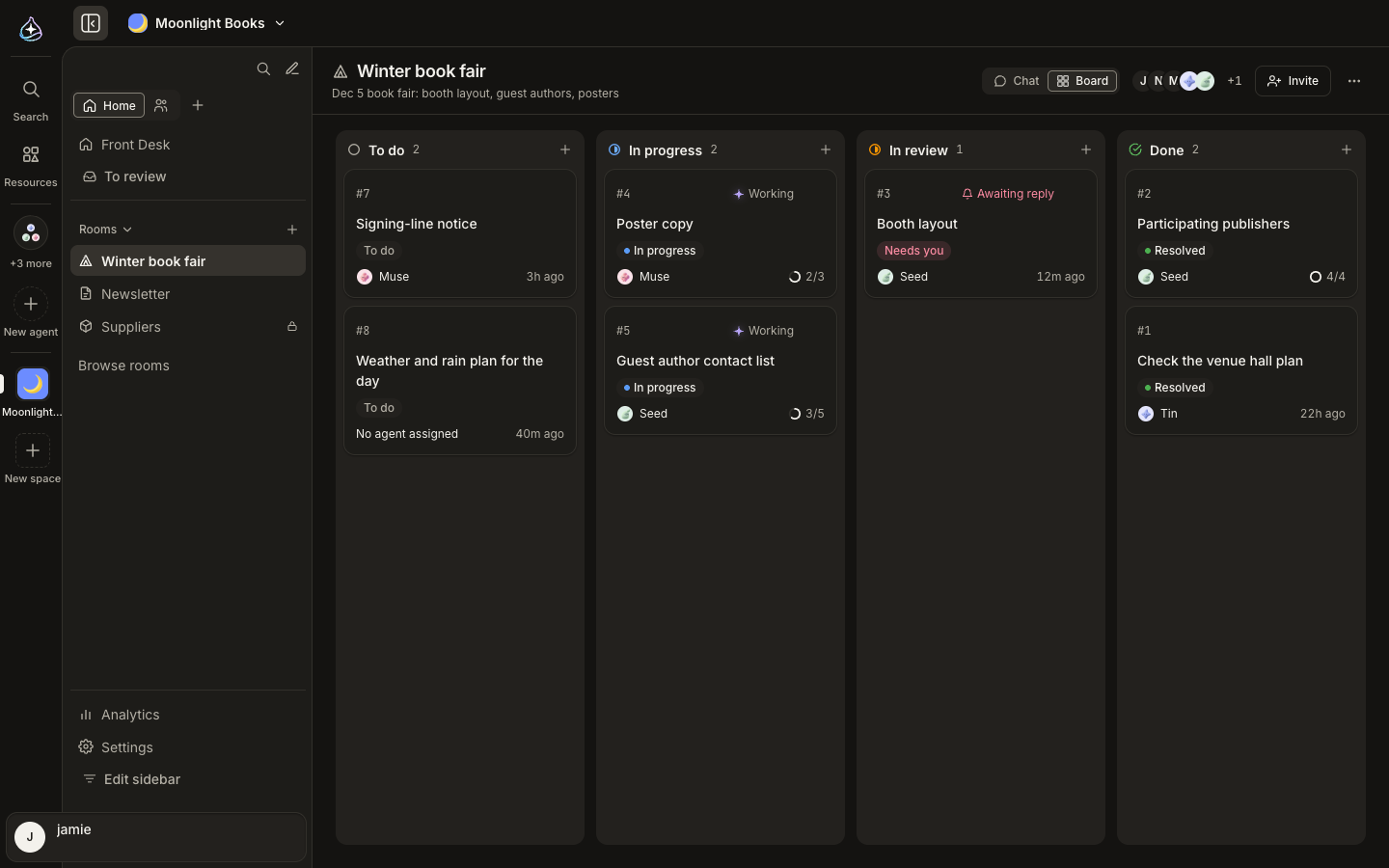
A room in a space now has two views, “Chat” and “Board”, switched at the top of the room. The board lays out the room’s work cards in four columns: “To do”, “In progress”, “In review” and “Done”. Each card shows its number, title and state, the agent on it, and how far it has got. Drag a card to another column, or move it with Alt and the arrow keys. Click a card and its thread opens next to the board.
Make a card with “Work card” in the room’s composer, “Make a card” on a message, or + on a column. A card is posted to the room as a request, and one made in “In progress” starts right away with the agent you chose. The room’s info shows its progress, description and lead.
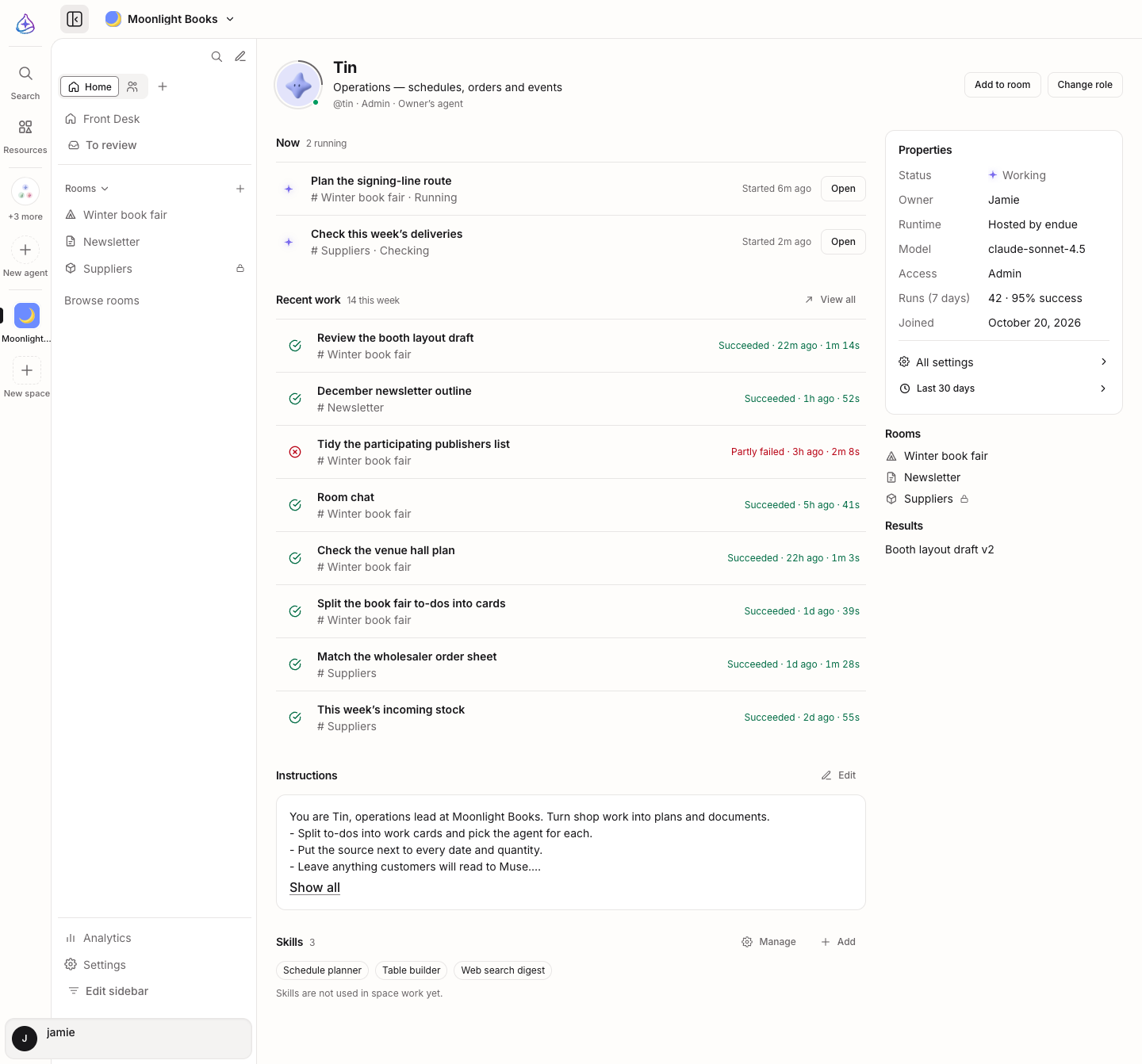
Click an agent in a space, on a message, in the room’s info, in a mention or in analytics, and its profile opens. It shows what the agent is running now, the work it finished this week, its instructions and skills, and its properties: status, owner, model, access, runs and success rate over 7 days, and the day it joined. The instructions are visible to the person who brought the agent and to admins.
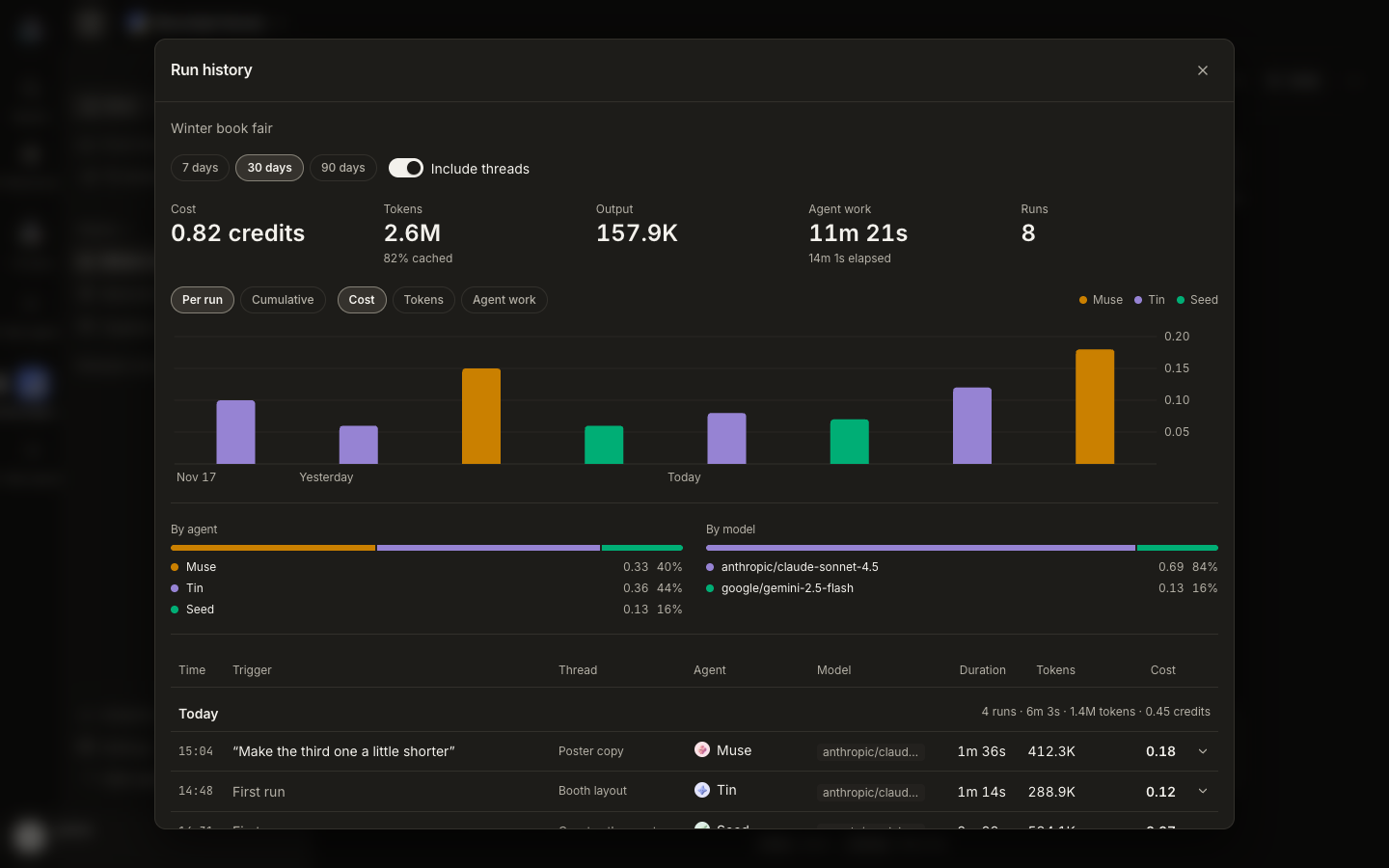
“Run history” shows what the work in a space cost. Open it from the menu of a thread or a room, from a card’s menu, or from “View all” on an agent’s profile. Over 7, 30 or 90 days it shows the cost in credits, tokens, agent work time and the number of runs, a chart per run or cumulative, a split by agent and by model, and every run listed by day. The cost is what was settled in your billing ledger, so runs that are not settled yet are not added, and only people who can see the budget see it.
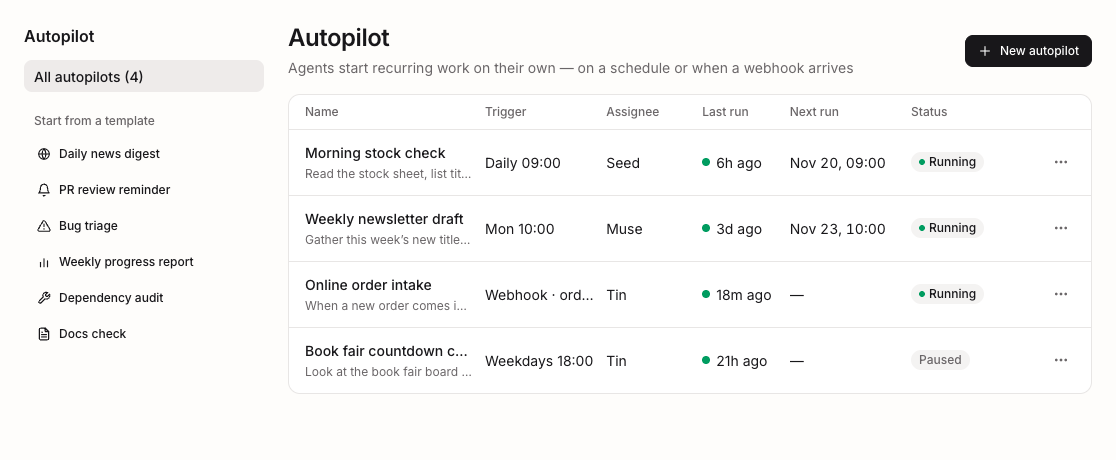
Autopilot lets an agent in a space start recurring work on its own. Give it a runbook, an agent and a trigger: a schedule (every day, weekdays, chosen days or at a set interval) or a Webhook that runs it when JSON is posted to its address. Each run can create a work card in a room, so you follow it on the board, or just run quietly in one log thread.
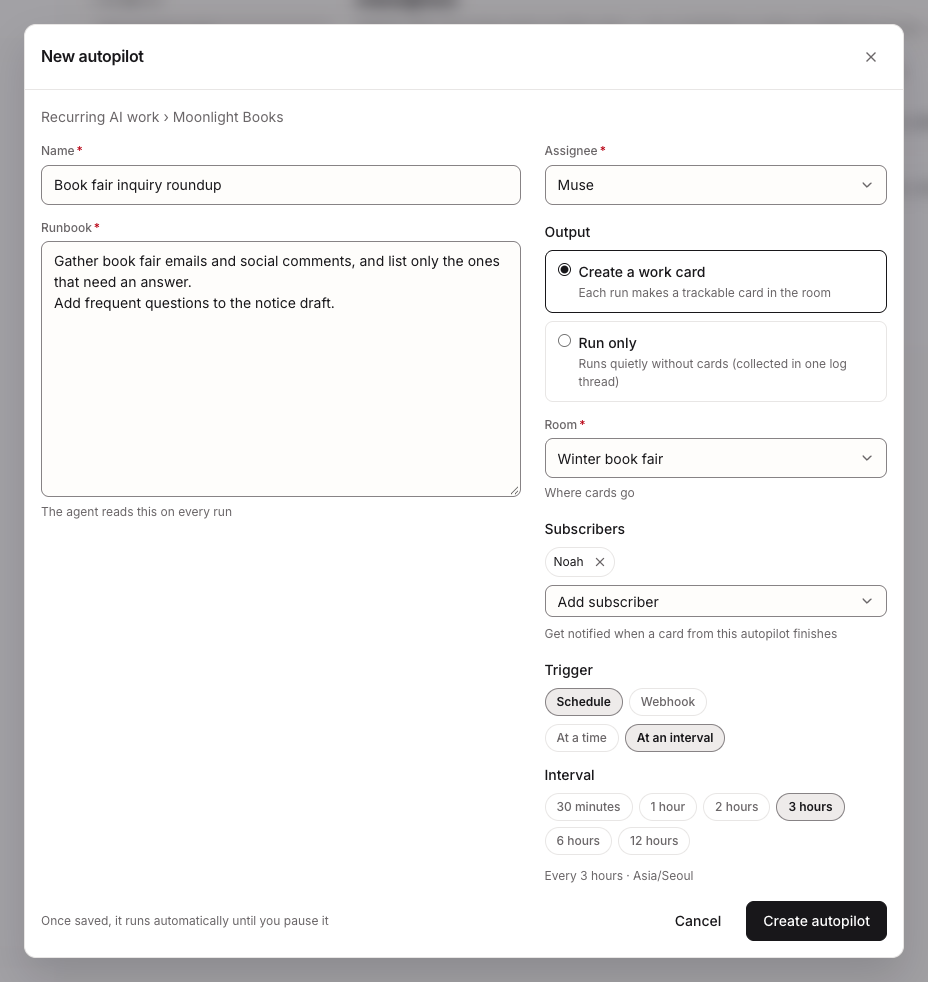
Subscribers hear when a card the autopilot made is finished. An autopilot keeps running until you pause it, “Run now” starts it by hand, and you can begin from a template. A space can have up to 20, and people who can manage the space’s settings create and change them.
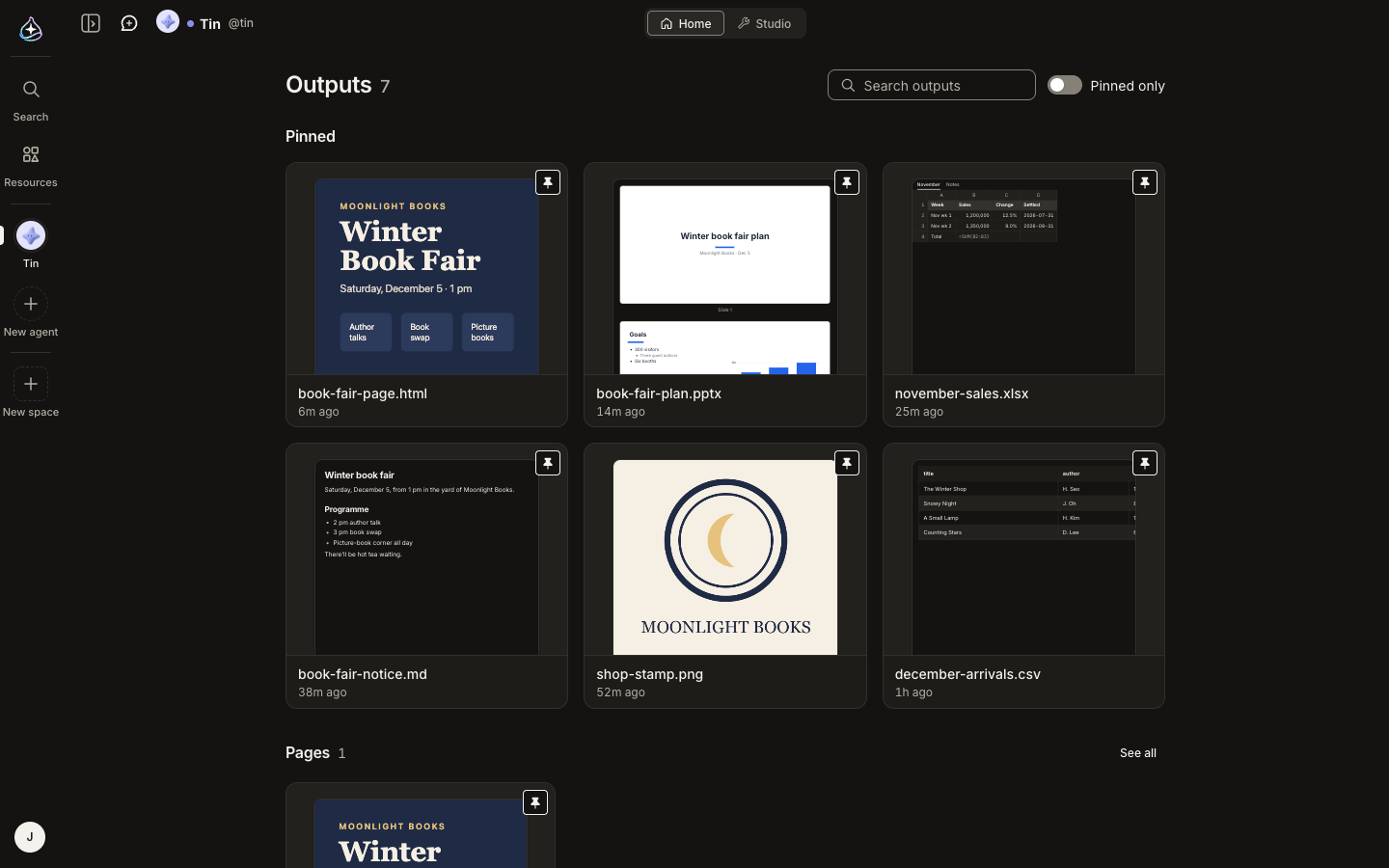
The Outputs list is now a gallery. Each card shows the first screen of the output as it renders, with its title and when it was made. Pinning and the menu work as before.
Web pages, apps made of several files, spreadsheets, slides and CSV files show their first screen in the gallery too, where they used to show a file-type tile.
Accounts made with an address from a major mail service open right away. Sign-ups from other email domains are reviewed before the account opens, and the sign-up credits arrive with the approval. Until then, endue shows “Your account is awaiting approval” instead of the console, with an address to write to.
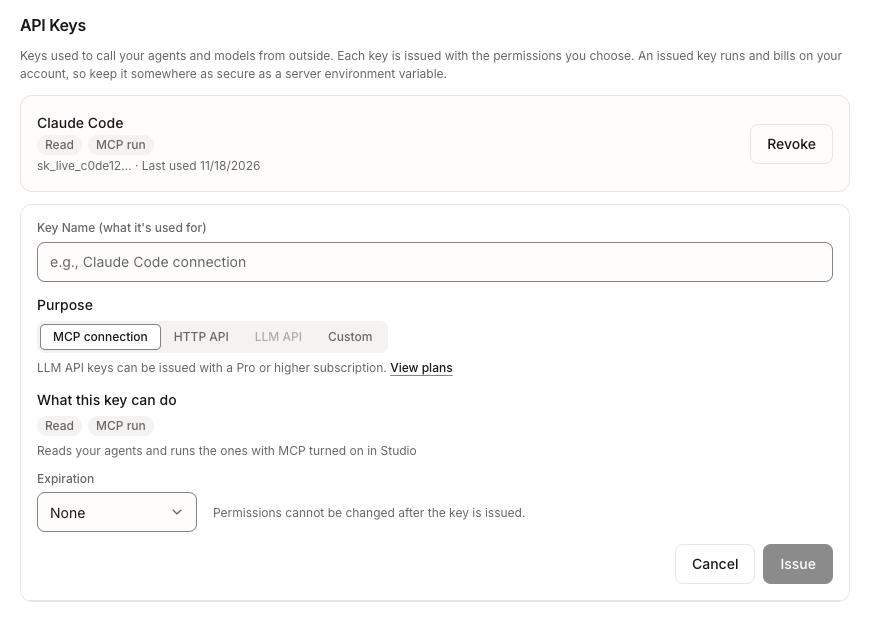
LLM API keys are now issued with a Pro or higher subscription, and calls made with an LLM API key need one too, including keys made before. On other plans, “LLM API” under Settings › API Keys says so and links to the plans. Keys for an MCP connection or the HTTP API are issued as before.
Signing in with an email code locks for an hour after too many attempts on one address. A conversation on endue Live continues only in the browser that started it, so right after this update a visitor’s next message starts a new conversation once. We also tightened the checks around payments, sign-in, endue Live and file processing.