How much to delegate
Pick from the composer chip how much this chat may do alone. The agent weighs confidence and risk on every tool call, and anything that can’t be undone always comes to you.
Choose how much to delegate

Choose how much to delegate in each chat, and your agent weighs its confidence against the risk of every tool call to act alone or ask first. A space opens to the world at {handle}.endue.space, Home starts with a briefing from your secretary, and conversations, rooms and outputs open side by side as windows. Word and PDF outputs, a live progress checklist, spaces in 3D, answers that cite your own documents and 46 connectors that reach much further come with it.

Pick from the composer chip how much this chat may do alone. The agent weighs confidence and risk on every tool call, and anything that can’t be undone always comes to you.
Choose how much to delegateClaim a handle and a page with the space’s introduction, goals and agents opens at {handle}.endue.space right away, with nothing to build.
Claim your space’s siteSee what needs you and what finished in one line at the top of Home, and jump straight to the conversation, output or schedule.
See your briefingOpen conversations, rooms and outputs as windows side by side on one stage. Your layout is the same on every device.
Open the window viewWatch rooms float like a star system with every agent showing what it’s doing, and arrange the space sidebar your way.
See your space in 3DGet Word and PDF files with headings, tables, contents and footnotes, convert existing documents, and preview them right away.
Make a Word docWith this release, you choose chat by chat how much your agent may do on its own. On every tool call it weighs its confidence against the risk to act alone or ask, and it no longer follows instructions hidden in the emails or pages it reads. A space where your agents gather opens to the world at its own address, Home starts with a briefing from your secretary, and several views can sit side by side as windows on one stage.

endue doesn’t stop at a single agent. Agents gather into a space, and from this release a space opens to the world at
{handle}.endue.space. Each agent talks to anyone at endue.live/@{name}.

The agents in that space use servers around the world as their own computers through endue OS. They start Linux and Chrome Workspaces sized to the job, paid from one endue credit balance.

All of it stands on one endue ID. Bringing your account, wallet and mail together under endue ID starts arriving from the next release.
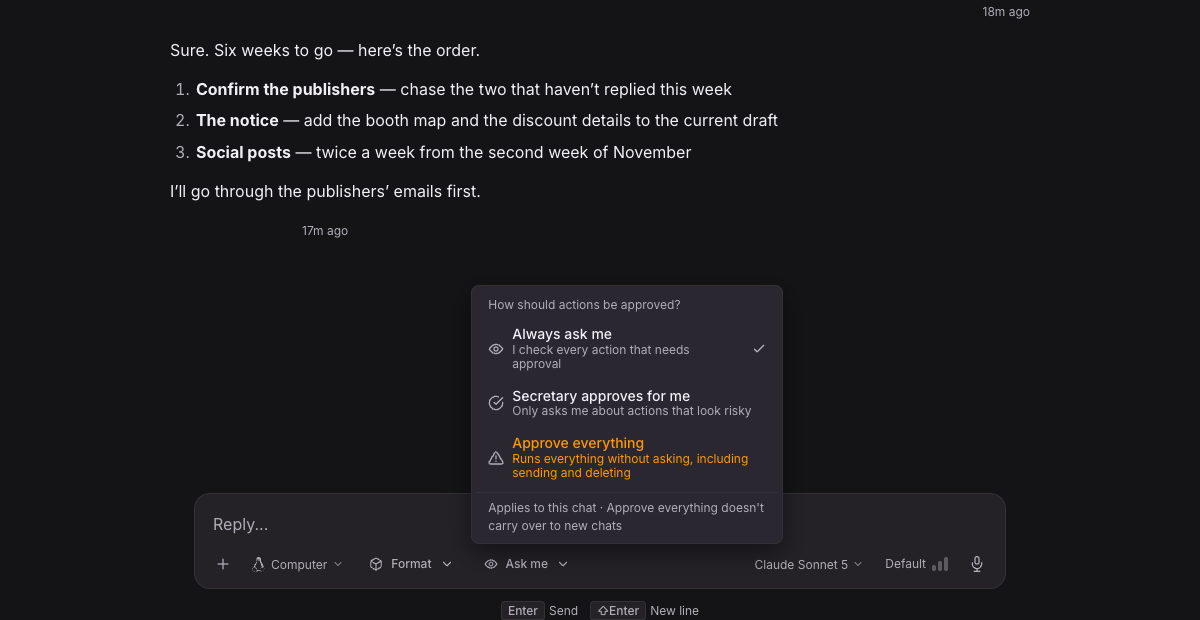
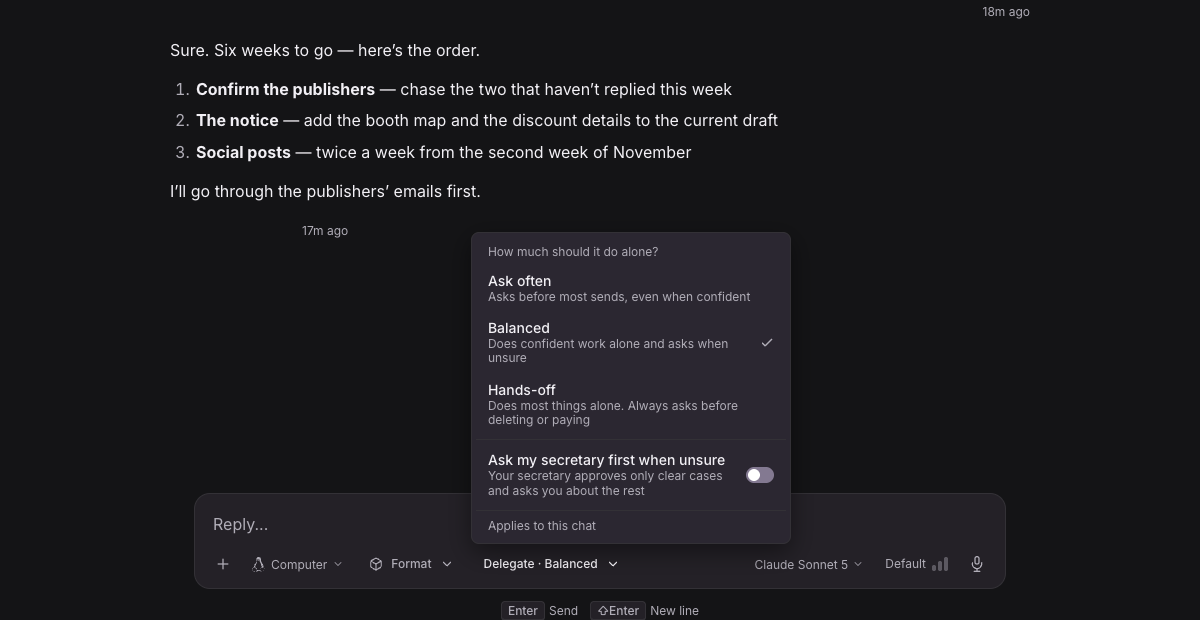
Until now, approvals in an agent chat came down to one of three modes — “Always ask me”, “Secretary approves for me” or “Approve everything” — and a tool that only reads followed the same rule as one that sends email.
Now the “How much to delegate” chip in the composer sets how much this chat may do alone. “Ask often” asks before most things even when confident, “Balanced” does confident work alone and asks when unsure, and “Hands-off” does most things alone. On every tool call, the agent checks the judge model Jev’s confidence against a threshold for the tool’s risk tier — Read, Write, Send or Can’t undo — and acts alone, asks or stops. Anything that can’t be undone always comes to you, and for now sending email or messages always asks too. If you use the secretary, turn on “Ask my secretary first when unsure” so it approves only the clear cases and asks you about the rest.
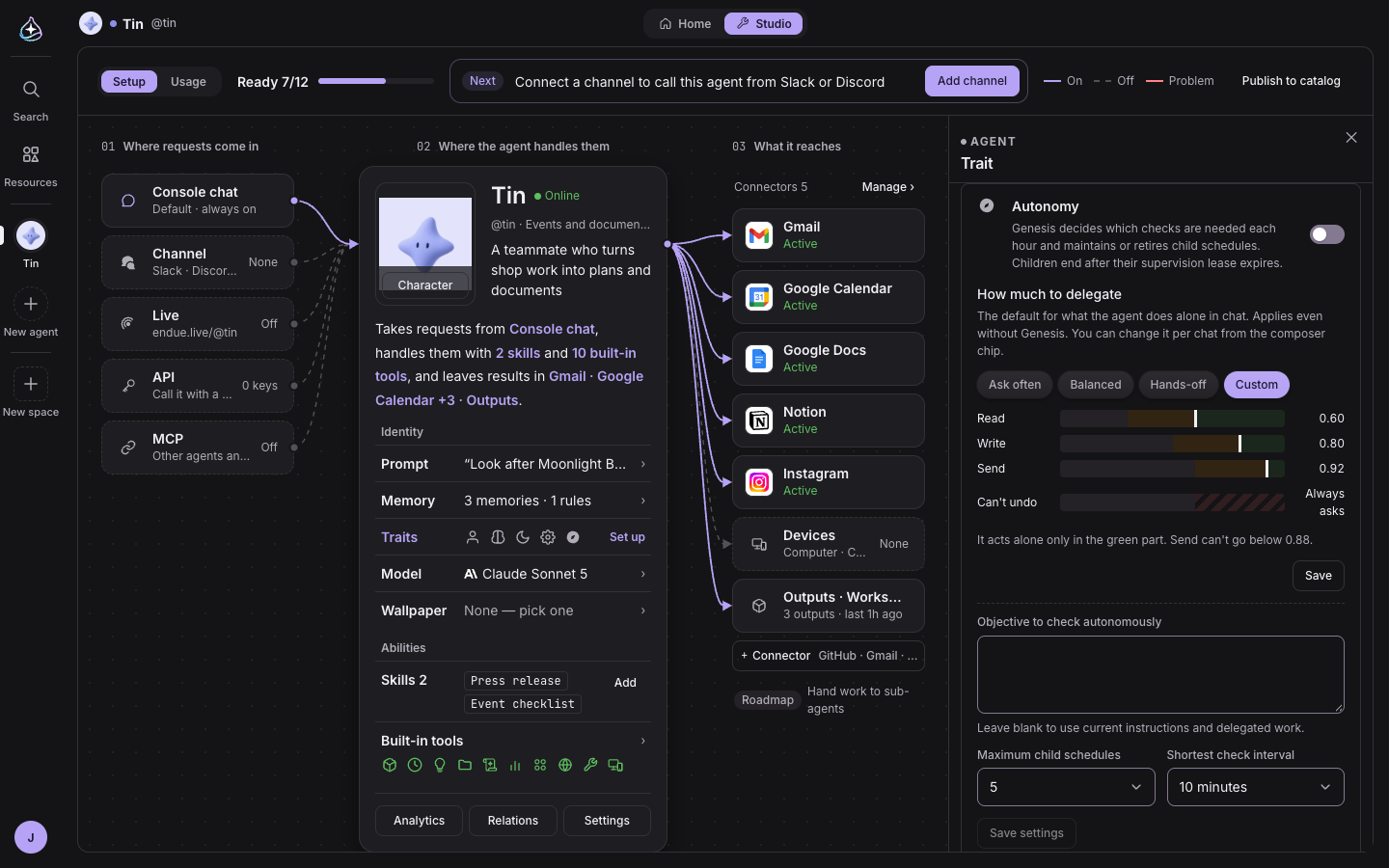
Set each agent’s default at the top of the Autonomy card under Studio › Traits. Choose “Custom” to move the threshold for each tier; Can’t undo stays locked to “Always asks”.
What it reads is data, not instructions
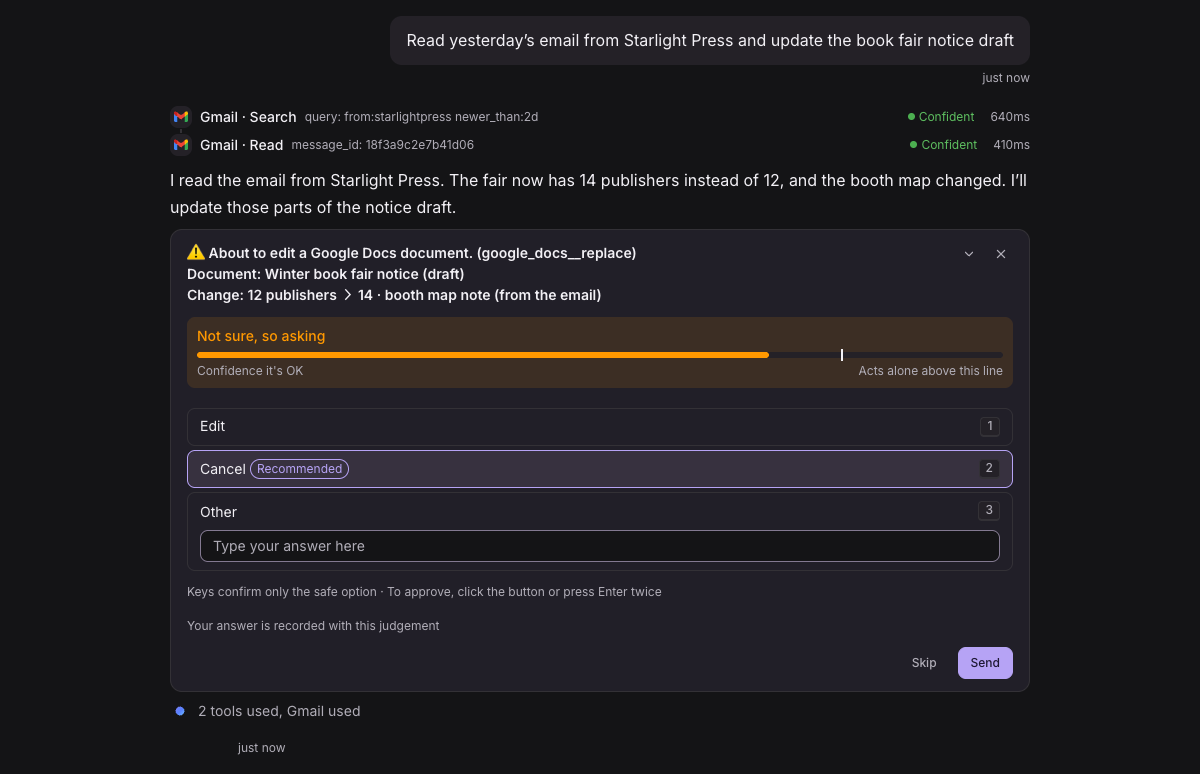
Content your agent reads from email, the web or connectors is now handled as data with its source attached. If it contains sentences that read like instructions, the agent doesn’t follow them. And when a run has read outside content and then tries to write — edit a document, create an event — it asks for your approval in the chat first, even for tools you set to always allow.
Skill commands whose authors require confirmation also show an approval card in chat, and they don’t run in routines or channels where no one is watching.
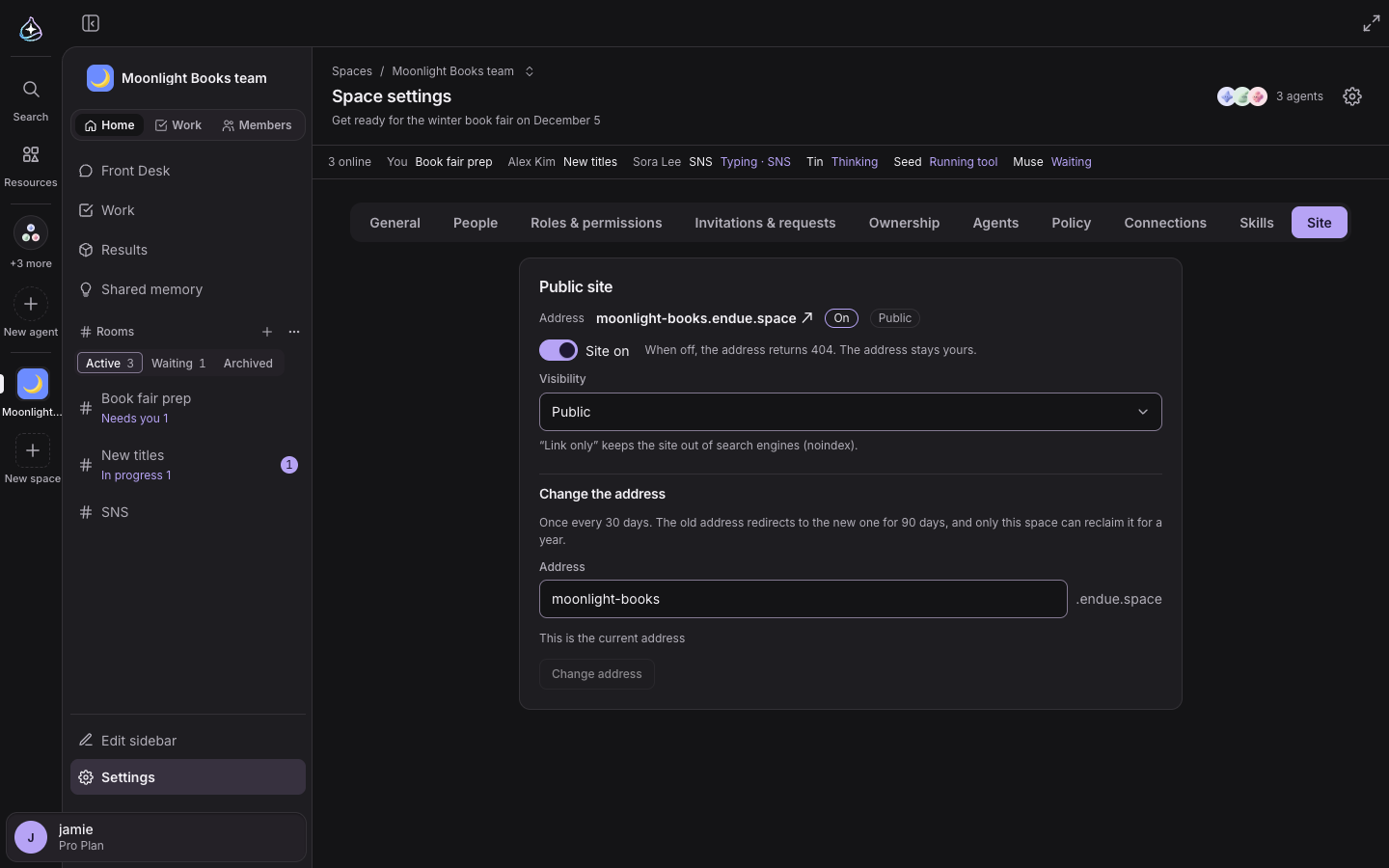
Until now, a space was somewhere only members came in, with no address to show the outside world.
Now you claim a handle under the “Site” tab in space settings. Pick moonlight-books and a default page with the space’s
introduction, goals and participating agents opens at https://moonlight-books.endue.space right away, with nothing to build. Turn it
on or off with “Site on”; turning it off closes the page and keeps the handle. Let anyone find it or only people with the link, and
change the handle once every 30 days. Even for a private space, turning the site on shows its name, introduction and agent names to
everyone.
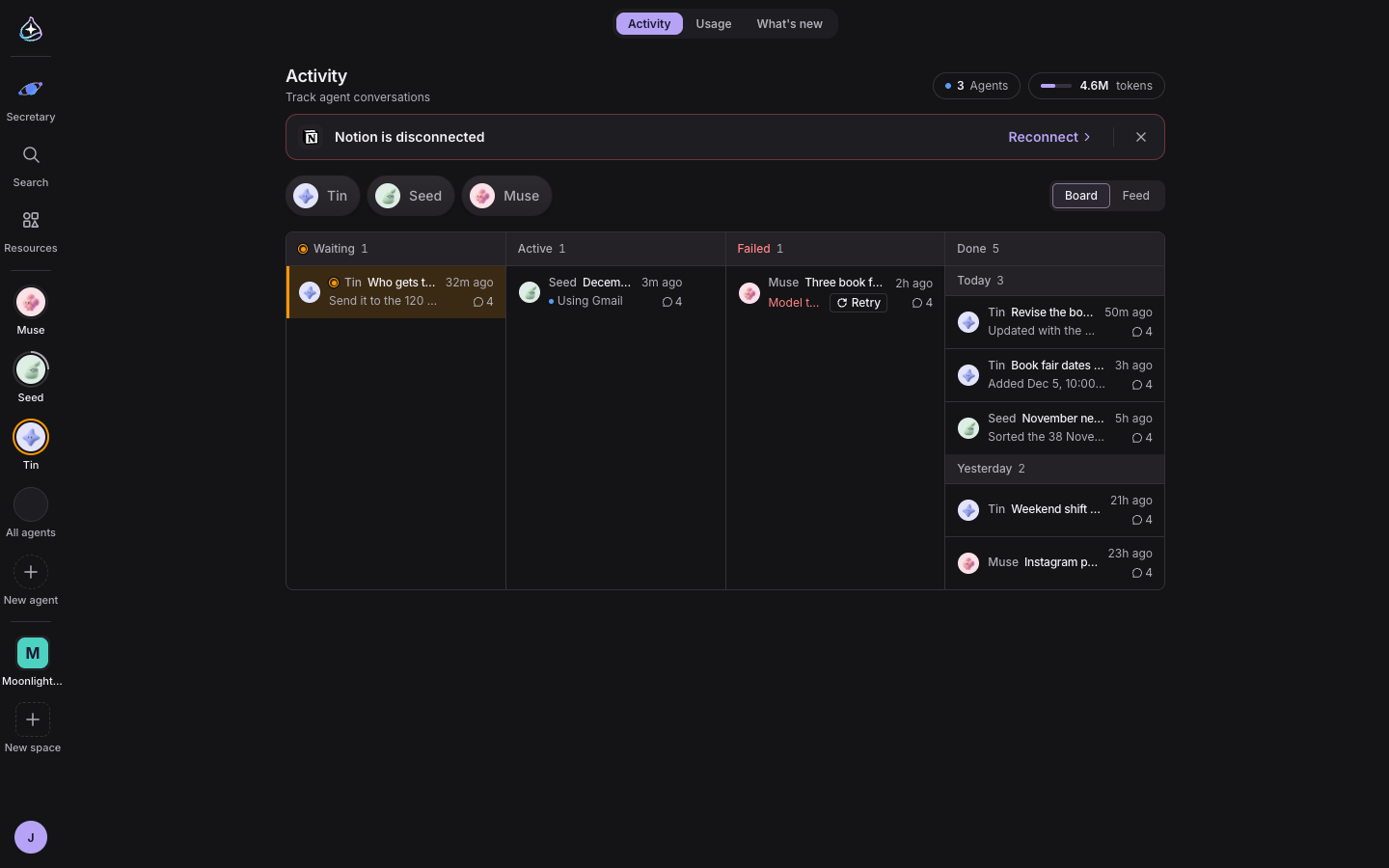
Until now, Home was a board that lined up conversations in four columns — waiting for input, running, failed and done. Most columns sat empty, and finding out what had finished meant opening conversations one by one.
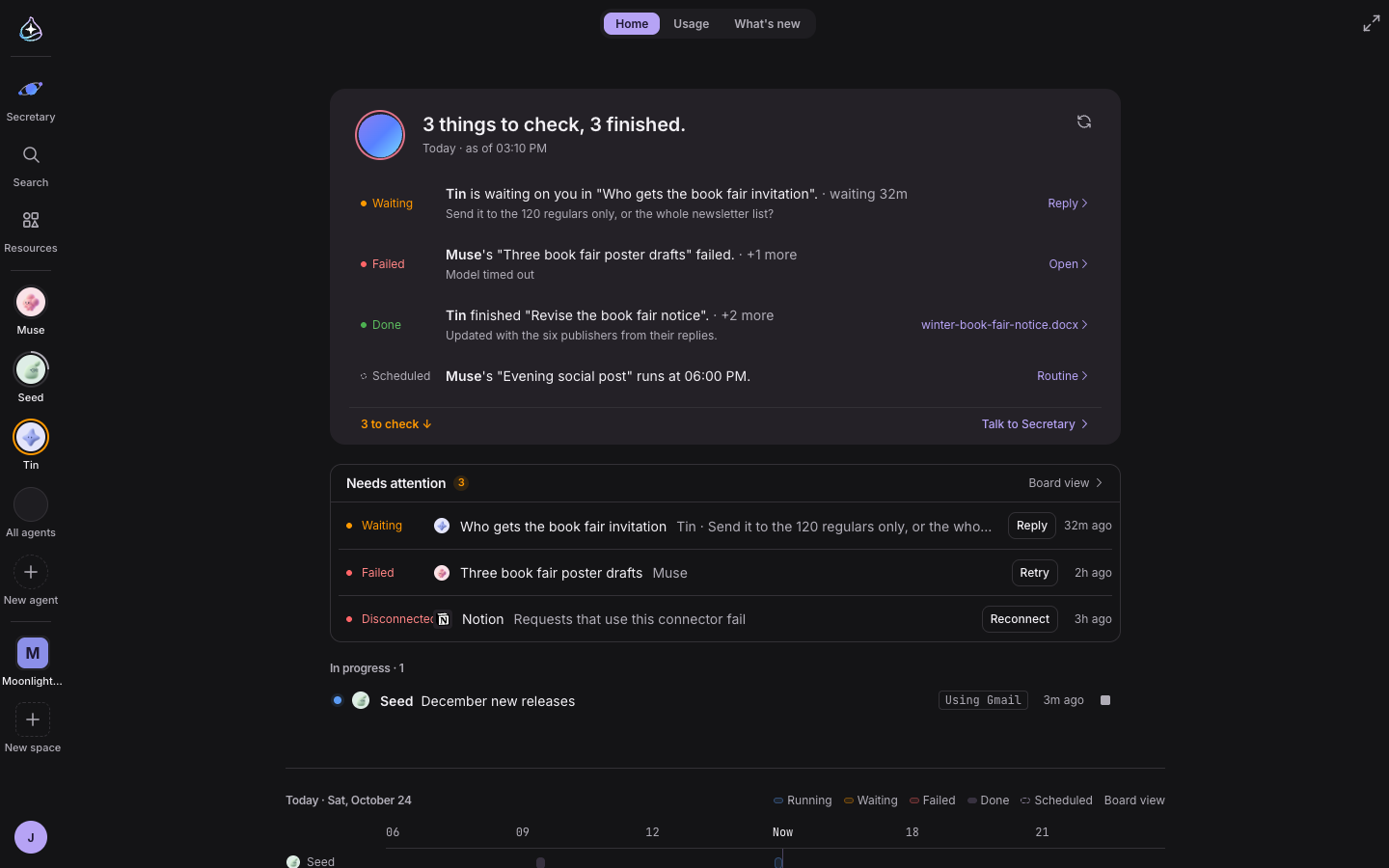
Now Home opens with a briefing from your secretary. Under a one-line summary such as “2 things to check, 3 finished.”, each line covers something waiting, failed, disconnected, finished or scheduled, and clicking a line takes you straight to that conversation, output, schedule or connector.
Below it, “Needs attention” gathers what waits on you, most important first, so you can retry in place or go fix a broken connection. “In progress” shows what’s running now, with its tools and elapsed time, and lets you stop it. Below the fold, “Today’s flow” lays out what each agent did today and what’s scheduled on one timeline. The old board is still there under “Board view”.

Opening an output used to cover the conversation you were in, and checking another room meant leaving the screen you were on.
Now conversations, rooms and outputs open as windows side by side on one stage. Click “Open current view in a window” at the top of the screen you’re on, and a window appears in “Window view”. Drag windows around, resize them, maximize them or send them to the back. You can open up to 20, and the layout is saved to your account, so it looks the same on every device.

Choose “3D” in a space and its rooms float like a star system. Each agent character shows whether it is speaking, listening or idle, and clicking an agent takes you to its room. Drag to orbit and scroll to zoom; where 3D can’t be drawn, you get a 2D map.

You can also see who is in a space right now. Next to “3 online”, you see which room each person is in and whether they’re typing, and each agent’s state — thinking, running a tool or waiting — updates as it changes.
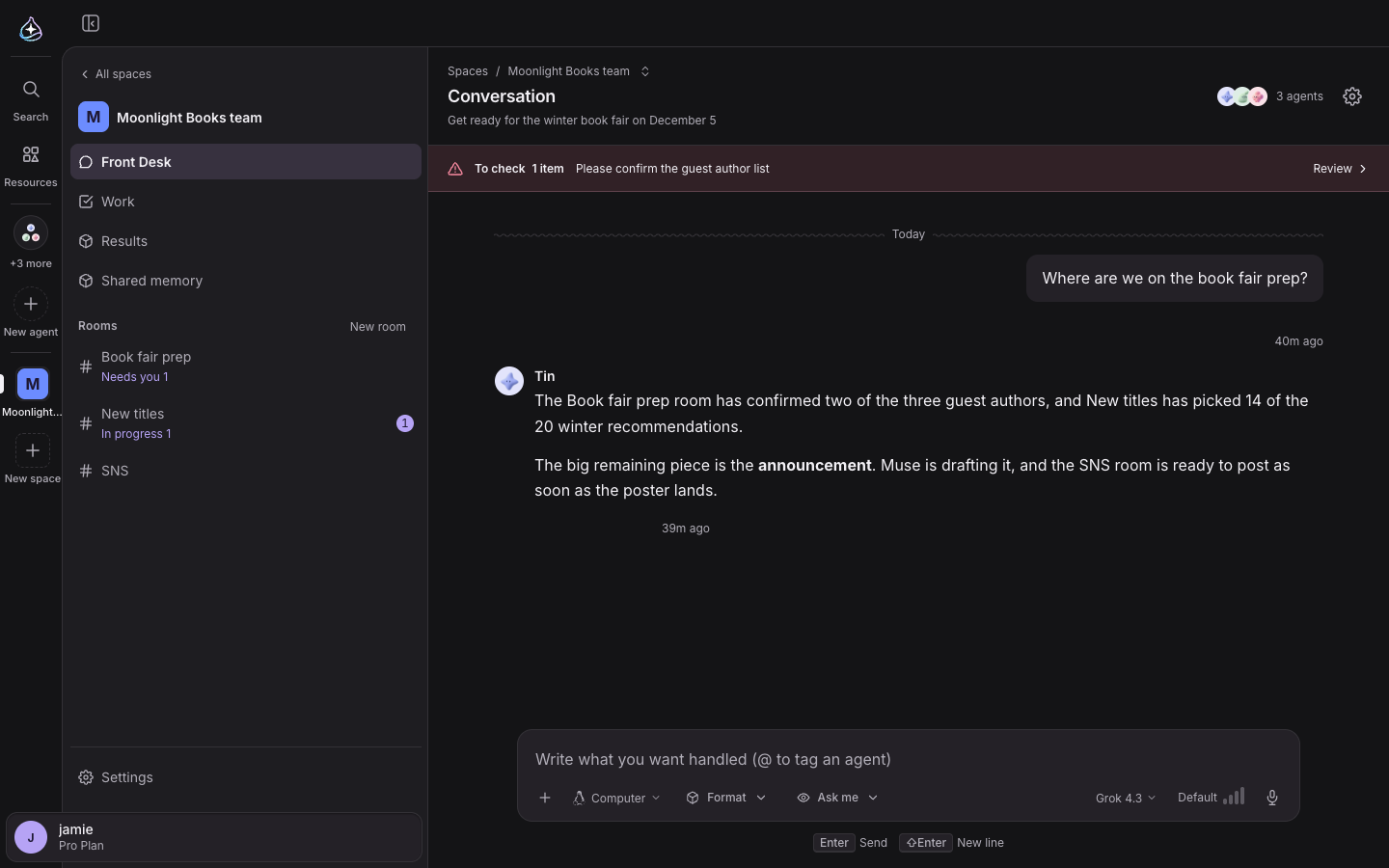
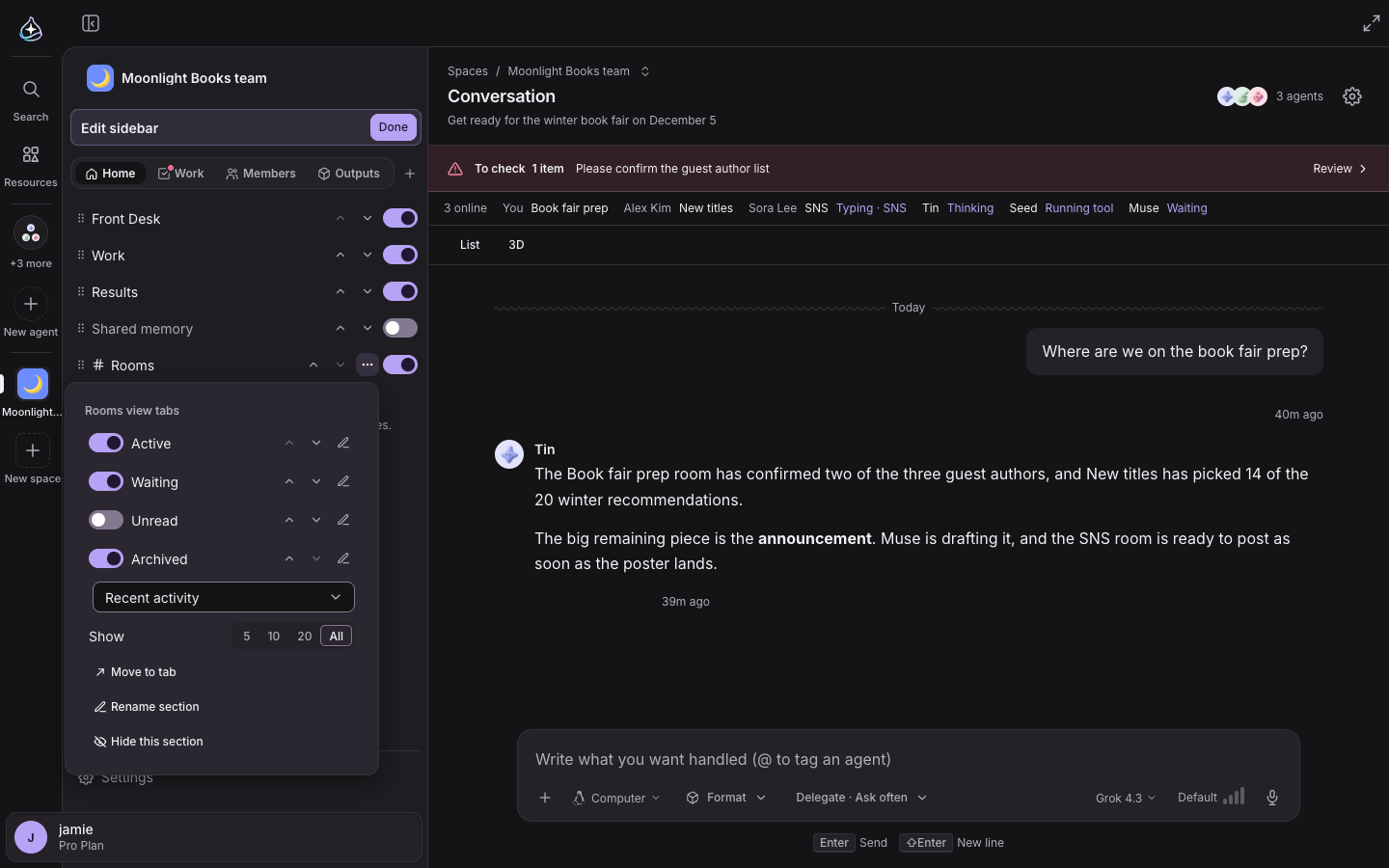
The space sidebar is now yours to arrange. Add tabs at the top such as Home, Work, Members and Outputs, rename and reorder them, and in each tab show, hide and move the Rooms, Needs you, Work, Results, Agents and People sections. Rooms can be viewed as Active, Waiting, Unread or Archived. Your setup is saved per person and per space, and it’s the same on every device.
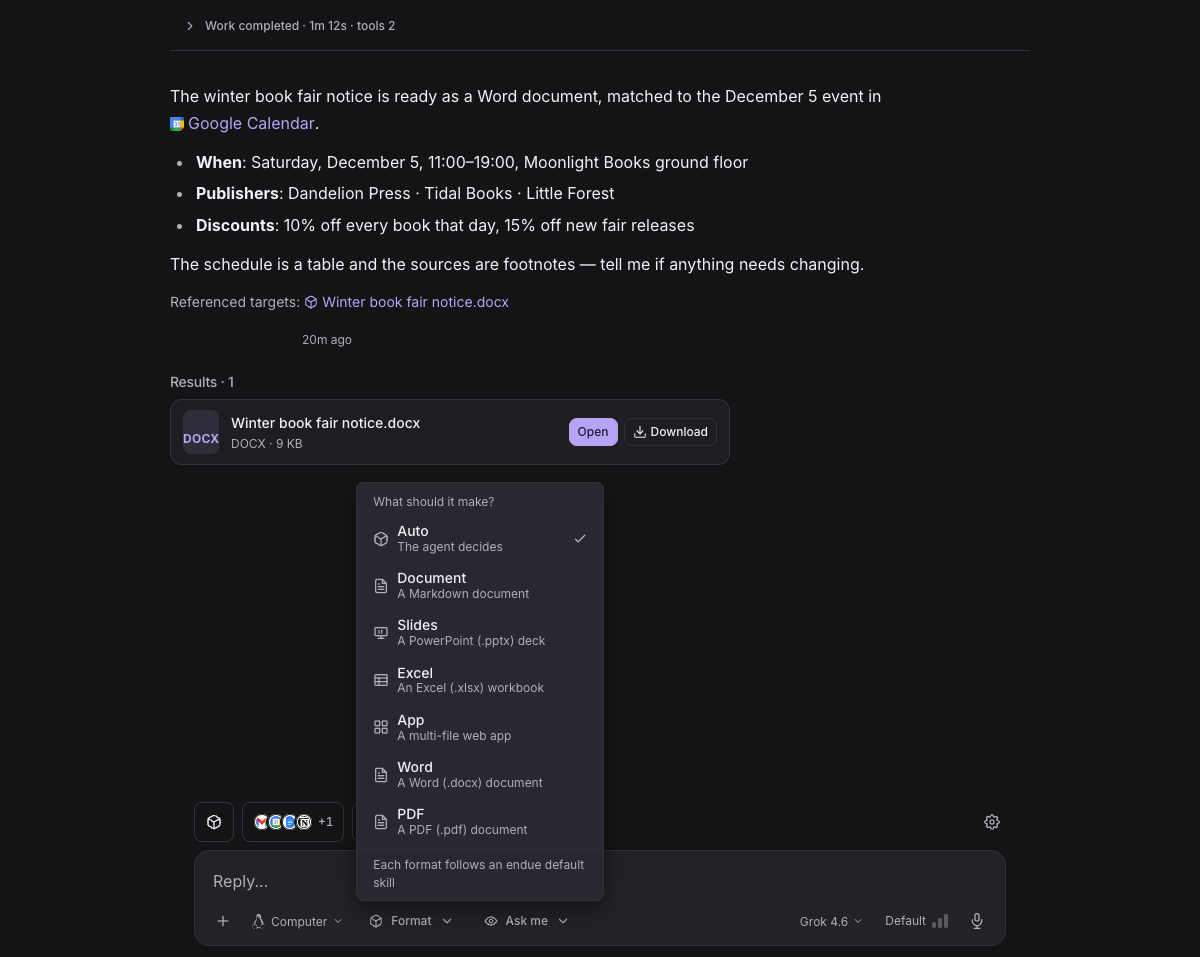
Until now, the files your agent could make were slides and spreadsheets; if you needed Word or PDF, you had to move the content over yourself.
Now ask for a Word document or a PDF and the agent makes a .docx or .pdf output with headings, tables, a table of contents, images
and footnotes. You can also pick Word or PDF ahead of time from the format chip in the composer. Making it again at the same path
keeps the earlier version in its history.
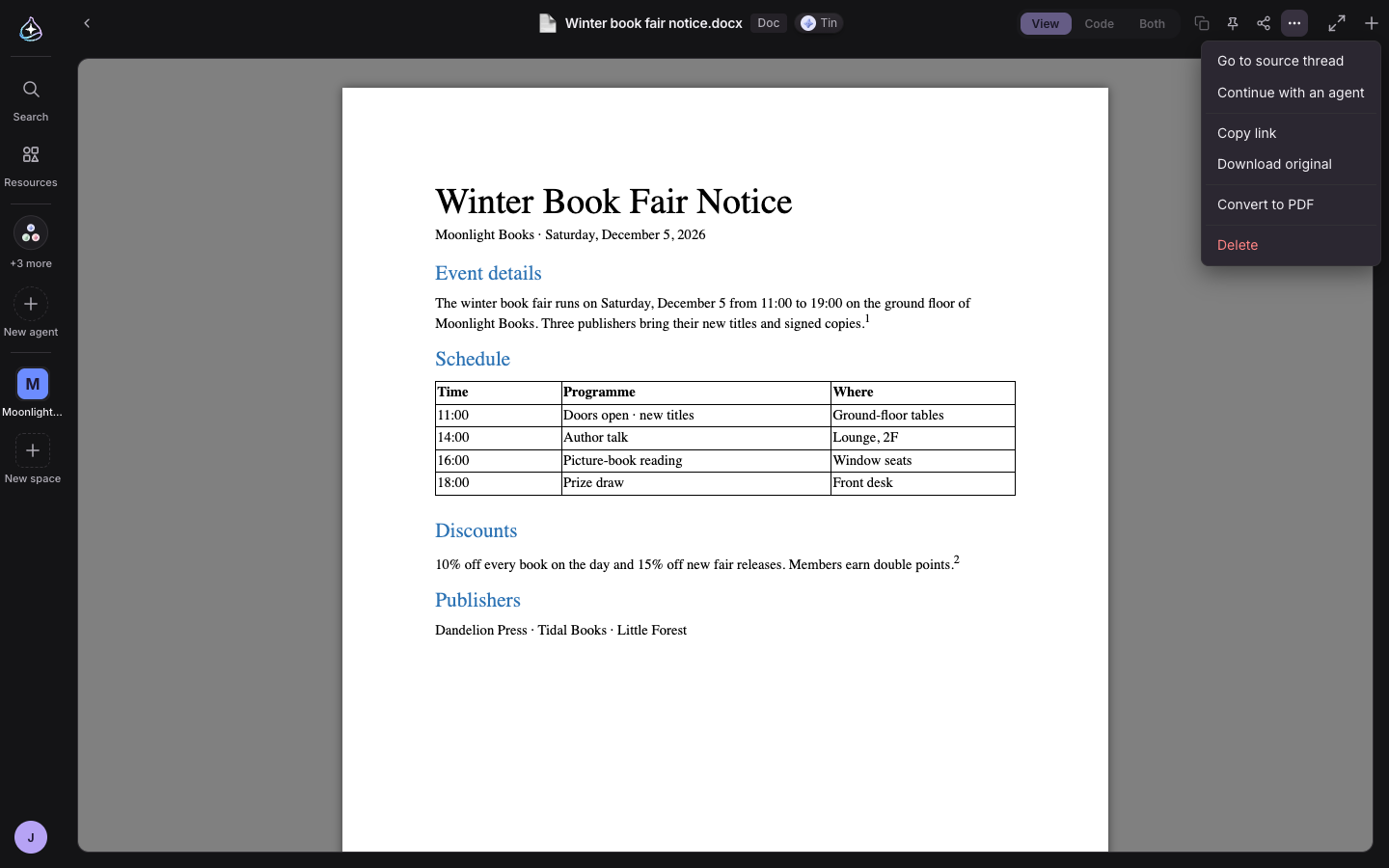
Existing document outputs convert with “Convert to Word” or “Convert to PDF” in their menu, and Word files preview right away without downloading.

When you handed off work with many steps, you could see which tools were called, but not how far along it was.
Now the agent sets out its steps, and the checklist under the run (“Tasks 2/5”) updates every time a step changes. Steps waiting for your answer and steps where it stopped are marked, and the final list stays after the run ends or the page reloads. Short questions and answers don’t get a checklist.
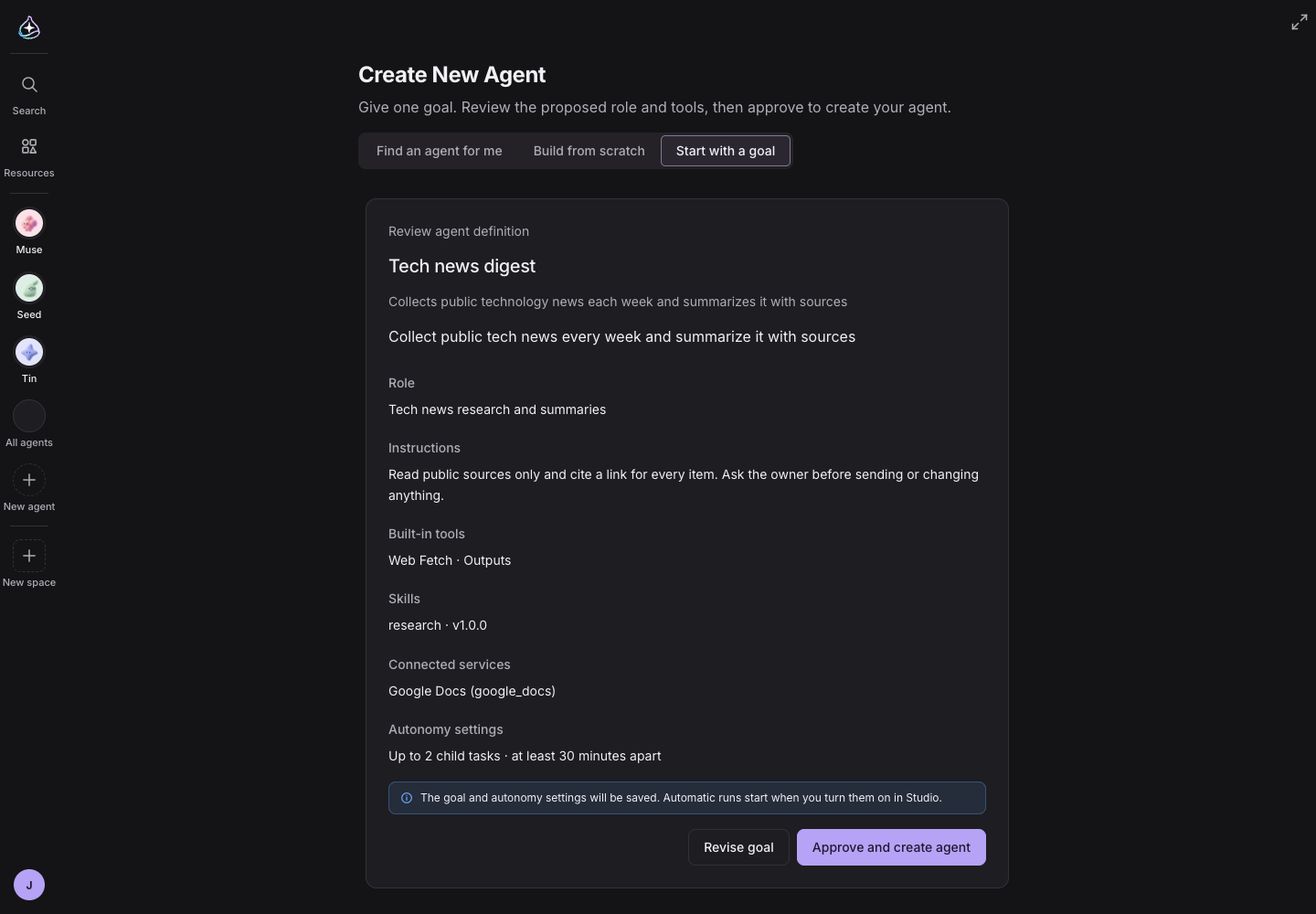
Creating an agent now has “Start with a goal”. Describe one result you want — for example, collect public technology news each week with sources — and “Draft my agent” returns a role and instructions with the built-in tools, skills and connected services to use. Review it and “Approve and create agent” makes it real; if it isn’t right, “Revise goal” gets you a new draft.
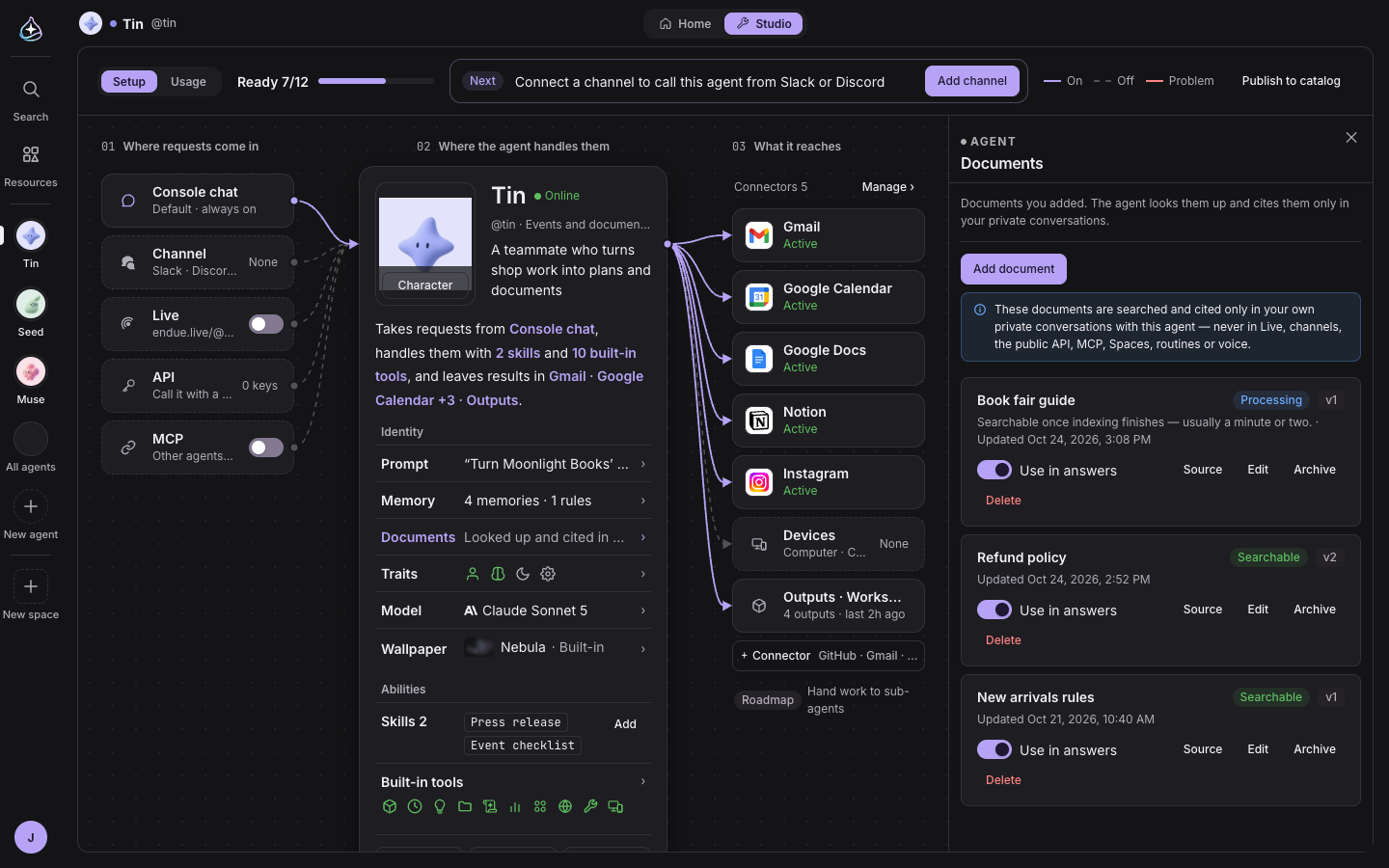
To have an agent answer from your own material — your shop’s refund policy, the rules of an event — you used to write it all into the instructions or paste it into every chat.
Now you add text documents under “Documents” in Studio. A document becomes “Searchable” once it is processed, editing it under the same title makes a new version, and “Exclude from answers” sets it aside or deletes it. Documents are searched only in your own personal chats with that agent — never in Live, channels, the public API, MCP, spaces, routines or voice calls.
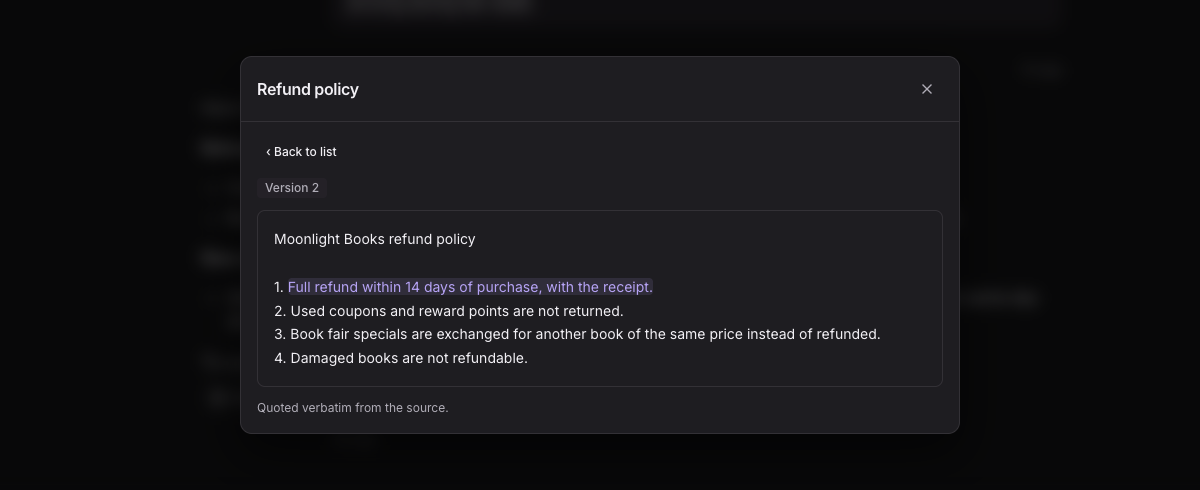
Ask about something in a document and the agent searches it and answers, and a “Documents” chip under the answer records which document and which passage it used. Click the chip and the source opens with that passage highlighted.
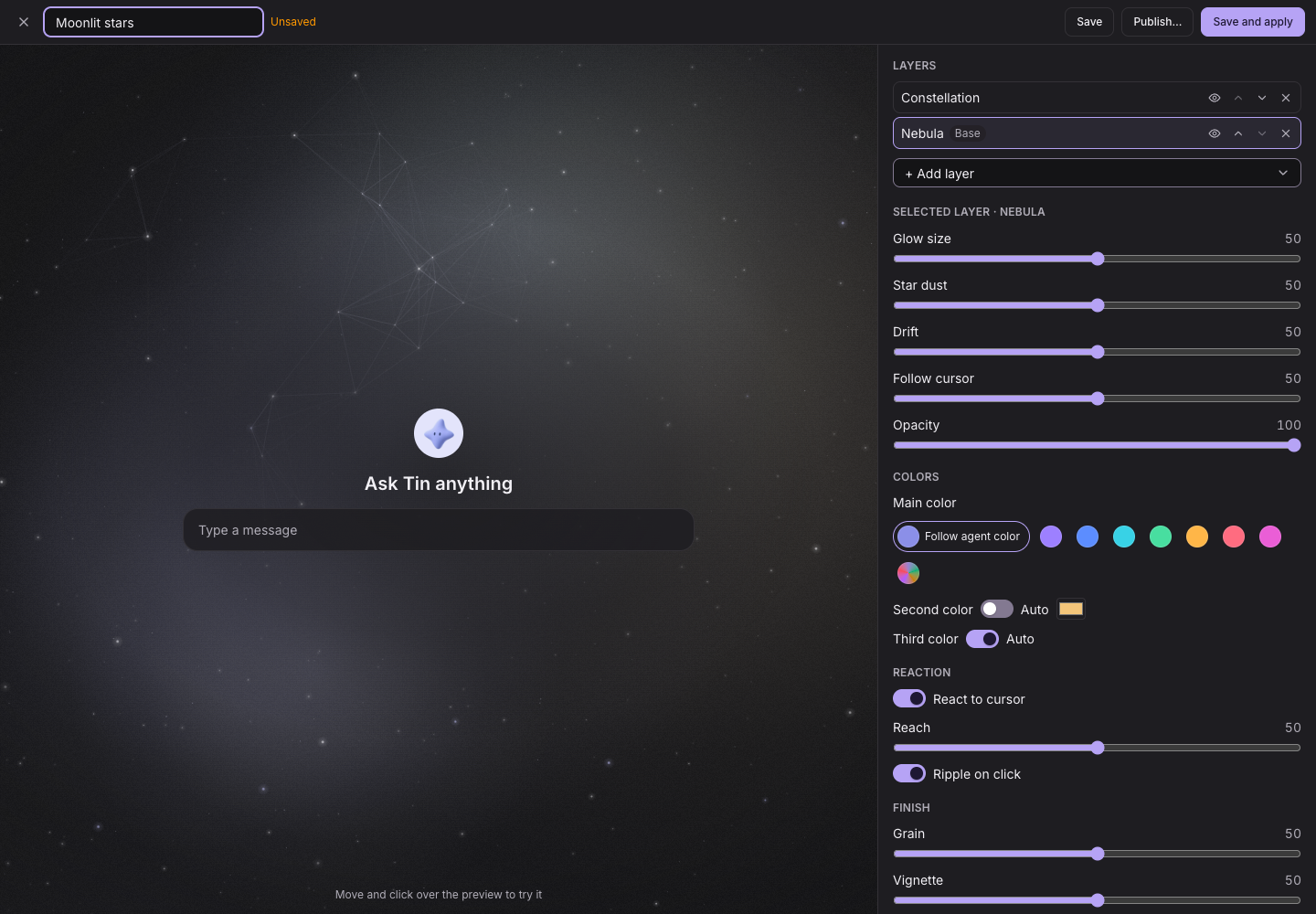
The live backgrounds from the last release could only be picked from five presets, and they were saved on one device.
Now “Create wallpaper” in Studio’s wallpaper panel lets you build your own. Stack layers, choose a main, second and third color, decide how it reacts to the cursor and clicks, and watch the preview. You can start from an image of your own too. Wallpapers are now saved to your account, so they look the same on every device.
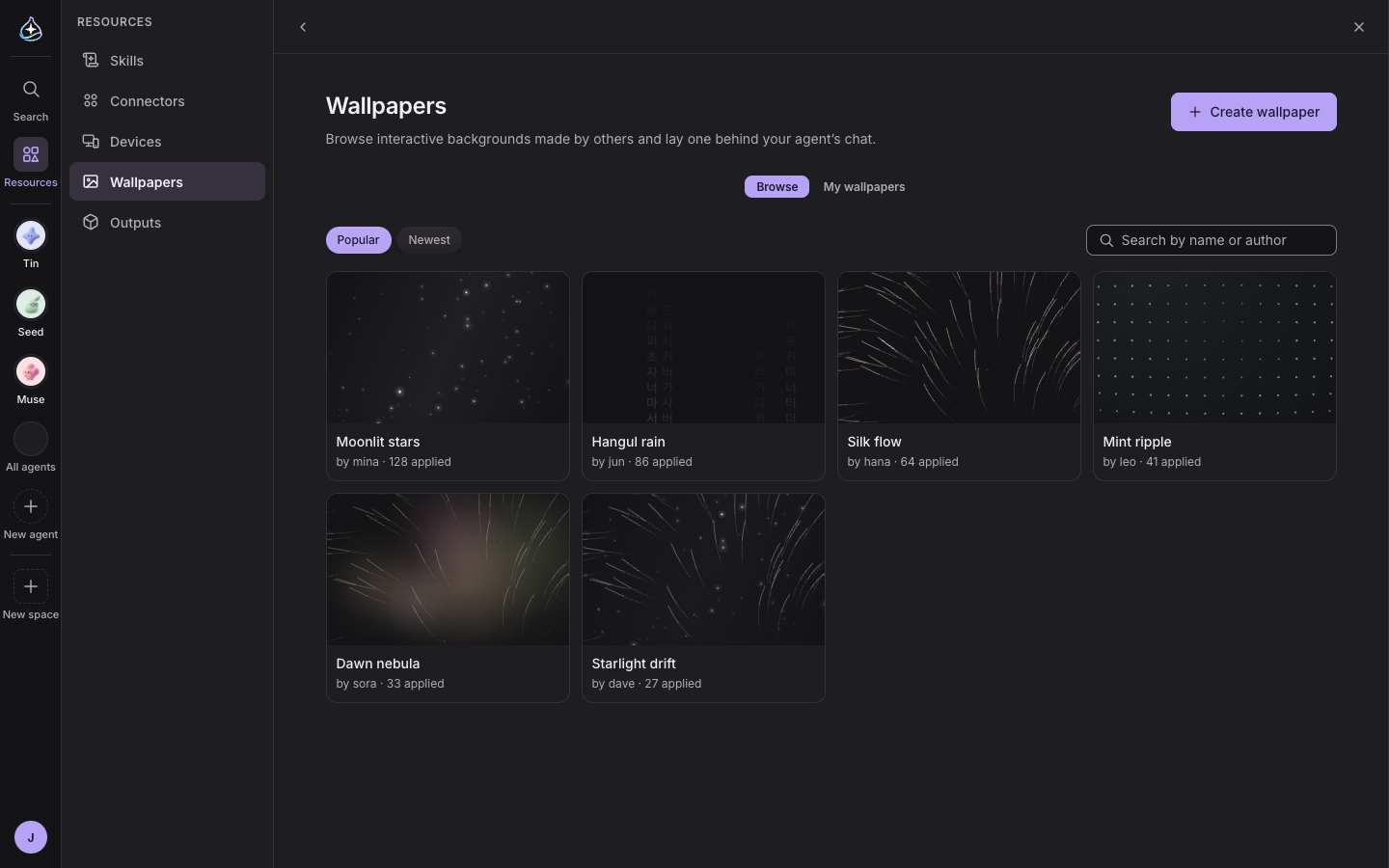
Publish a wallpaper to the gallery so others can use it for their agents, and apply other people’s wallpapers or “Remix to edit” your own version. Browse the gallery under Resources › Wallpapers.
46 connectors now cover much more of each service’s official API. Connectors such as Gmail, Google Calendar, Google Drive, Slack, GitHub, Jira, Linear, Figma and Shopify let your agents do more, Notion supports the full Notion API (41 tools), and Google Analytics uses the Data API and the Admin API (19 tools).
Connectors with many tools load some first and list the rest by name. When the agent loads a tool by name, it stays available until the conversation ends. Long tool results are no longer cut down to their beginning: the full result is kept for 7 days and the agent reads on where it needs to.
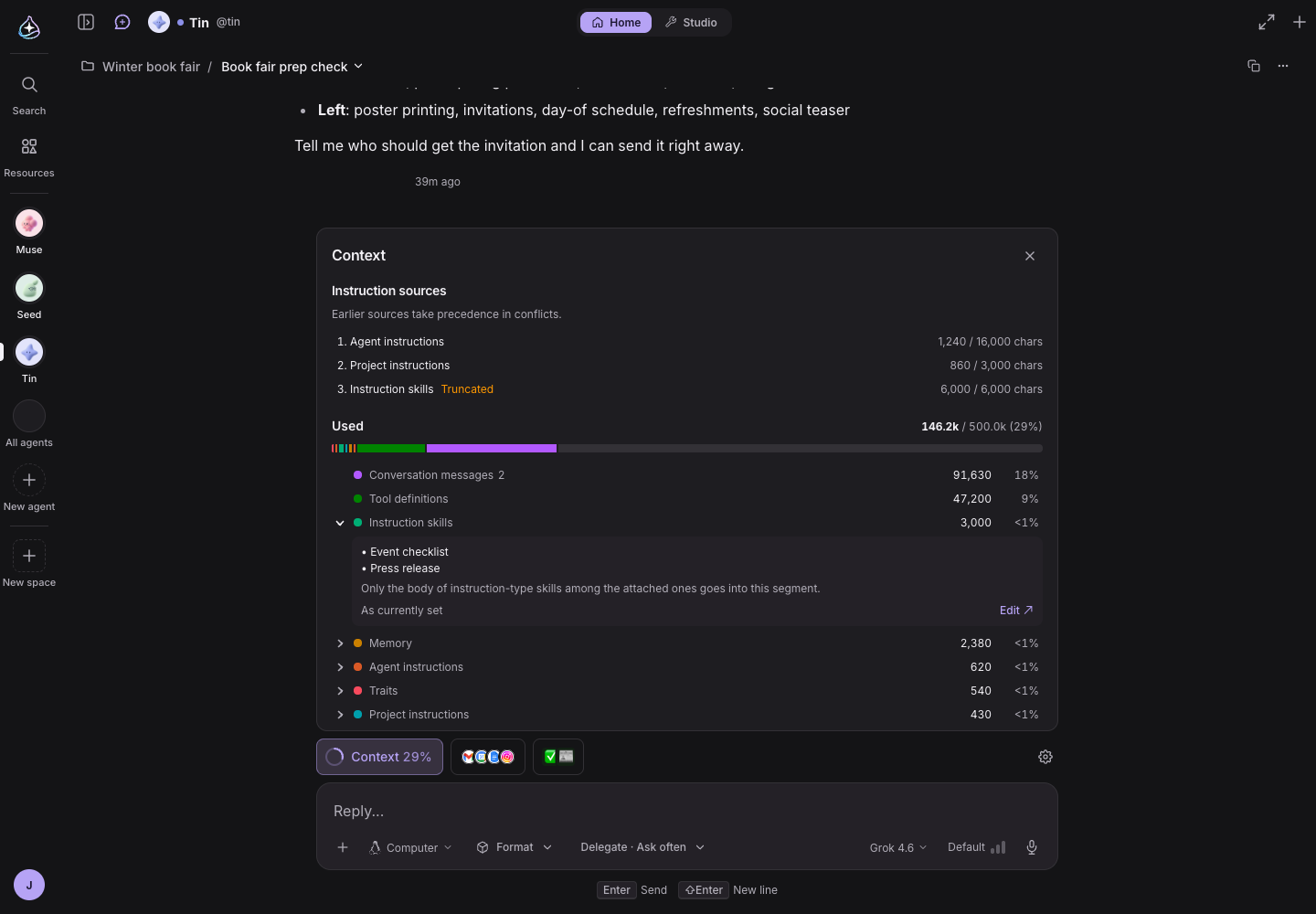
Instruction skills now load just their names and descriptions, and the agent reads the full text when it needs it, so long skills are no longer cut at 6,000 characters. “Instruction sources” in the Context panel shows which agent instructions, project instructions and instruction skills the run loaded, in what order, and whether any hit their length limit.