Free model Omakase
Pick Omakase at the top of the model list and endue reads the request and chooses the model. On the Free plan it runs on models endue has picked in advance.


You no longer have to pick a model: Omakase chooses one that fits each request, on the Free plan too. Visitors on endue Live can now talk to your agent by voice. Agents take requests like “tell me in 30 minutes” as a one-time schedule, and long conversations carry on from a summary.
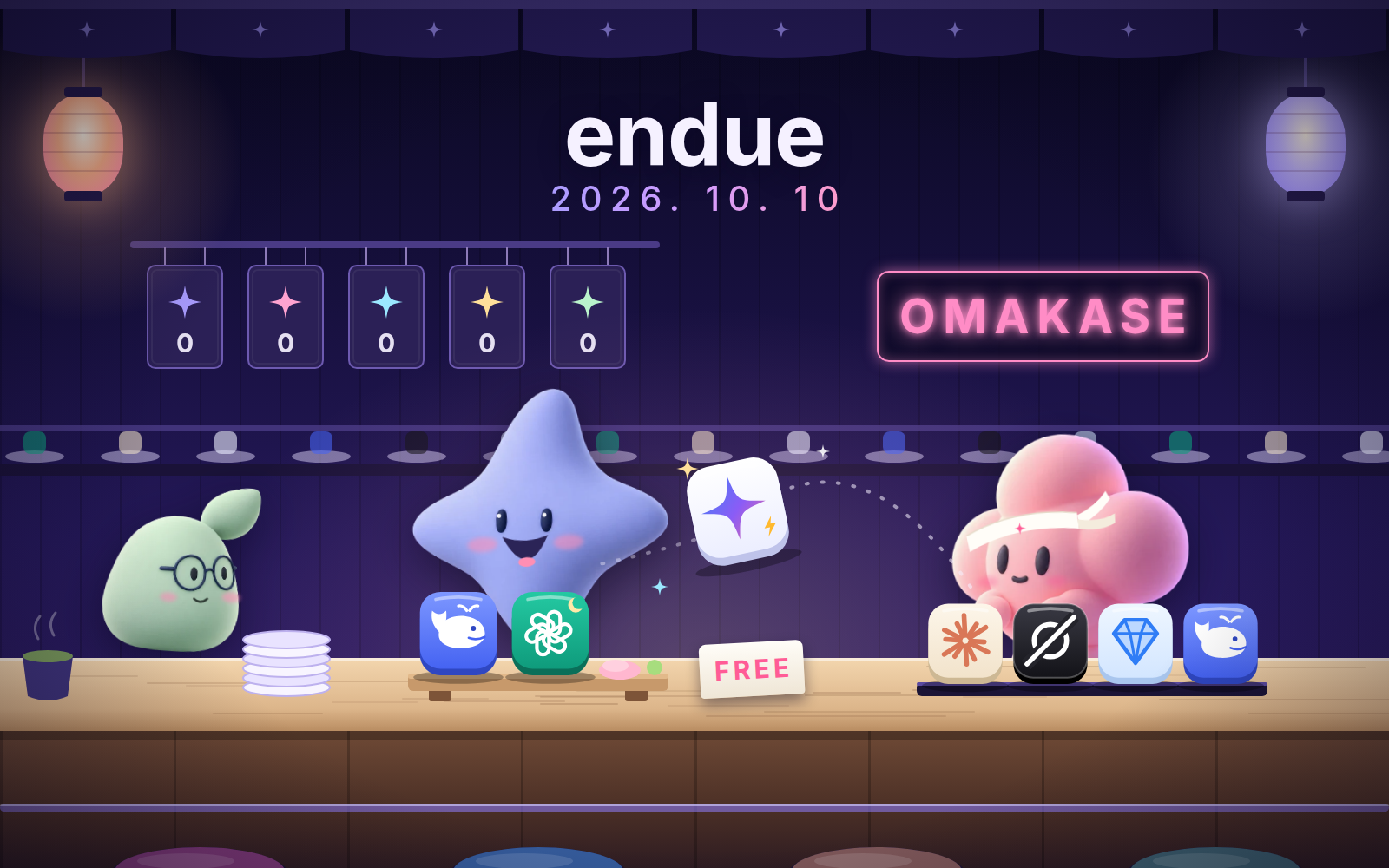
Pick Omakase at the top of the model list and endue reads the request and chooses the model. On the Free plan it runs on models endue has picked in advance.
Visitors press the call button and talk to your agent. Live conversations are now grouped by visitor, which makes Live easier to run.
Agents schedule “tell me in 30 minutes”, carry long conversations on from a summary, and show files from other devices right in the conversation.
An agent writes a long task down as steps and works through them. The room overview shows a room’s threads and resources on one screen.
The connection step now opens inside the connector’s detail window, and after you consent you can see the connection being made.
Read the docs and the blog in Japanese, German and French as well.
endue is where you build your own AI agents and hand them work. With this release you no longer have to decide which model to use, and visitors on endue Live can talk to your agent out loud. Agents understand requests tied to a time, keep the early part of a long conversation, and bring results back from other devices into the conversation.
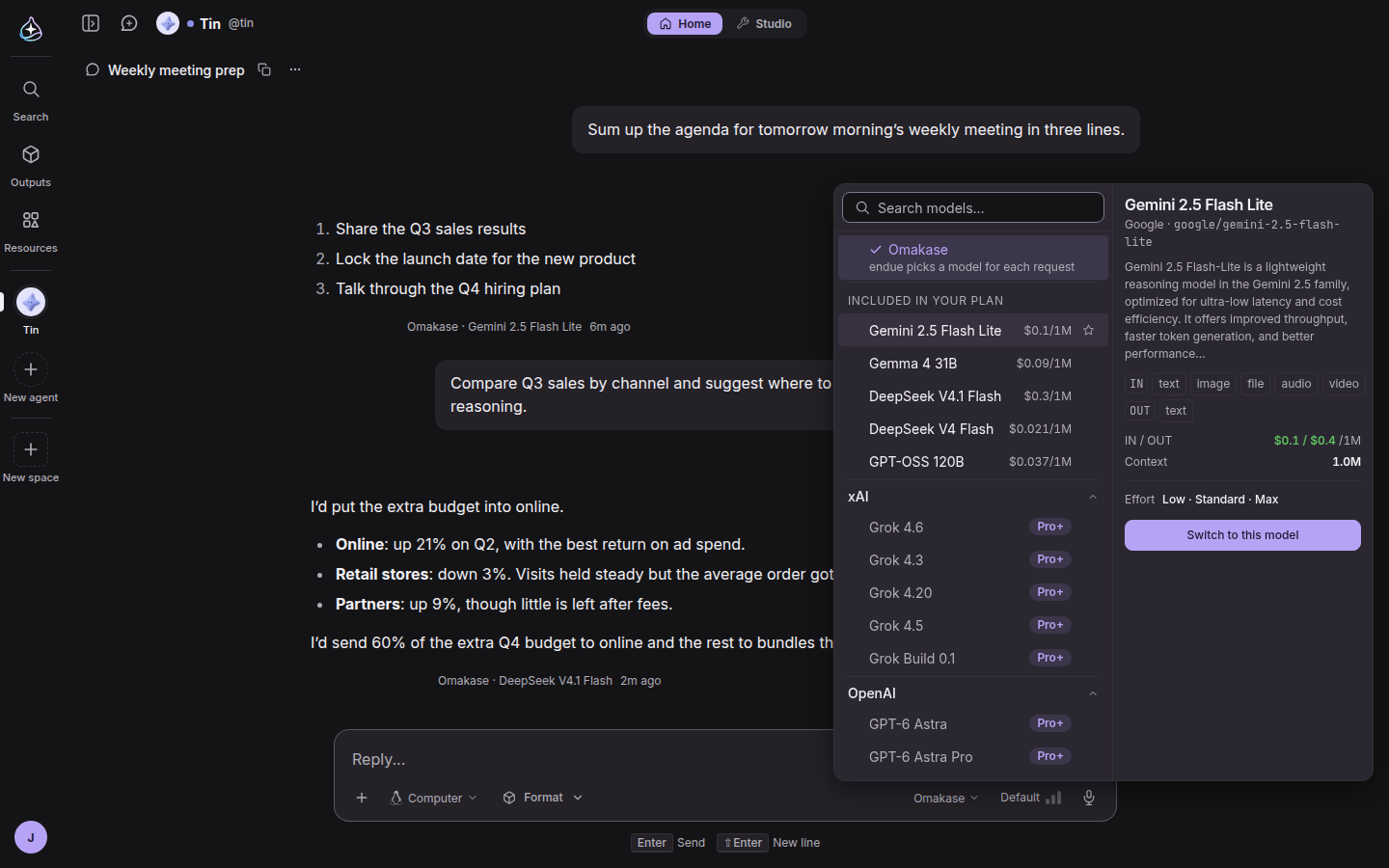
Before handing an agent work, you had to pick a model. There are more than 70, and it is hard to know which one suits a task before you try it. Automatic selection in the last release only turned on after you chose the models for each agent yourself.
Now Omakase sits at the top of the model list. Pick it and endue reads the request once and chooses the model. Light requests go to a fast model and hard ones to a better model. There is nothing to set up, and each answer shows which model wrote it.
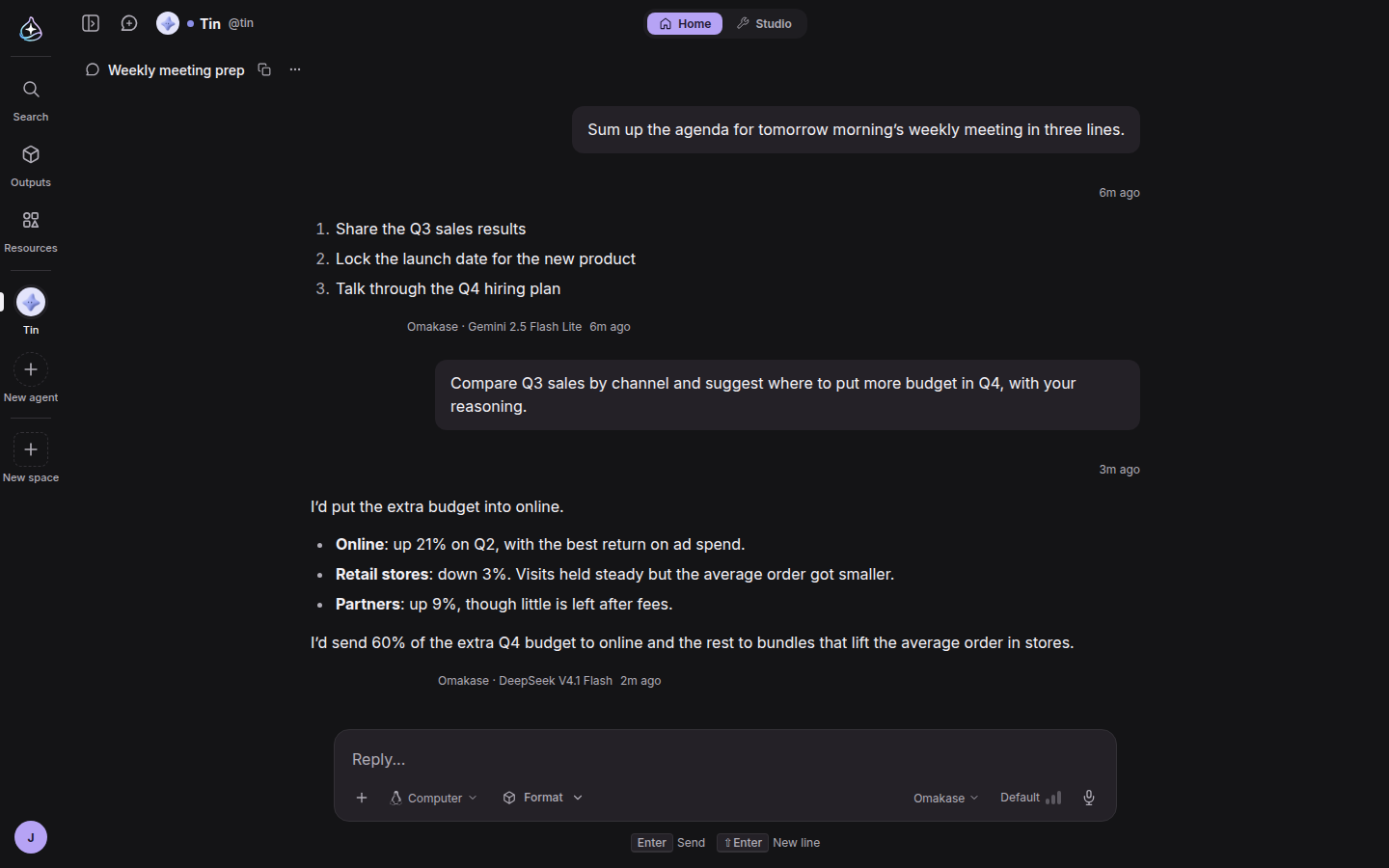
Omakase works on the Free plan too. There it chooses from a set of models endue has picked in advance. It does not depend on the free quota a provider hands out, so answers do not stop because that quota ran out. On the Free plan the model list groups these under “Included in your plan”.
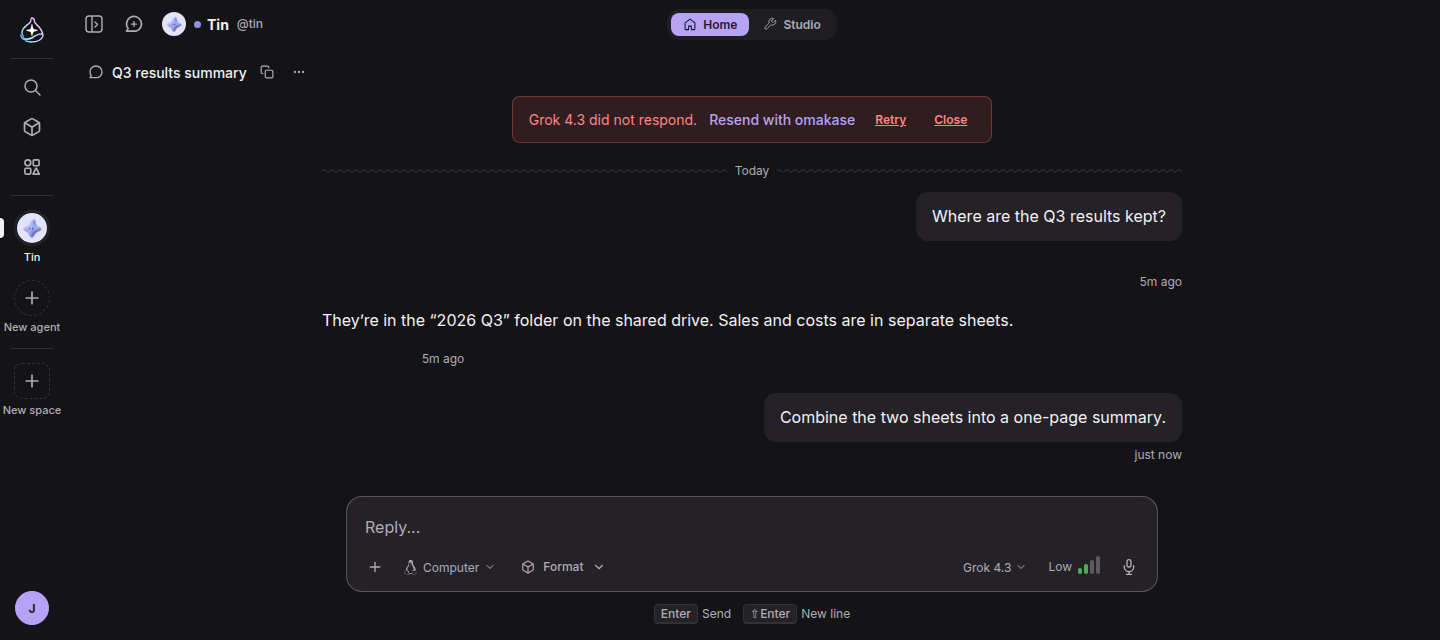
A failed model call looks different as well. Until now you saw one line of English error text. Now endue tells you, in the app’s language, which model failed and what went wrong, and “Resend with omakase” sends the same request to another model. A request sent with Omakase moves on to the next model by itself when the chosen one does not respond.

The last release added calls with your agent. On endue Live, where you offer your agent to other people, visitors could still only type.
Now endue.live agent pages have a call button too. A visitor presses it and speaks, and the agent listens and answers out loud. During the call the agent’s avatar moves with the sound, and the line under its name says whether it is listening or speaking. What was said stays in the conversation as text.
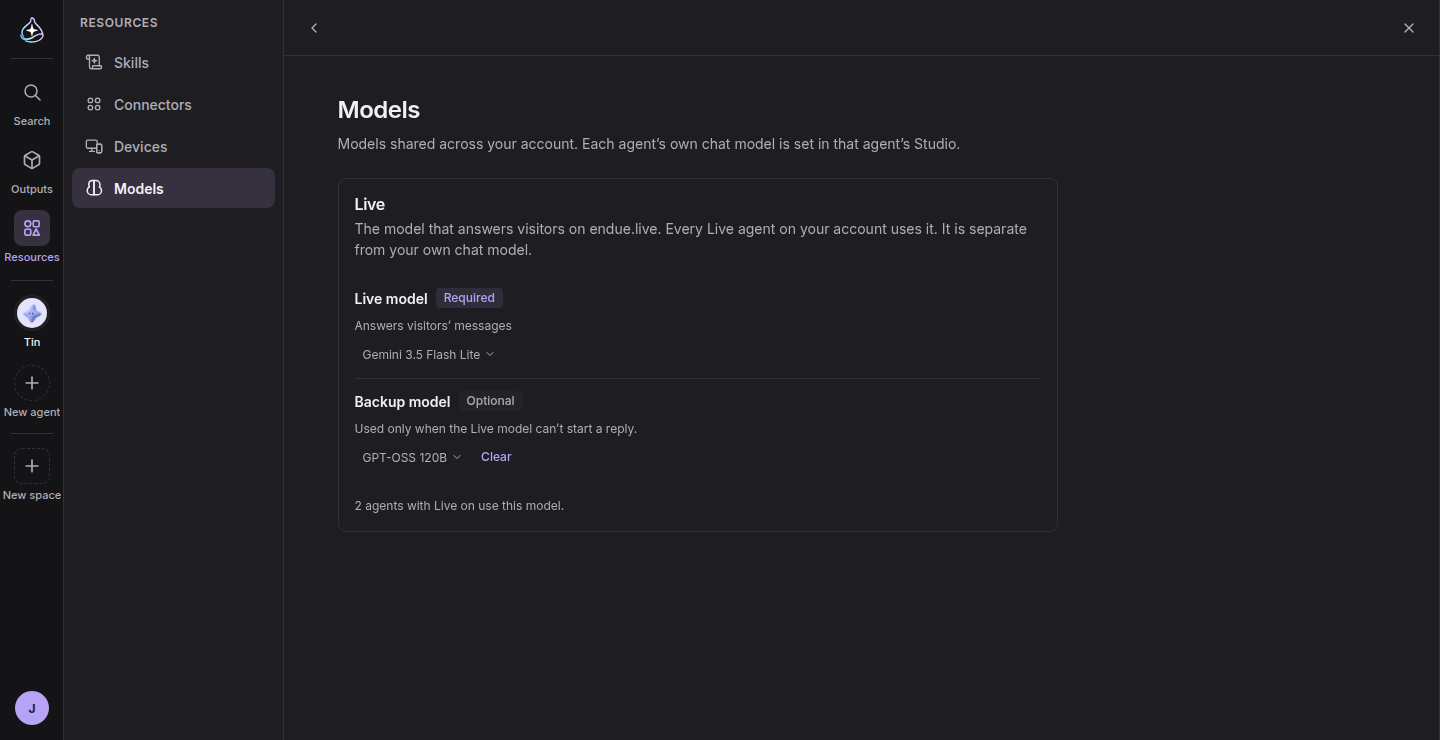
You decide which model Live uses. Under Resources › Models, choose the Live model that answers visitors and a backup model for when the Live model cannot start a reply. Every Live agent on your account uses the same model, and it is separate from your own chat model. In the Studio Live panel each agent has a voice playbook: set the speaking style, rules for particular situations and the answer length, and add words that are easy to misread to the pronunciation list.
Live conversations, visitor by visitor
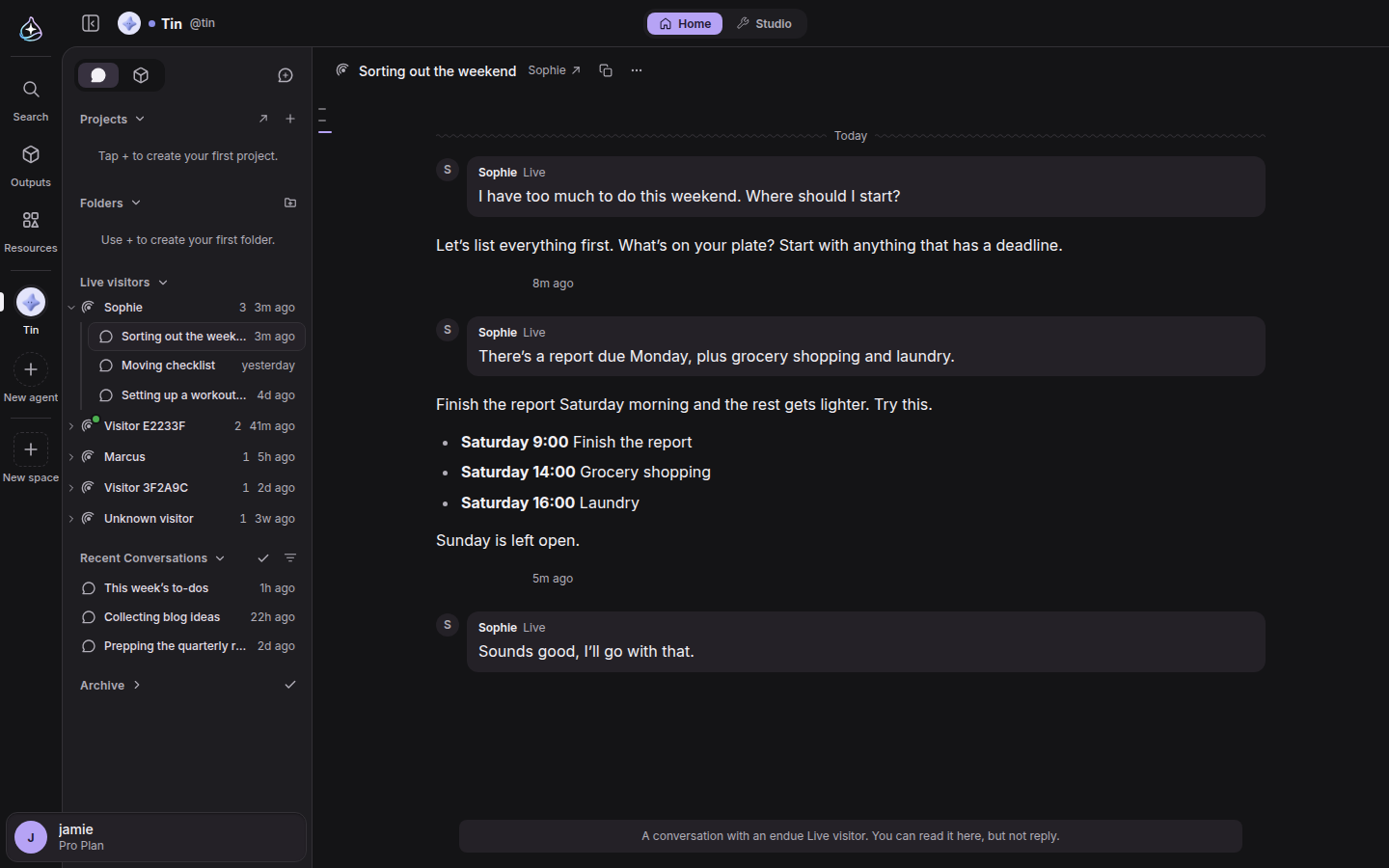
As Live conversations piled up, it was hard to find who had said what. The Live visitors section of the conversation list is now grouped by visitor. Expand a visitor to see their conversations in order; when the same visitor comes back, the new conversation joins the same group. A dot marks visitors with a conversation you have not read yet.
Schedules: “tell me in 30 minutes”

“Tell me in 30 minutes” is a common thing to ask, and until now agents could not do it. They could only set schedules that repeat.
Now, when you say it in a conversation, the agent sets a schedule that runs once and tells you the exact time it will run. At that time a “Scheduled run” line appears in the same conversation with the agent’s answer under it, and you get a notification. A one-time schedule can be set from one minute to 30 days ahead.
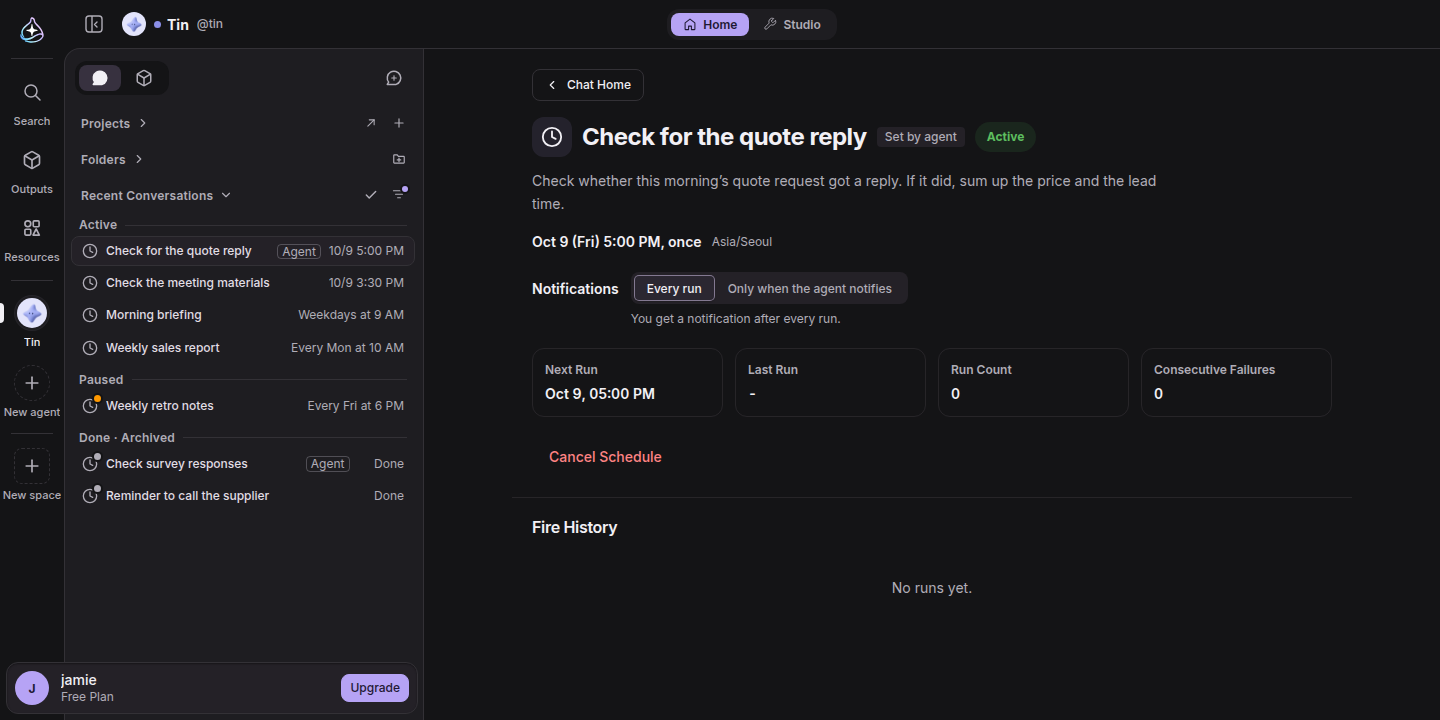
The name changed as well: Routines are now Schedules. Ones that repeat are recurring schedules, and ones that run once are one-time schedules. A schedule the agent sets for itself, to finish checking on something it was asked to do, is marked “Set by agent”, and an agent keeps at most five of these at a time.
For a recurring schedule that watches something, you can set notifications to “Only when the agent notifies”. If it checks a pricing page every hour, you get one line only on the run where the price changed. Runs where nothing changed end quietly.
Carrying on a long conversation
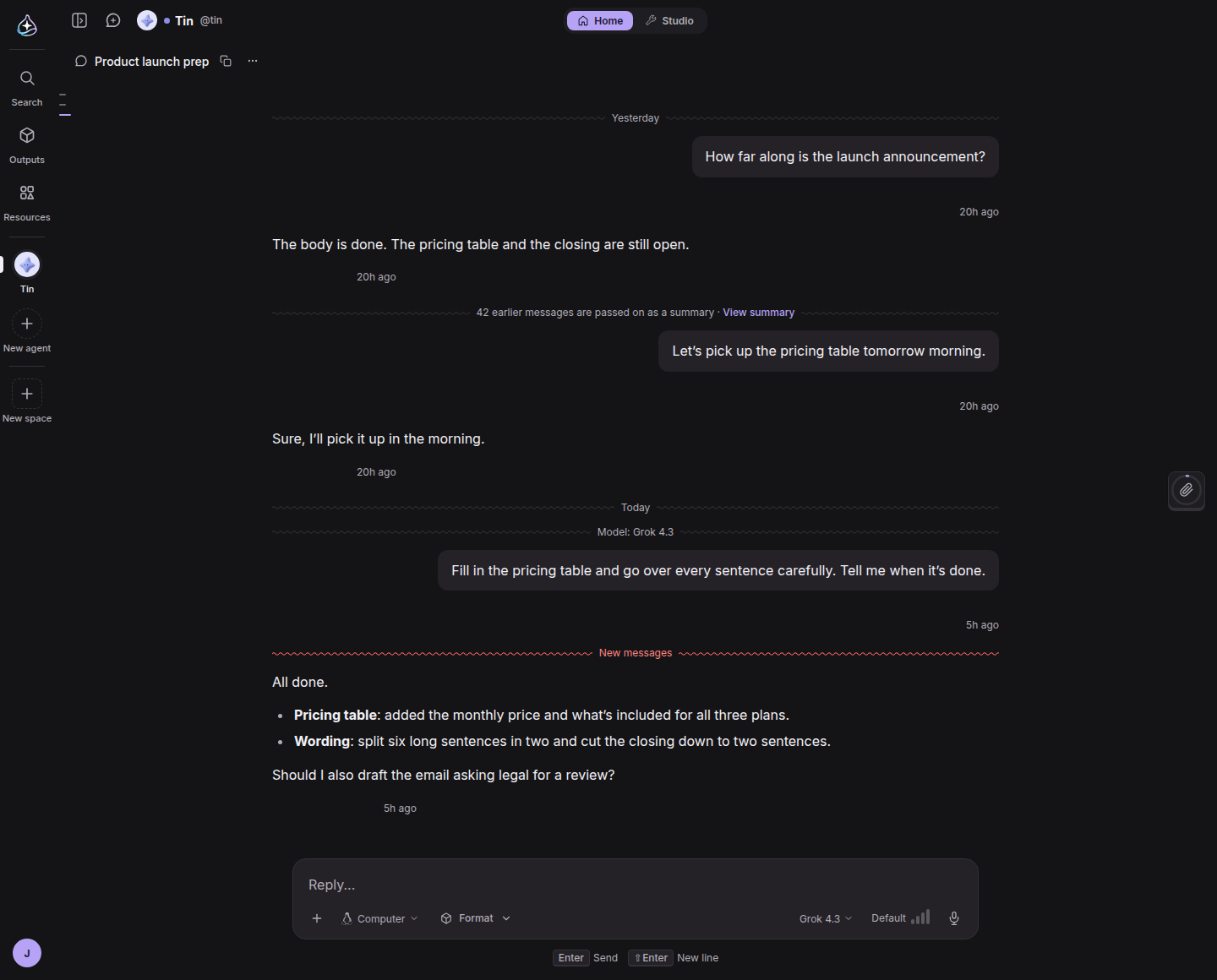
A long conversation grows past what a model can read at once. Until now the oldest part was dropped to make room, and the agent forgot what had been said earlier.
Now the older part is replaced with a summary. The agent keeps the earlier context however long the conversation gets. A divider marks where the summary begins, and “View summary” shows what was summarized.
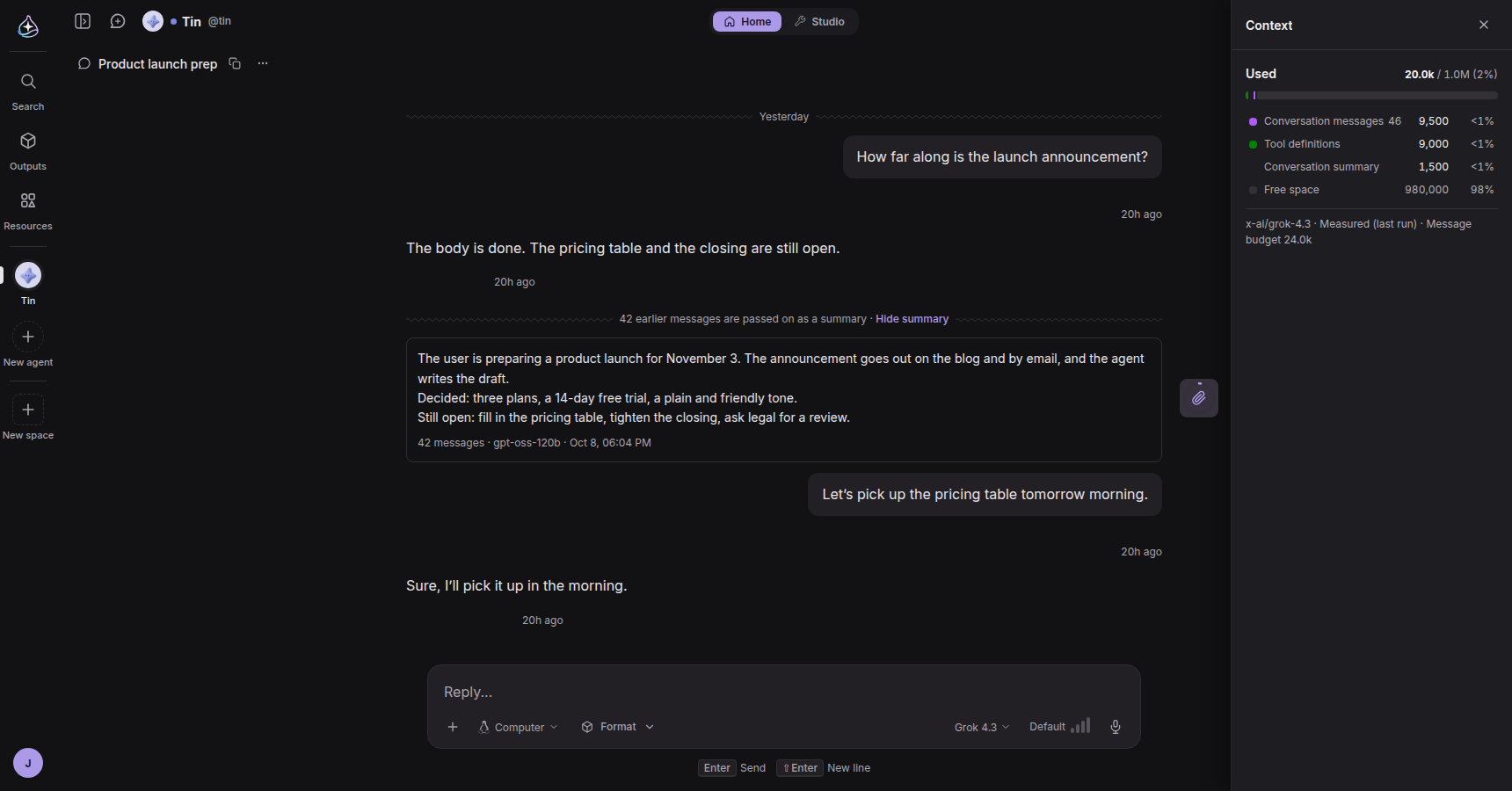
Dividers appear in other places too: where the date changes, where you switched the model or the work environment, and where the messages you have not read begin. When you reread a conversation that ran over several days, you can see what was different at each point.
Remote results, right in the conversation
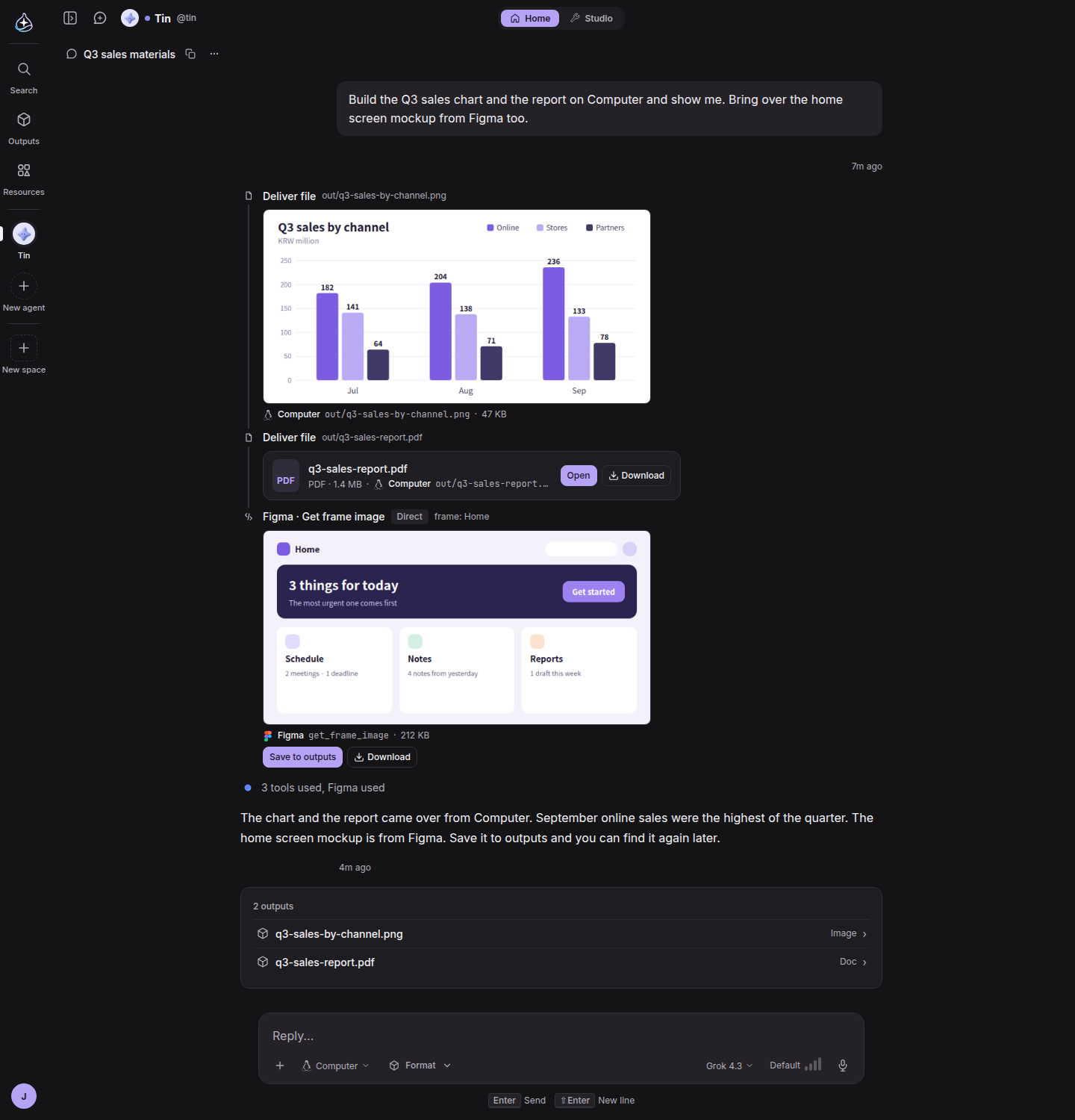
When an agent works on Computer, cloud Chrome or a connected phone, charts, PDFs and screenshots end up on that device. Until now the conversation only said they had been made.
Now those results come back to the conversation. A file the agent hands over appears right under the step that produced it. Images show immediately, and other files appear as cards you can preview or download. They stay after the device is turned off. Screenshots and images returned by connectors are kept in Outputs when you press “Save to outputs”.
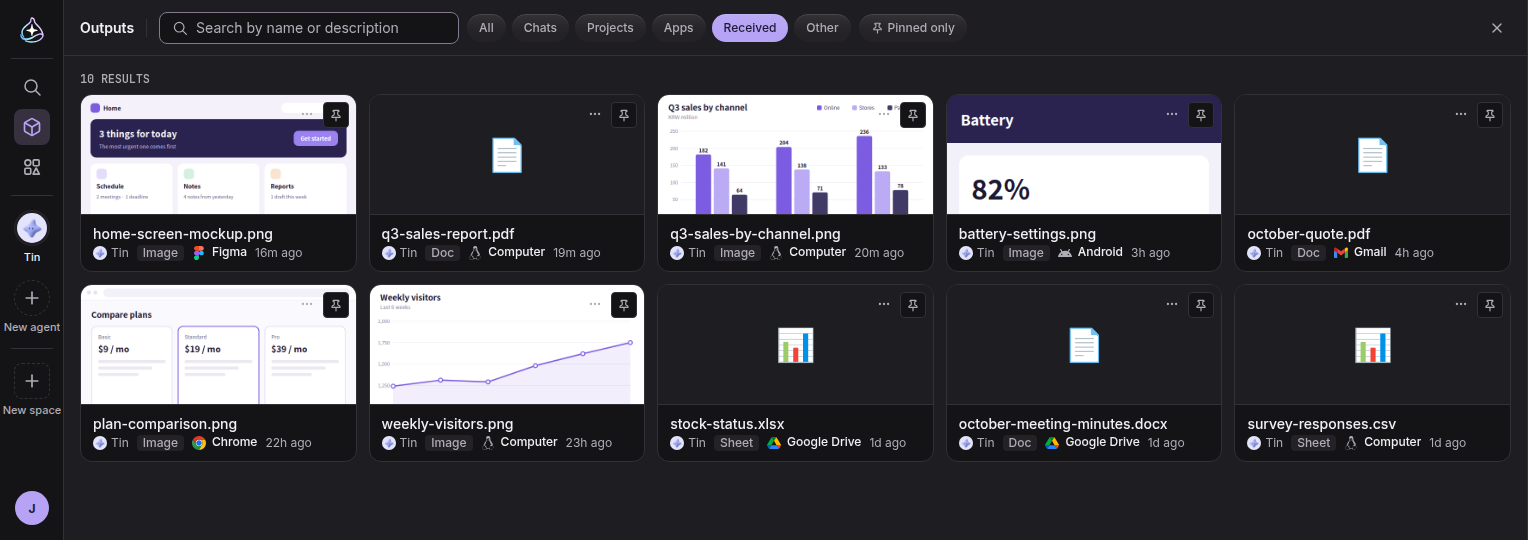
The “Received” filter in Outputs shows only files that came from devices and connectors, and each card says where it came from.

When you gave an agent a long task in a thread, it was hard to tell how far along it was. Now the agent writes the task down as steps and updates the list as each one is finished. The list stays pinned above the composer, with a line like “Progress 2/5”, so the current step is always in view. The thread’s chip in the room shows which step it is on too.
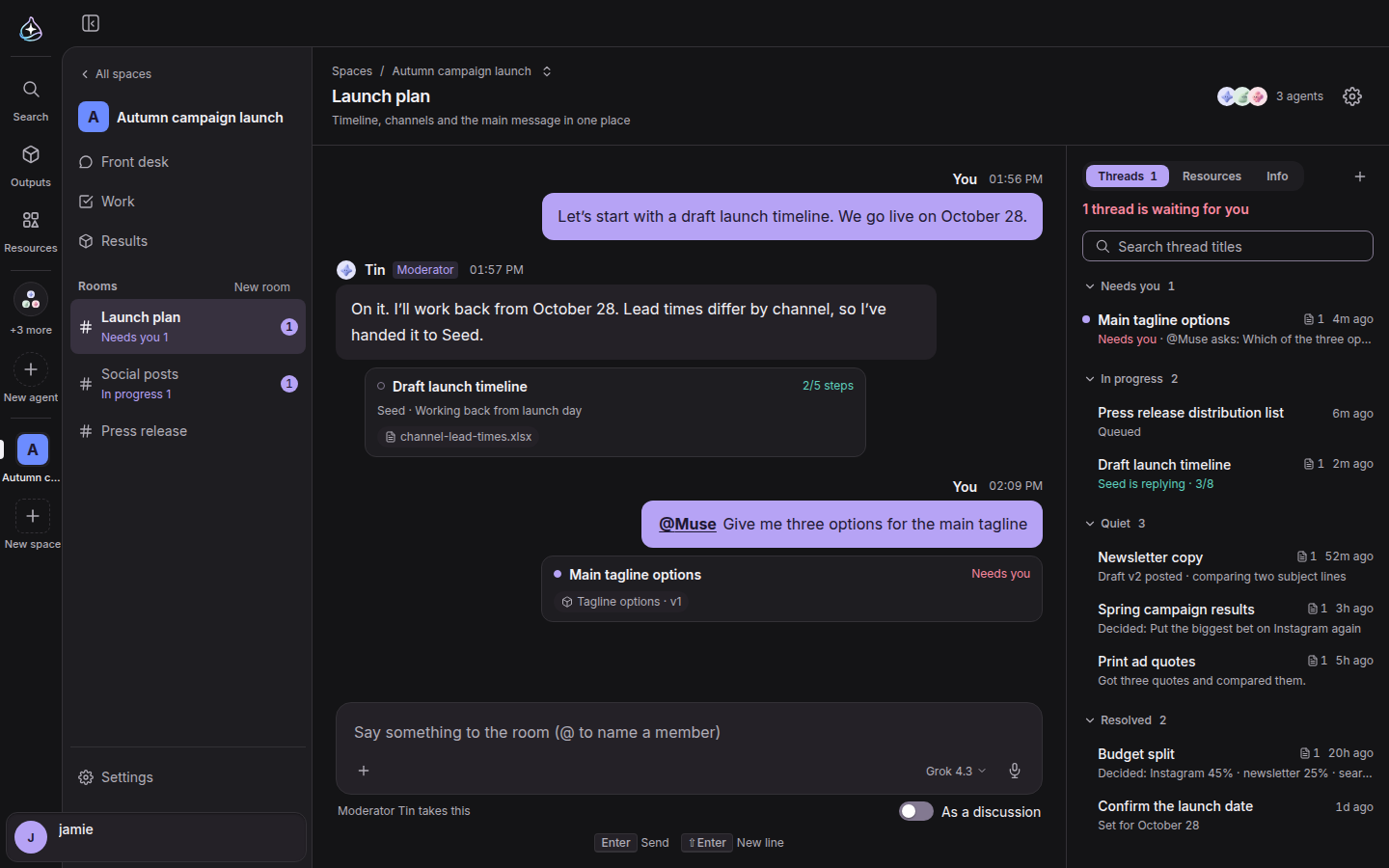
Rooms now have an overview. On the right side of the room, threads are grouped as Needs you, In progress, Quiet and Resolved, each with a one-line status. If a thread is waiting for your answer, the overview says so at the top. The Resources tab collects the results and files the room has produced. Close a finished thread with Resolve; when an agent corrects something it said earlier, the message is marked “Edited”.

Connecting a connector used to take you through several windows, and it was easy to lose track of what you were allowing. Now pressing Connect in the connector’s detail window moves the same window on to the connection step. It shows the permissions it will ask for first, and then takes you to that service’s consent screen.

When you come back from consent, you can watch the connection being made: a signal travels between the endue and connector logos, then it changes to connected. To change the permissions later, use “Re-grant access” in the connection’s details. The connection stays attached to your agents.
When you disconnect, endue deletes the stored tokens and also asks Google and GitHub to revoke access.
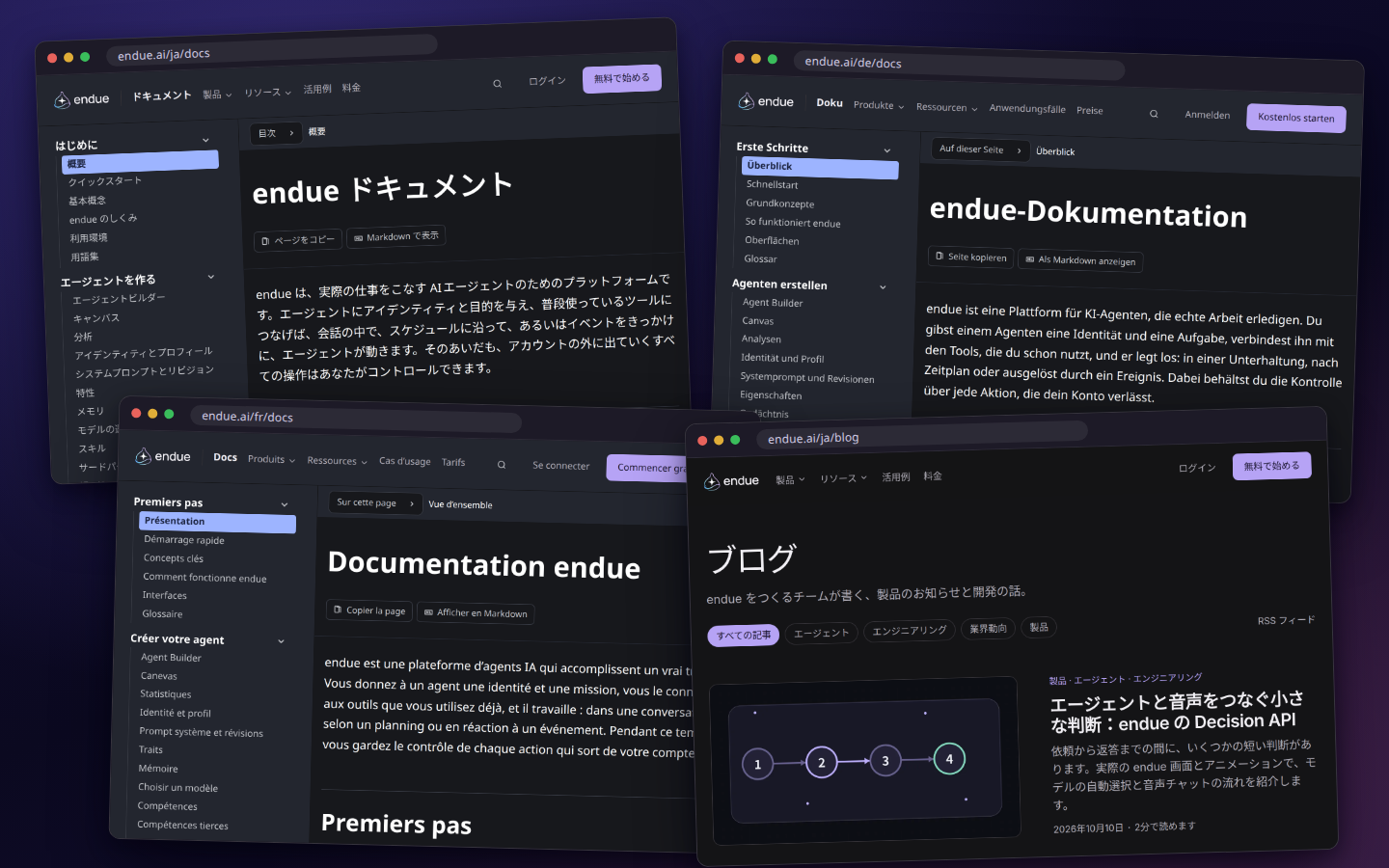
In the last release the pages of endue.ai and the release notes opened in Japanese, German and French. This time it is the docs and the blog. Change the language with the language picker at the bottom of the page.
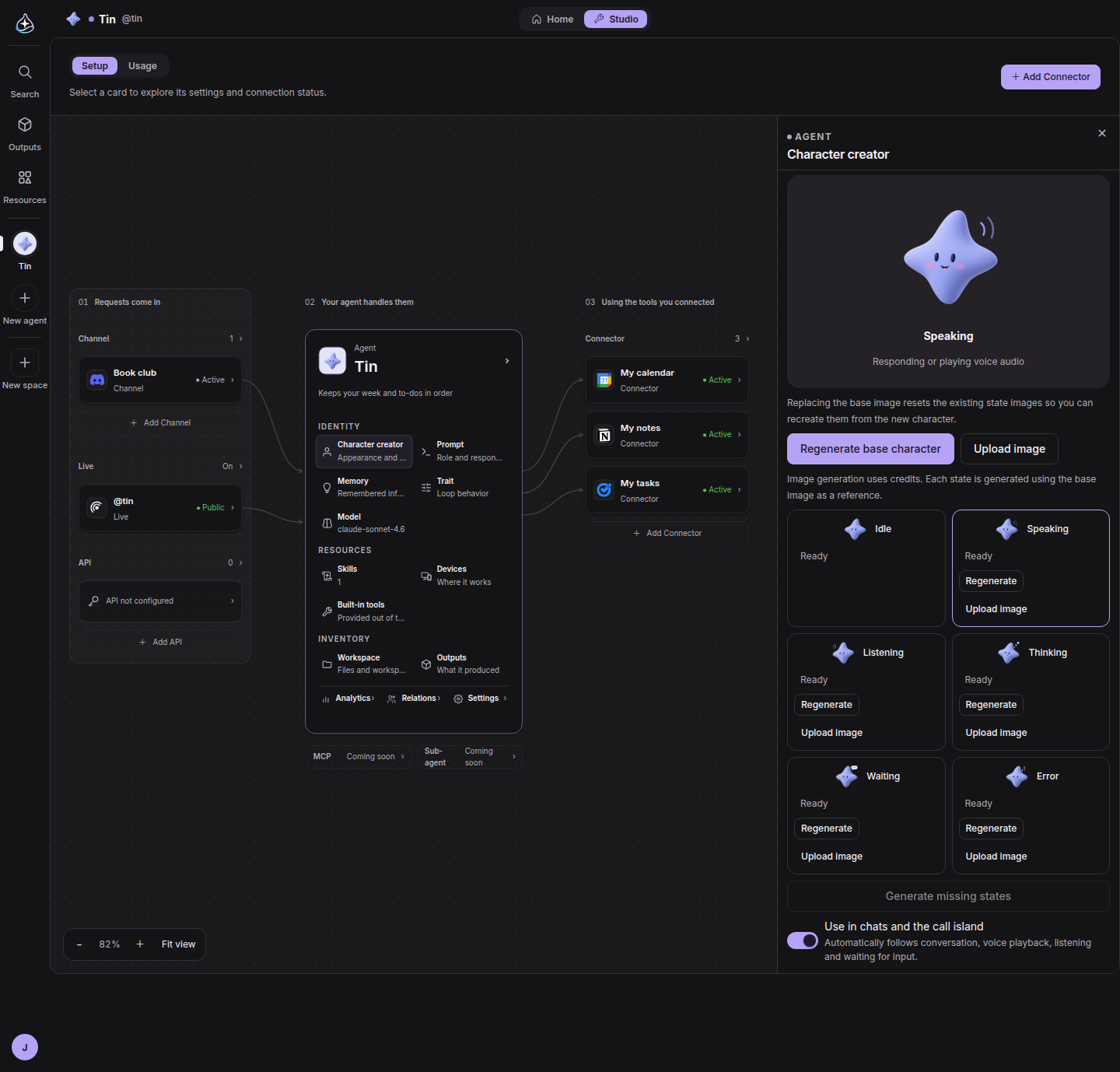
You will be able to create a character along with a new agent. A character has a base look plus looks for states such as speaking, listening and thinking, and it changes with the agent’s state in conversations and calls.