endue AI × endue OS
Every agent gets an endue OS Station and starts Linux and Chrome computers in it when it needs them. Usage comes out of one combined endue credit balance.


The cloud Computer and Chrome your agents used have moved to endue OS. Each agent now starts the computers it needs in its own Station, paid from the same credits as endue AI. Tell your secretary from any screen and it hands the work to the right agents and brings the results back, and Orbit shows all those conversations and delegated tasks on one screen.

Every agent gets an endue OS Station and starts Linux and Chrome computers in it when it needs them. Usage comes out of one combined endue credit balance.
Tell the secretary floating on every screen what you need. It splits the work across the right agents and brings the results back in one summary.

Your conversations with the secretary become a galaxy grouped by topic. Open several as windows to delegate and check work on one screen.
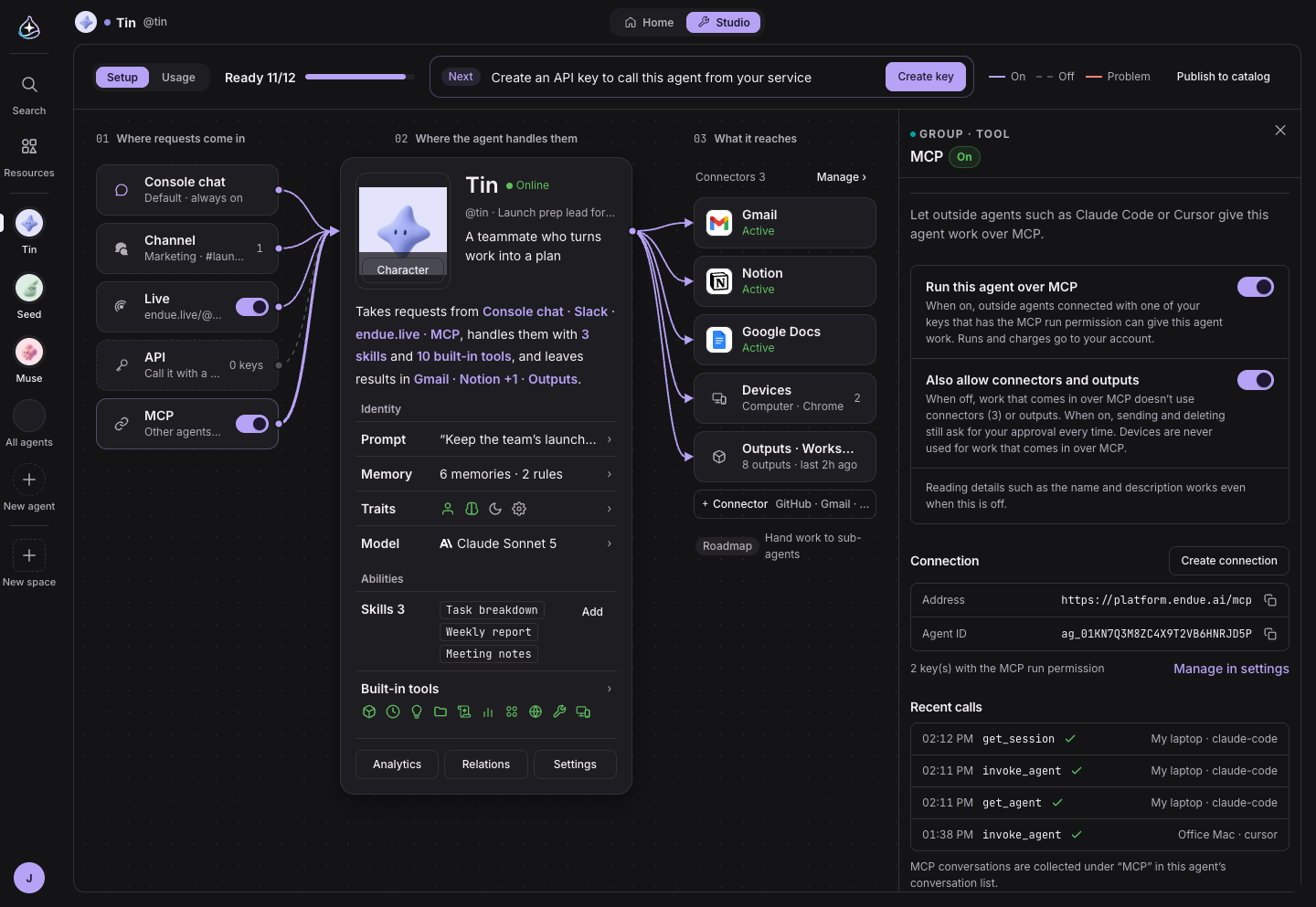
Call your agents from MCP clients such as Claude Code and Cursor. You choose, agent by agent, which ones can be run.
A three-column board you never have to zoom shows where requests come in and what the agent can reach, and suggests the next step.
Give an agent’s chat home one of five moving backgrounds and a color. The background reacts to your mouse.
With this release, the cloud computers your agents use have moved to endue OS. Every agent gets its own Station, and usage comes out of the same credits as endue AI. Every account also gets a secretary: tell it what you need from any screen, and it hands the work to your agents and brings the results back.

Until now, endue AI started the cloud Computer and cloud Chrome your agents use by itself. You couldn’t choose their size or manage when they ran, and even with the same account, endue OS kept its own separate credits.
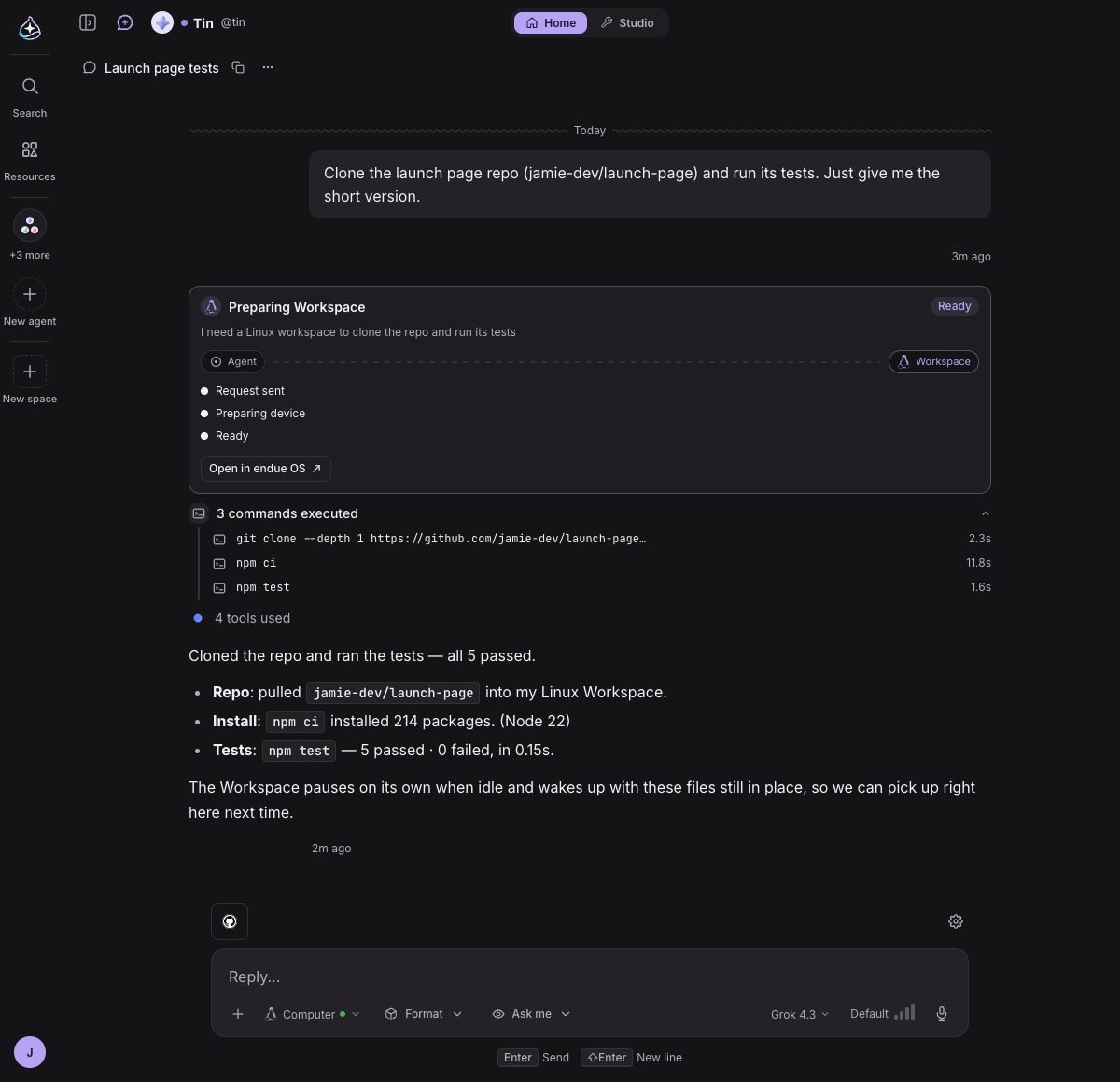
Now endue OS runs those cloud computers. Every agent gets an endue OS Station, and the agent creates a Linux Workspace and a Chrome Workspace in it sized to the job. A Workspace is a cloud computer with its own disk: it stops on its own when it sits idle and, when it is used again, wakes up with its files right where they were.
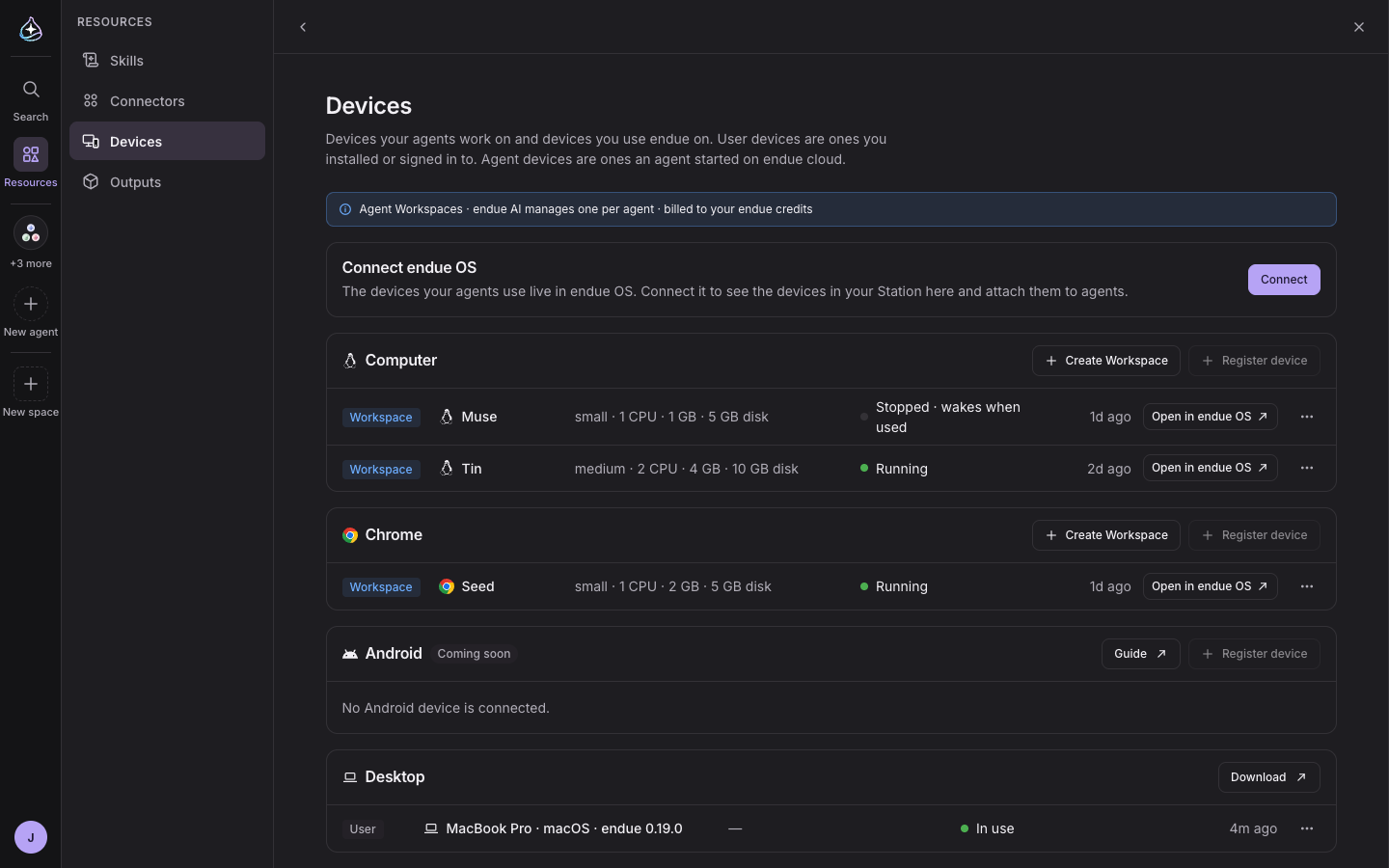
Resources › Devices shows every agent’s Workspaces at a glance. You can create one yourself, raise its size or delete it, and “Open in endue OS” opens that Workspace in endue OS. Your agents’ Stations belong to your account, so endue OS lists them too, in a project for your endue AI agents.
A computer for each agent
One credit balance
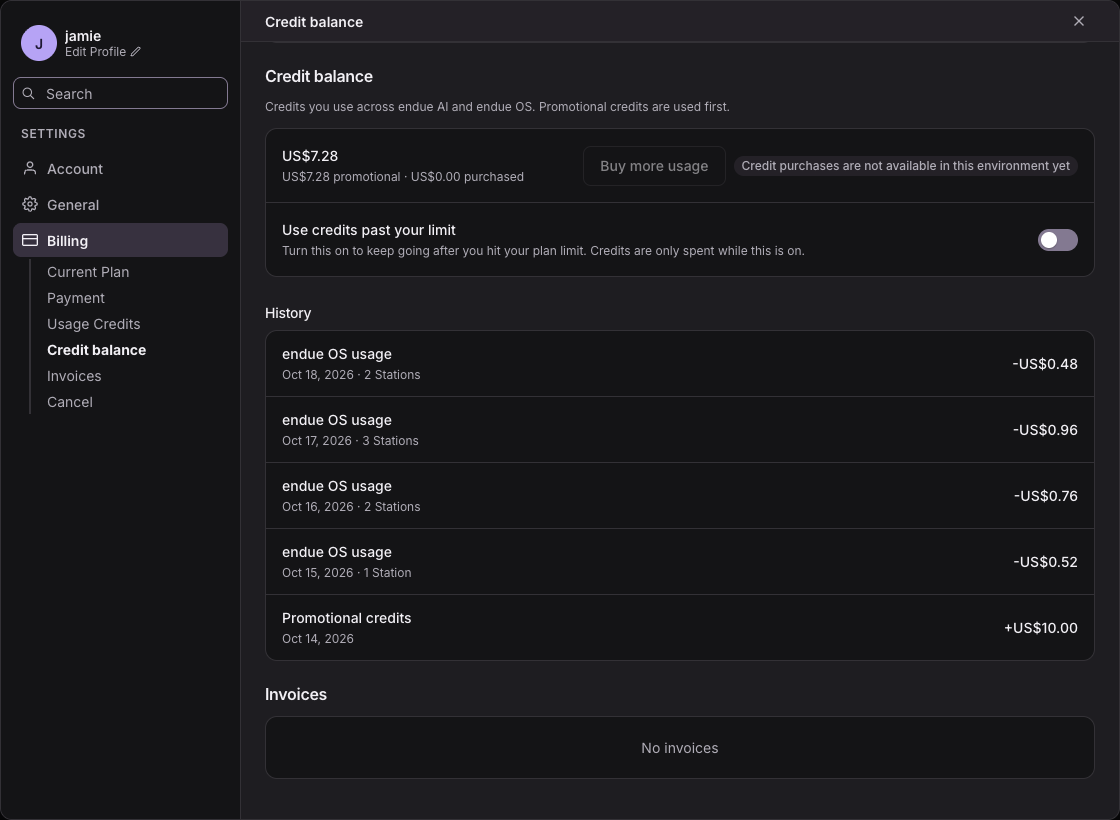
endue credits are now one balance for endue AI and endue OS. 1 credit is US$1, and the time your agents’ Workspaces spend running comes out of the same balance. See endue OS usage alongside the rest under Credit balance in Settings › Billing.
endueos.com
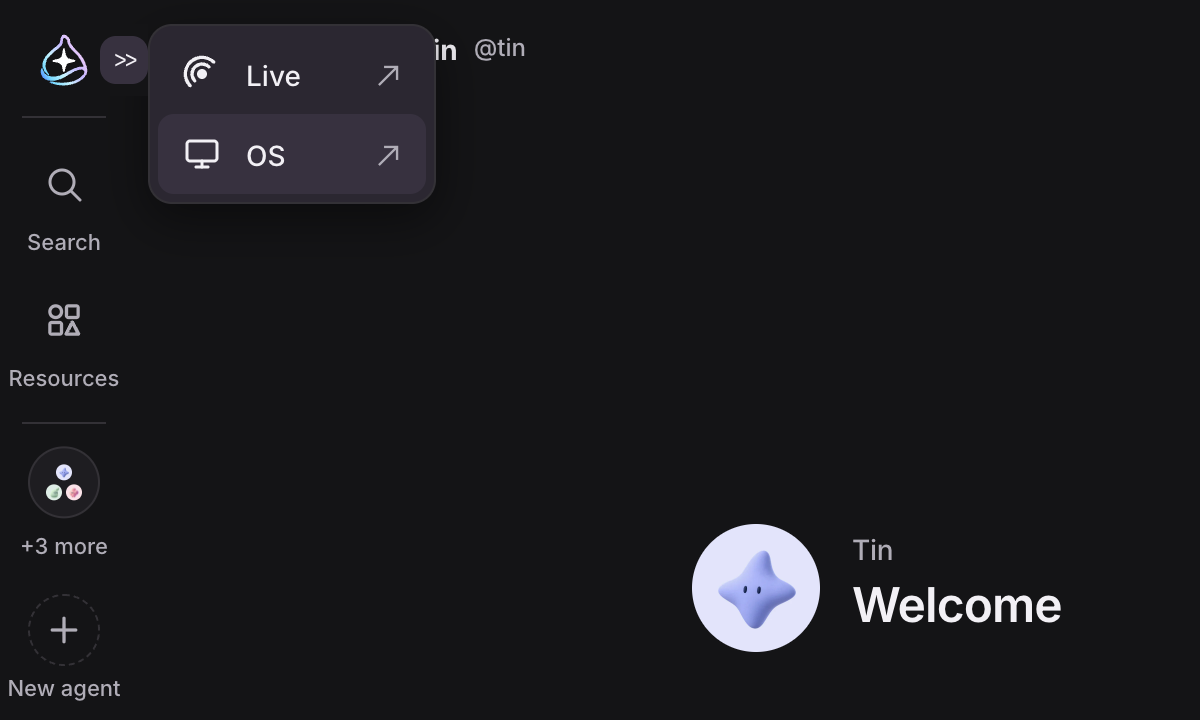
endue OS also works without endue AI. Create Stations and Workspaces directly at endueos.com and use cloud computers from the console and the API. From endue AI, “Switch products” next to the logo at the top left takes you straight to endue OS.

Once you had several agents, every task started with choosing which one to ask. Work that needed more than one agent meant opening separate conversations and repeating yourself, and checking results meant visiting each conversation in turn.
Now every account has a secretary. It knows your agents, spaces, conversations and schedules. Tell the secretary floating at the bottom right of any screen (⌥Space) what you need: it answers directly, or hands work that needs tools to the right agent. It can split one request across several agents, and when the work is done it gathers the results into one summary.
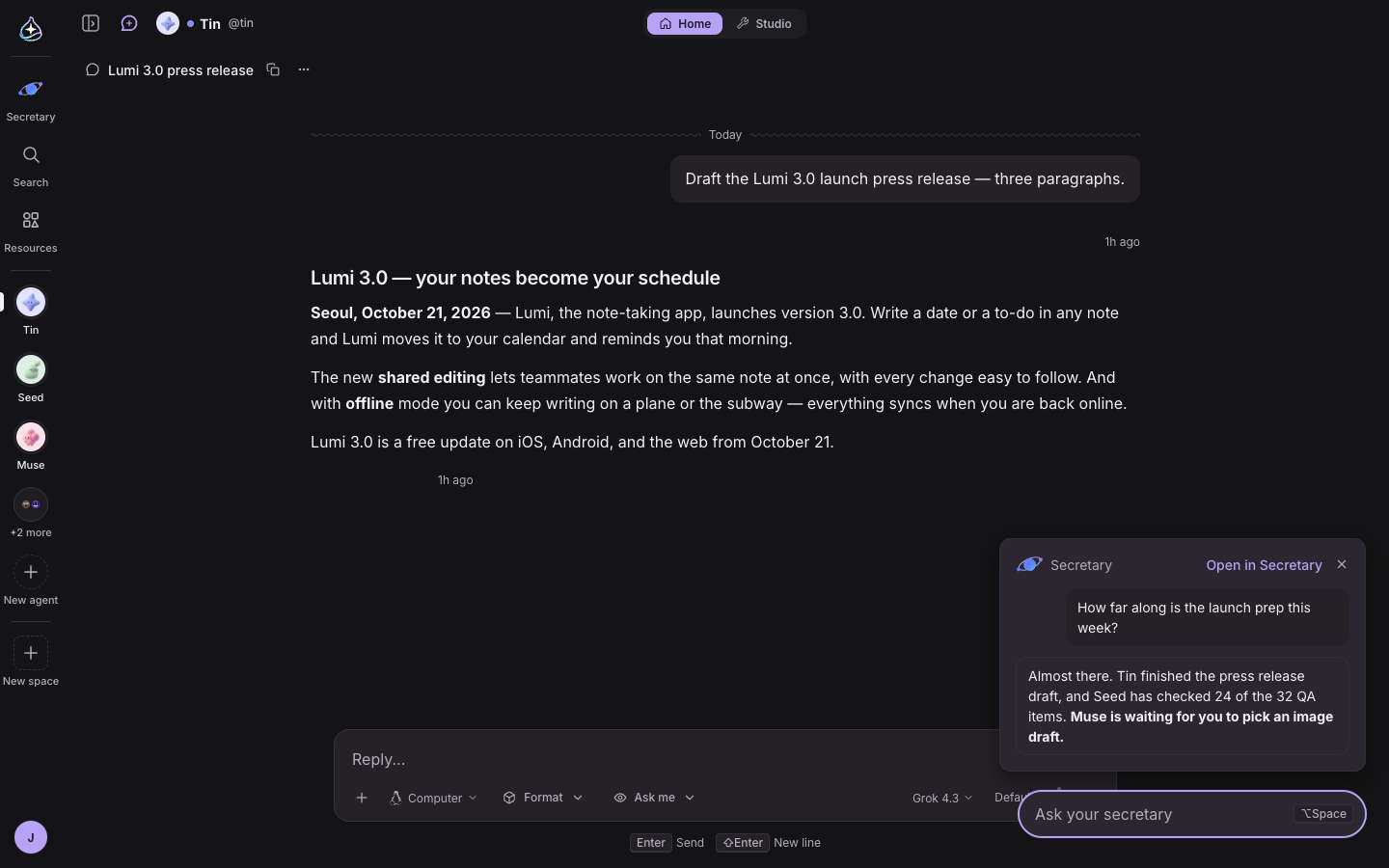
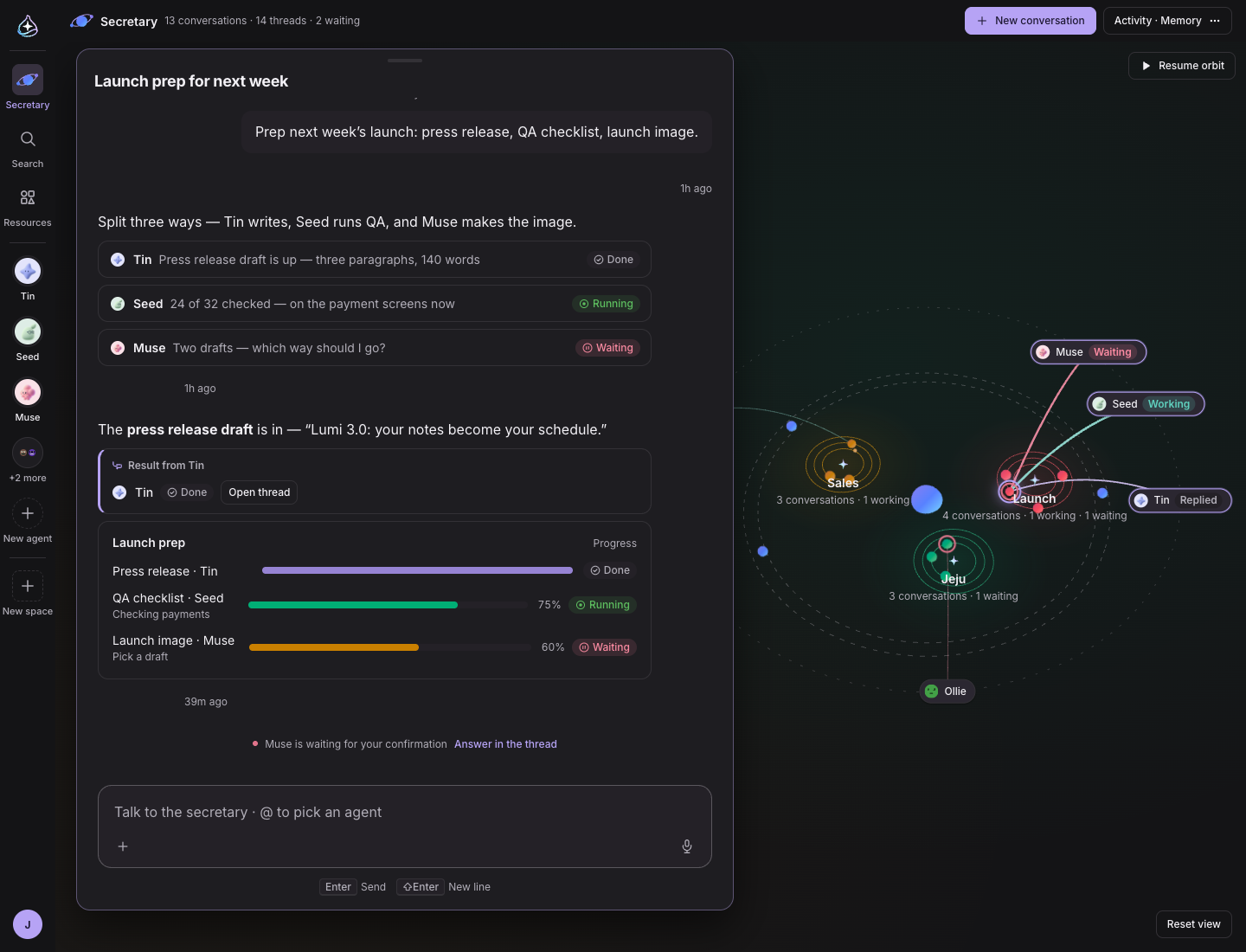
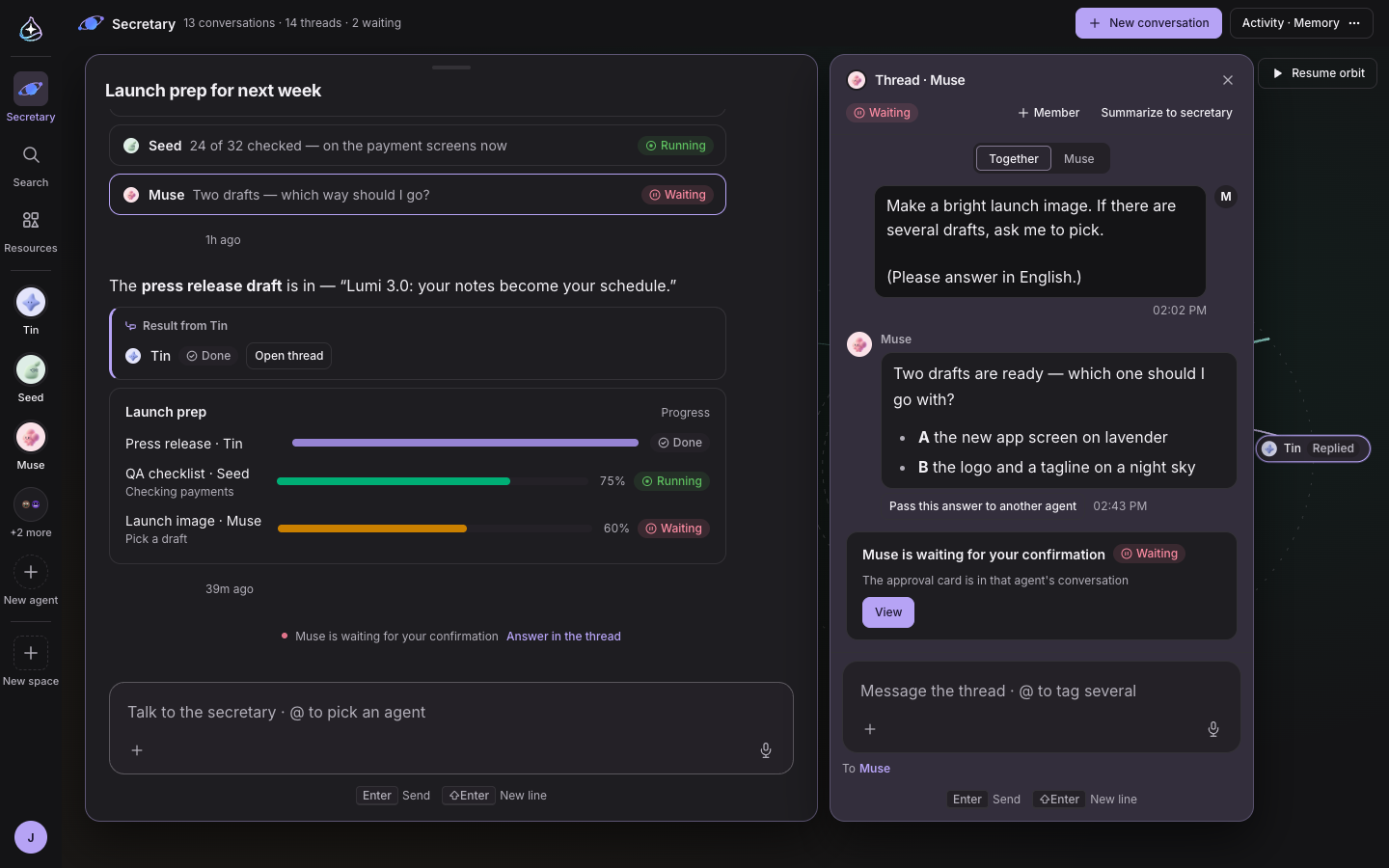
Delegated work appears under the answer as thread chips, each showing the agent doing the work and its status. When an agent needs you, “… is waiting for your confirmation” comes up and you reply right in that thread. When the work is done, the secretary sums it up as “Result from …” with progress, comparison, timeline and number cards. The original replies stay in the threads.
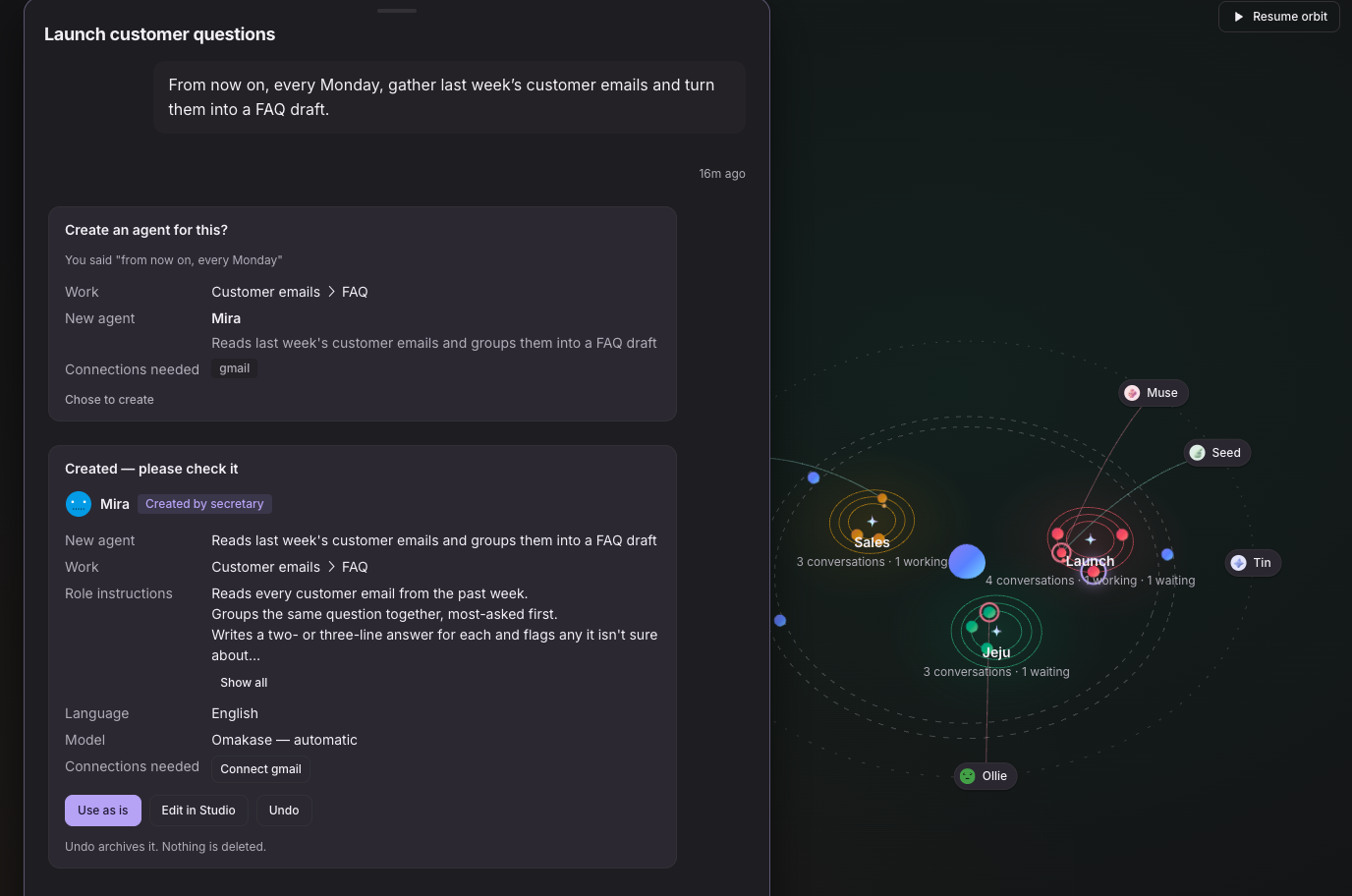
When no agent fits the job, the secretary suggests a new one. Say yes and it creates the agent; from the confirmation card you keep it as it is, adjust it in Studio, or undo it.
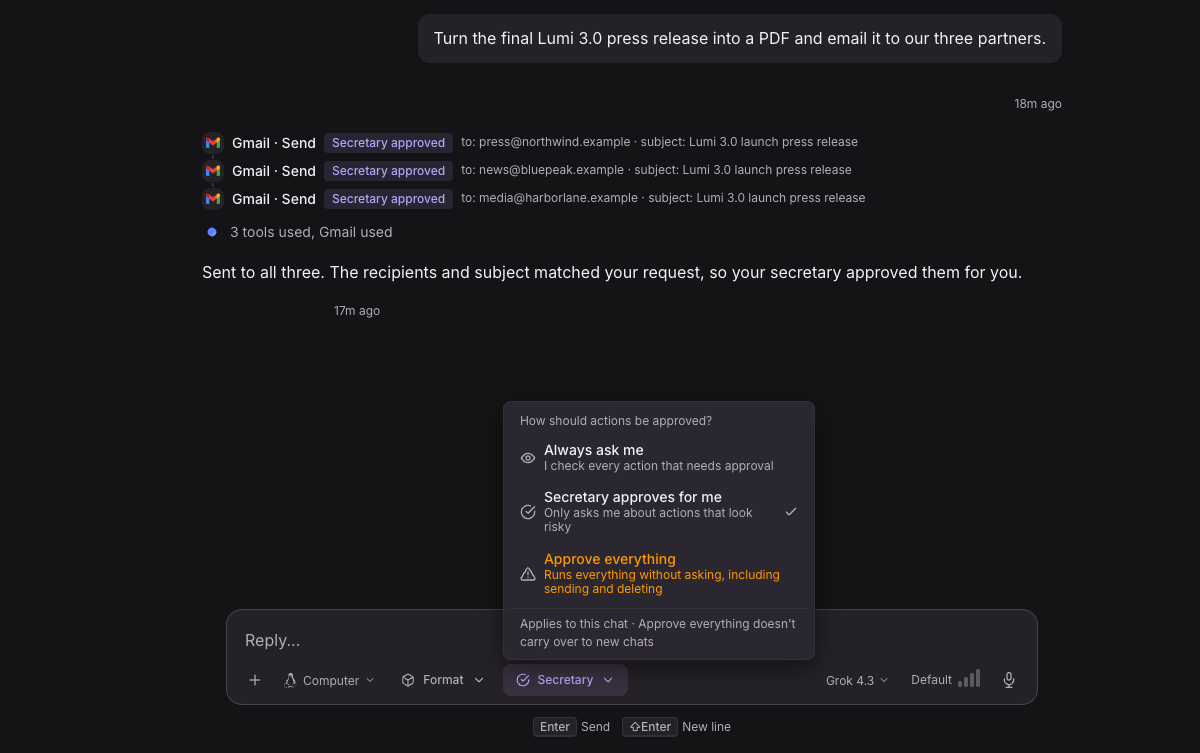
You can hand approvals to the secretary as well. In an agent chat’s composer, choose “Always ask me”, “Secretary approves for me” or “Approve everything”. The secretary only approves when it judges the action is what you asked for, and anything that can’t be undone always comes to you.

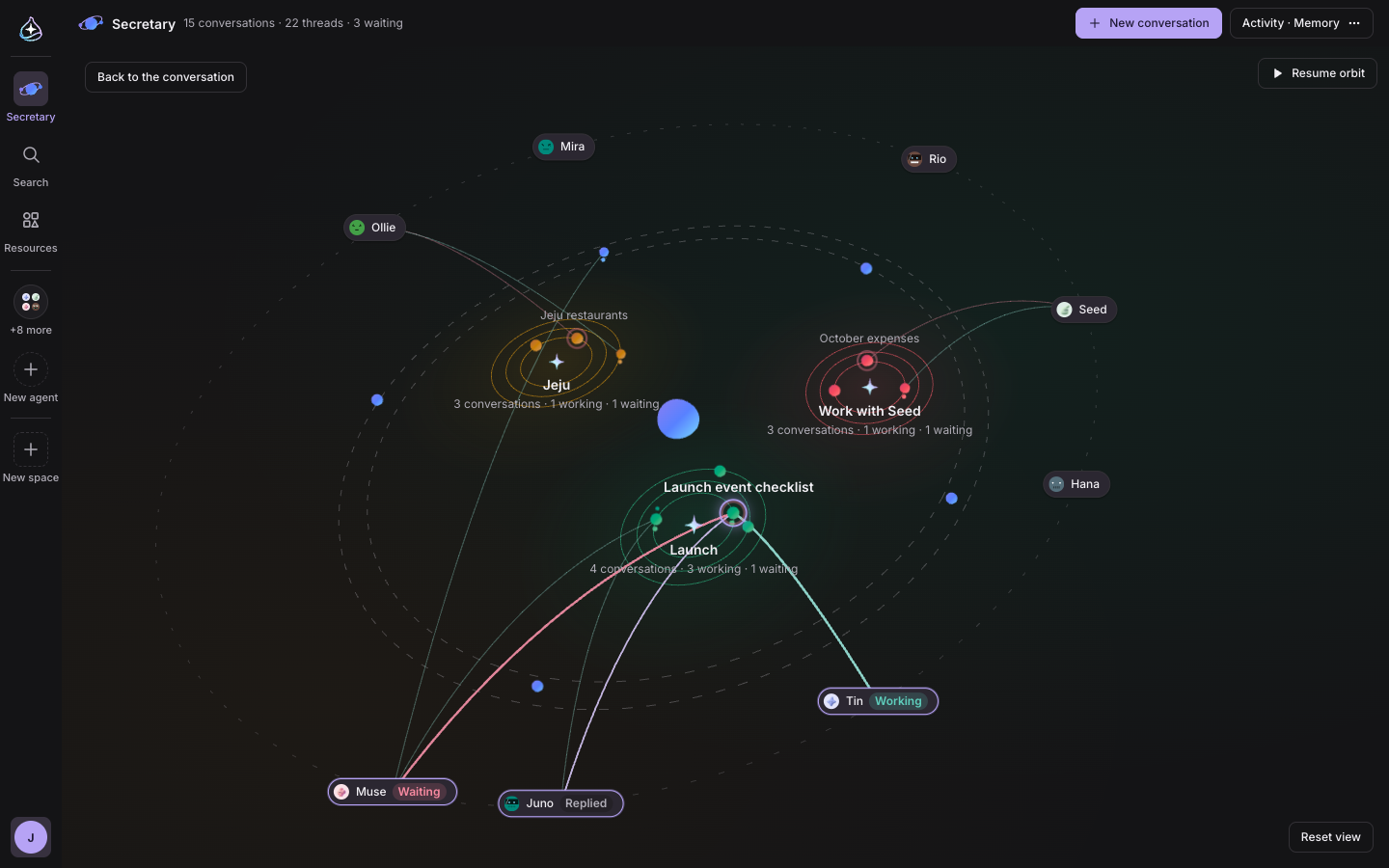
Click “Secretary” in the sidebar and your conversations with the secretary spread out like a galaxy. The secretary sits in the middle, and conversations on the same topic circle a shared star. Stars name themselves from your conversations and show how many conversations are open, working and waiting. Conversations that don’t belong to a topic yet drift in the outer belt.
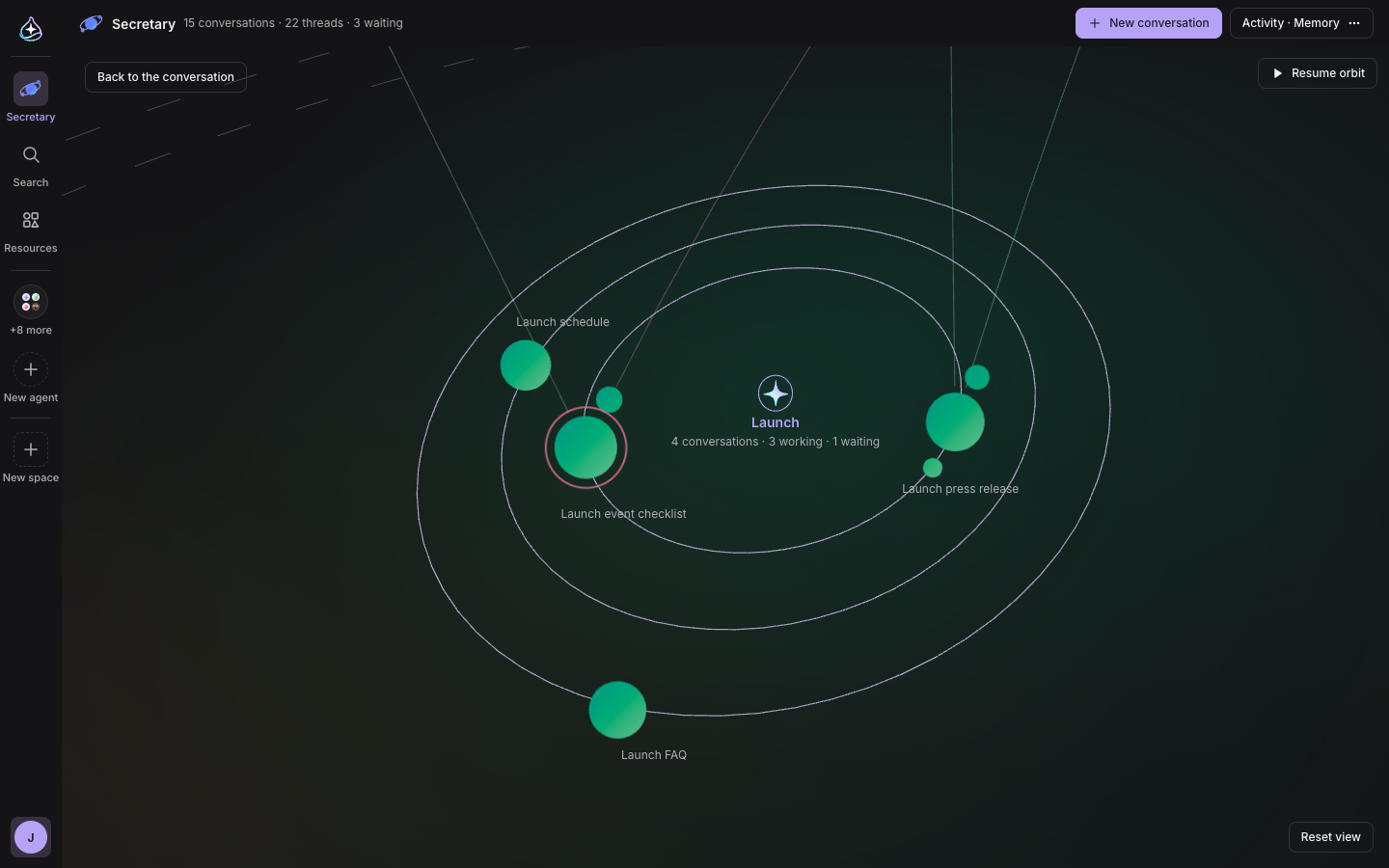
Delegated work shows as satellites circling a conversation. A path runs from the conversation to each agent working on it, labeled working, needs you or done. Conversations waiting on you wear a pink ring, and when the work is finished, the satellite comes back and docks.
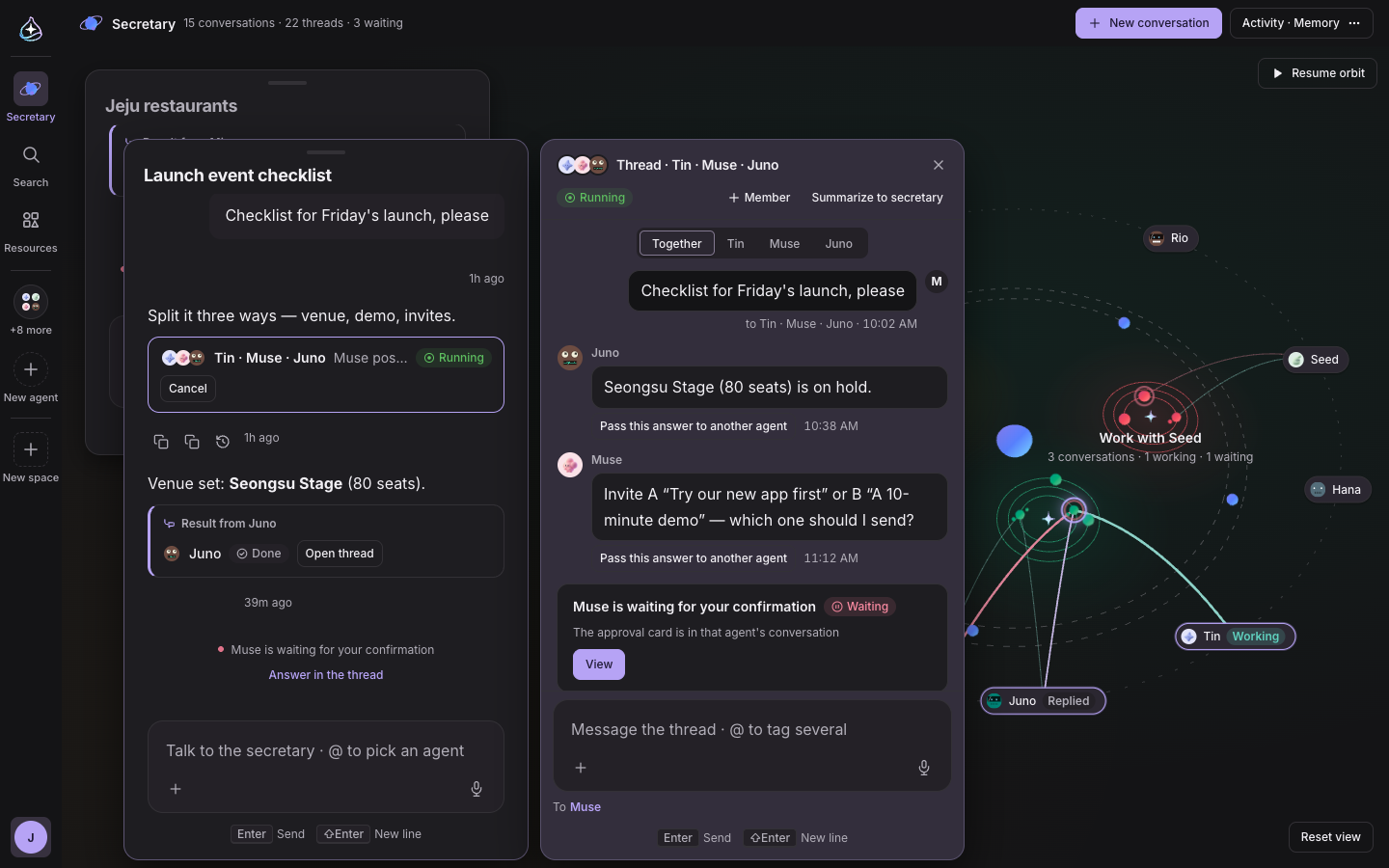
Conversations open as windows. Open several at once and let them overlap, drag them around, resize them, or double-click to fill the screen. Threads for delegated work stay attached to the side of their window. Put the work you gave to several agents side by side and check it all on one screen.
The galaxy turns slowly around the secretary. Drag to rotate, scroll to move closer, and click a star to fly to that topic. “Pause orbit” stops the turning.
Until now we didn’t document a way to call endue agents from outside tools, and a single API key could run every one of your agents.
Now you can call your agents from MCP clients such as Claude Code, Cursor and VS Code. Under Settings › Account › MCP connection, “Create connection” walks you through it: create a key, paste the settings for your client, and check the connection.
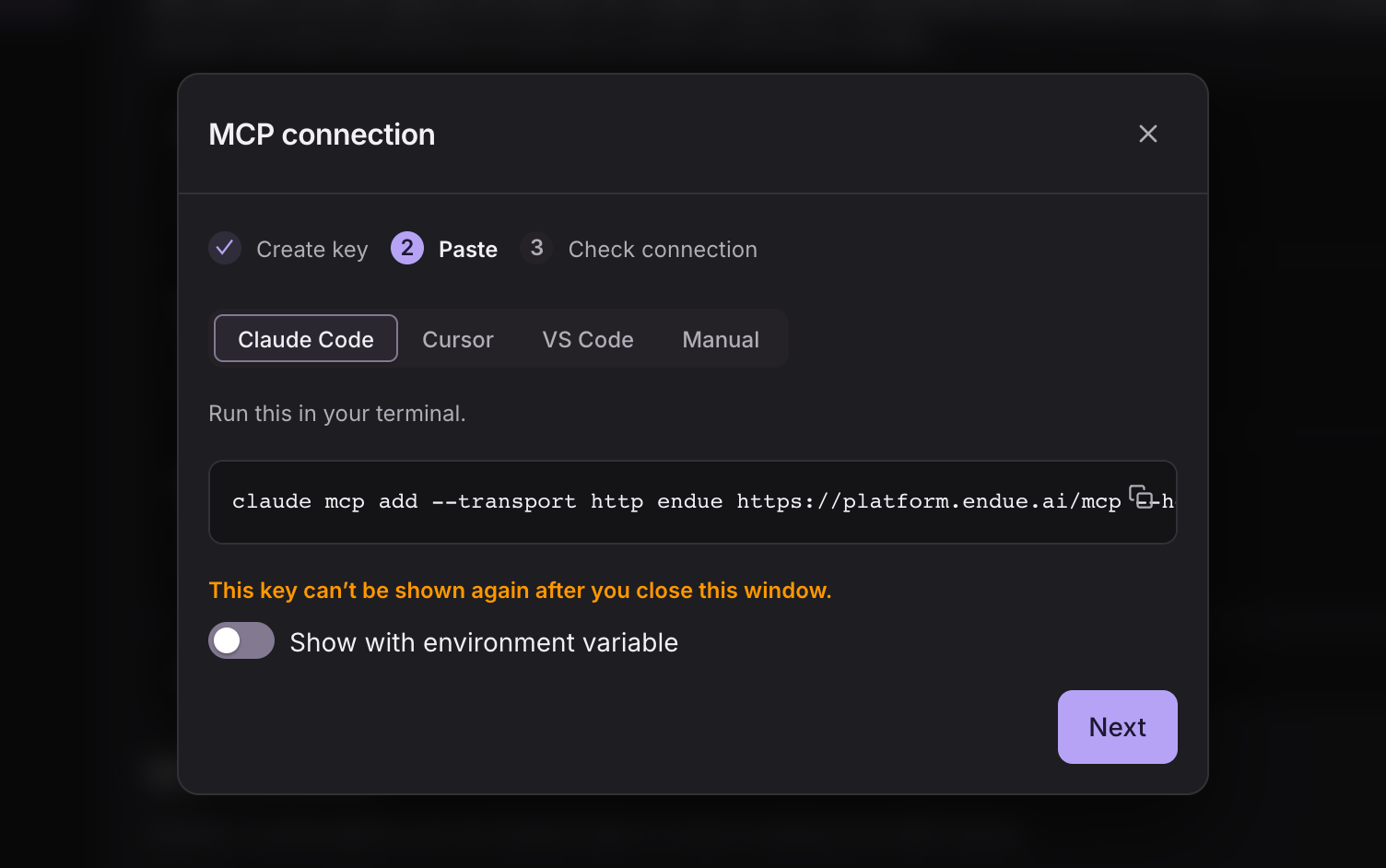
You decide agent by agent which ones MCP can run. Only agents with “Run this agent over MCP” turned on under MCP in Studio can be run, and you choose separately whether they may use connectors and outputs too. Sending and deleting always wait for your approval. Recent calls shows who called and when, and conversations started over MCP appear under MCP in the Channels tab of the sidebar.
API keys are now issued for a purpose — MCP connection, HTTP API or LLM API — with only the permissions that purpose needs.
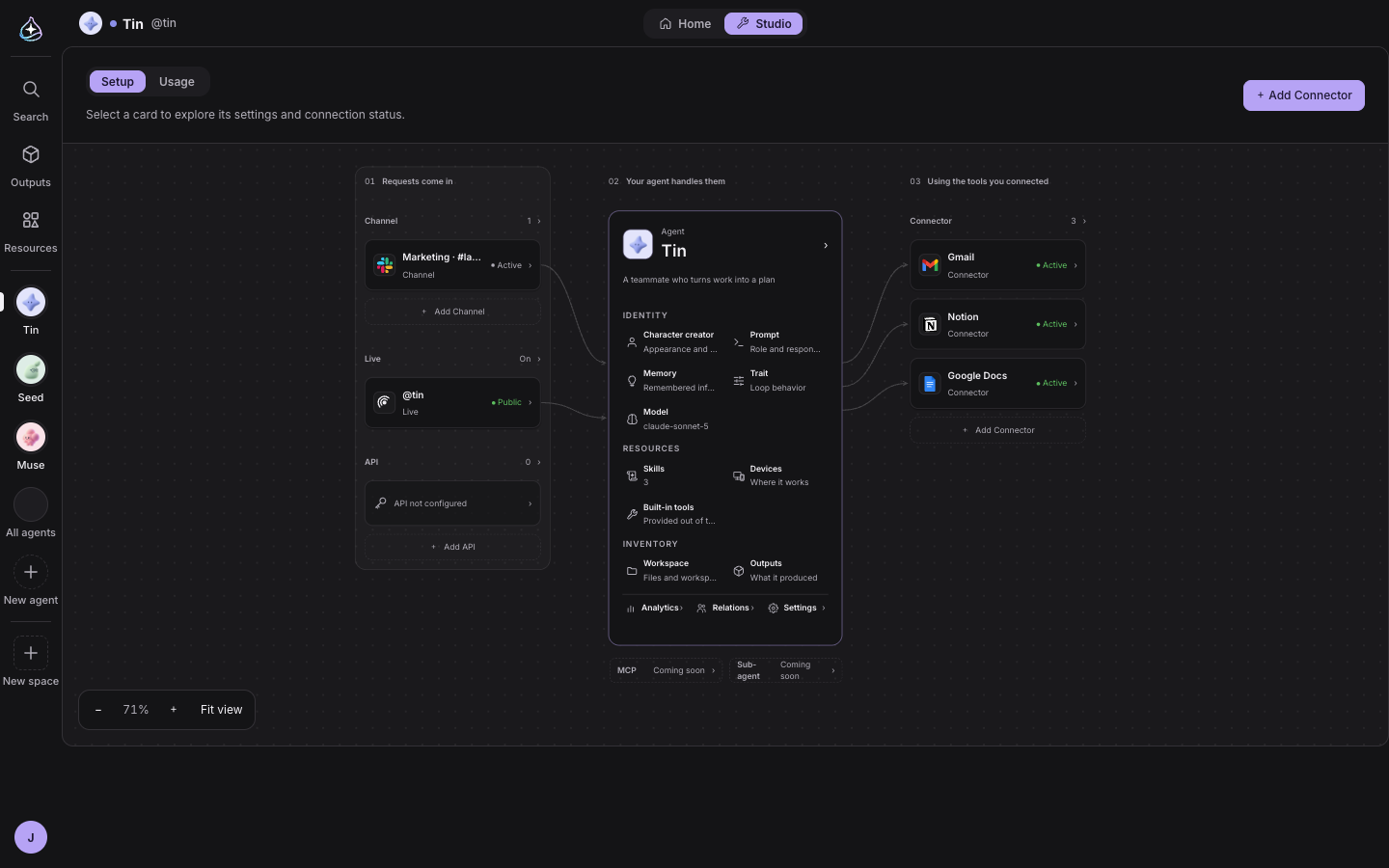
Studio used to be a canvas you dragged and zoomed. It didn’t fit on one screen, so you hunted around with the zoom bar and by dragging, and turning on Live or MCP meant opening a node and finding the switch in its settings.
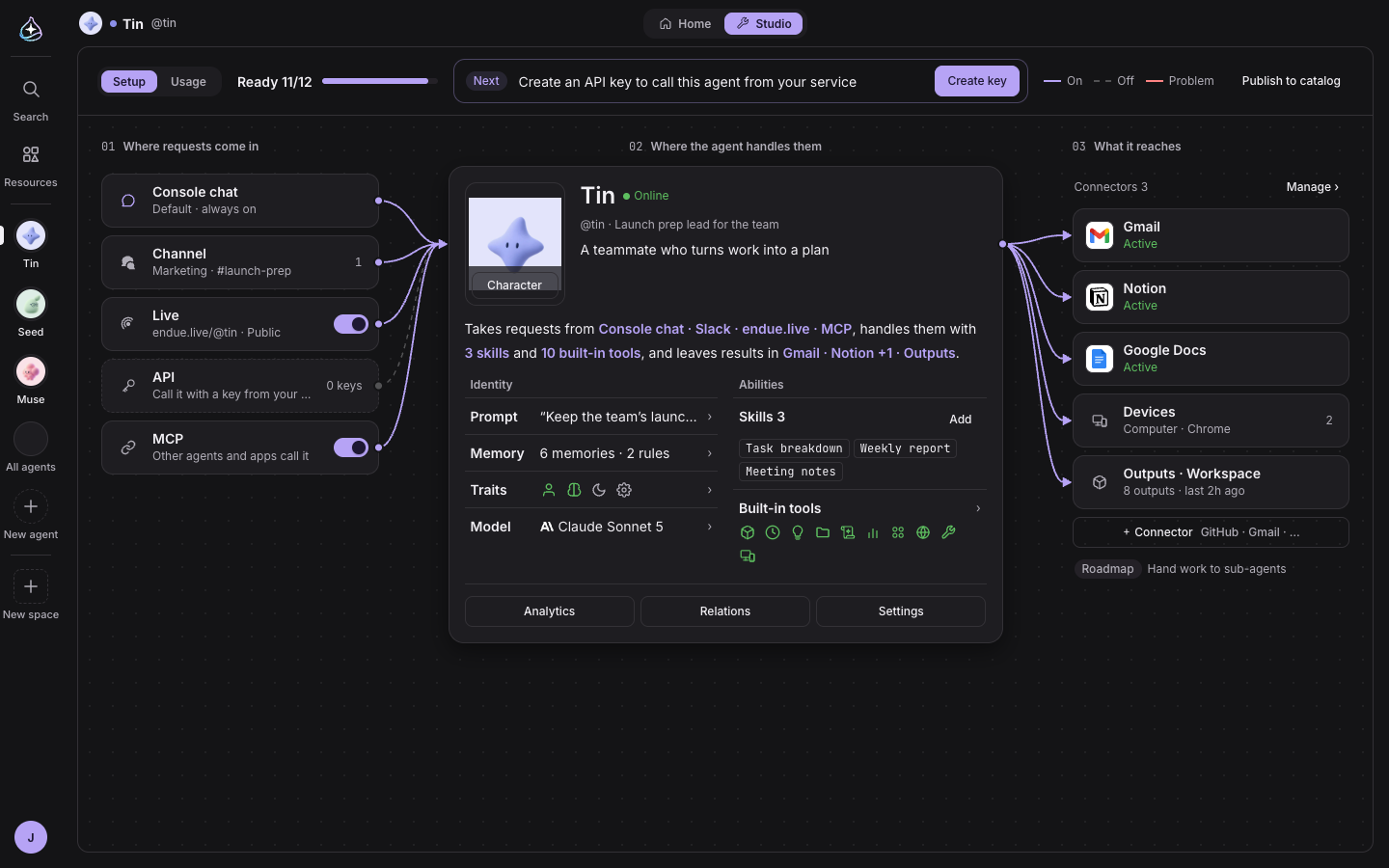
Studio is now a three-column board you never need to zoom. On the left is where requests come in (chat, channels, Live, API, MCP), in the middle the agent, and on the right what it reaches (connectors, devices, outputs). The lines between them show what is on, off or broken, and Live and MCP turn on with a single switch at the head of their row. The agent card in the middle shows its character and a sentence about what its current connections let it do. “Ready 11/12” and “Next” walk you through what to set up next, one step at a time.
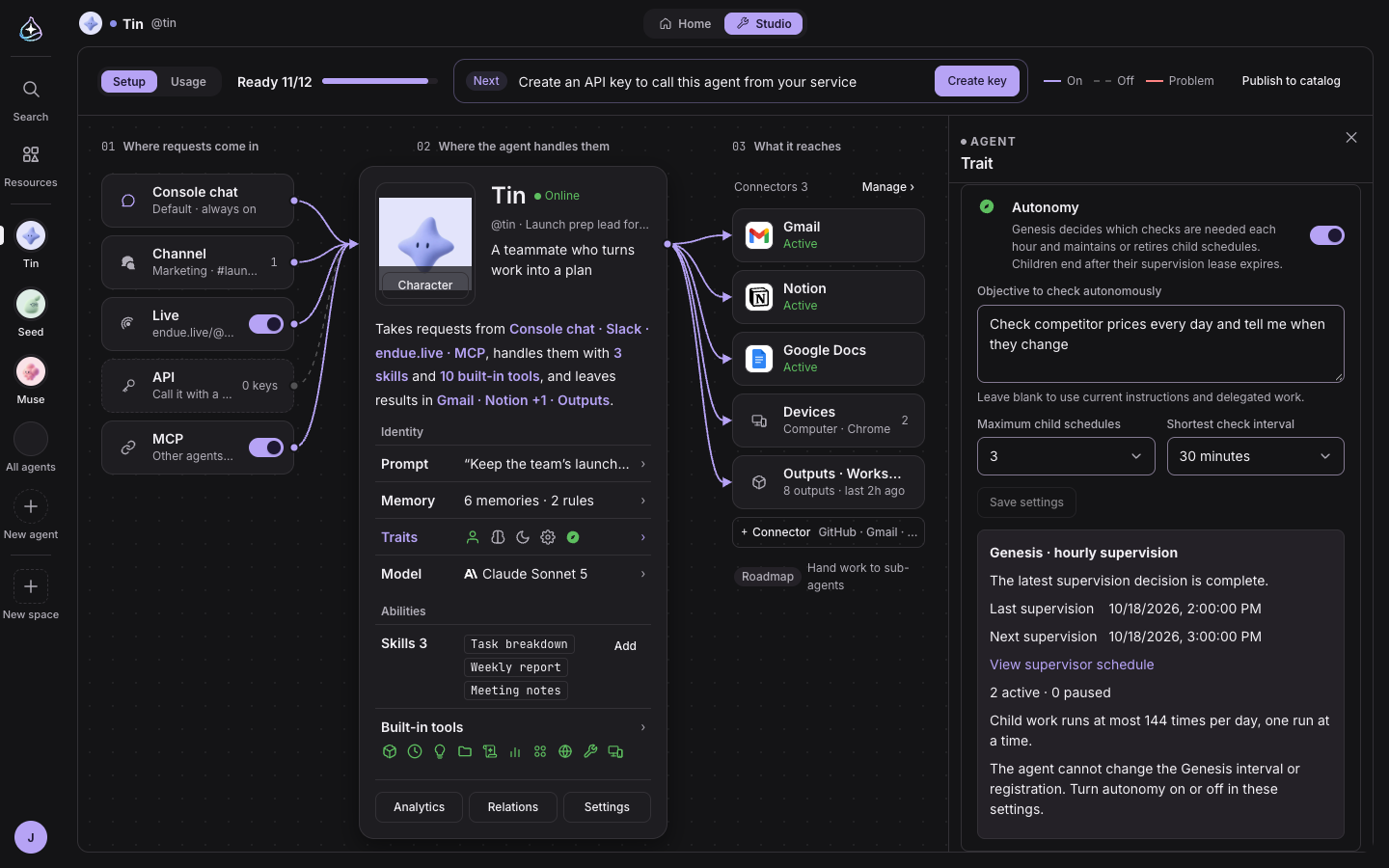
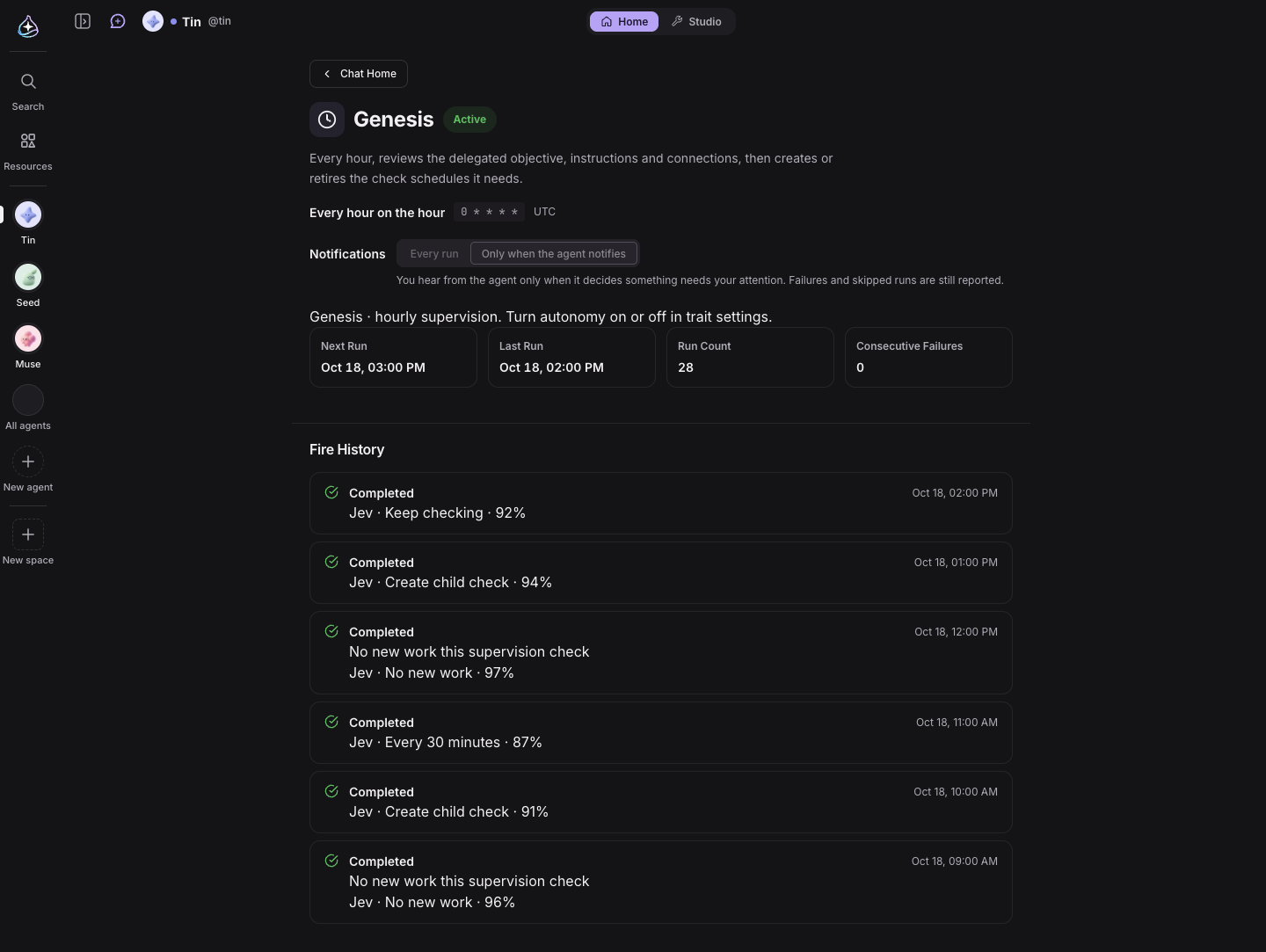
Turn on Autonomy under Studio › Traits and the agent gets Genesis, a supervising schedule that runs every hour. Genesis looks at the agent’s goals, instructions and connections, turns anything worth checking regularly into sub-schedules, and retires them when they are no longer needed. Sub-schedules run every 10, 30 or 60 minutes, up to five at a time, and only notify you when there is something to tell.
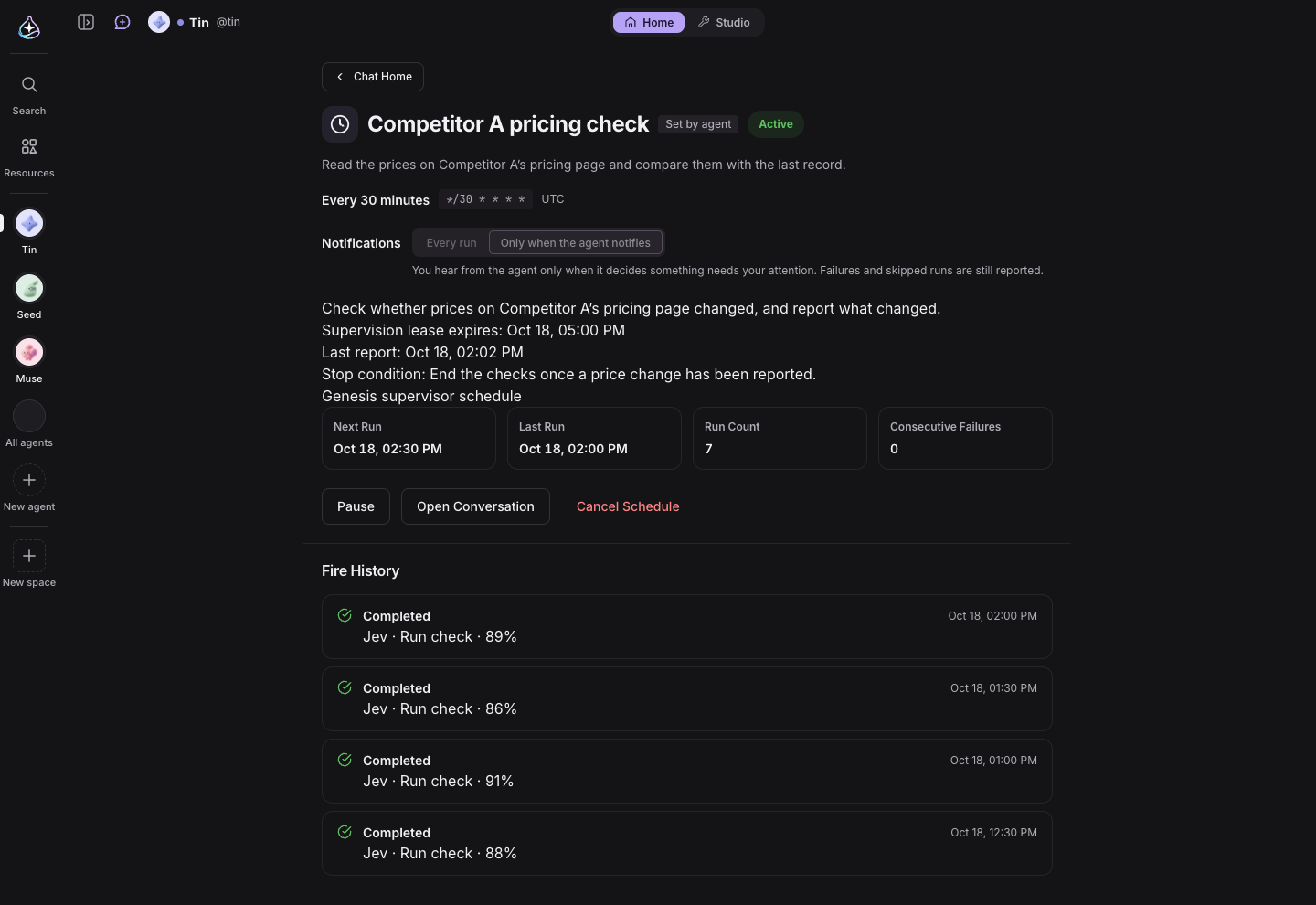
Before a new sub-schedule is created, and before work is closed as “Purpose complete”, the judge model Jev checks it once more. If Jev doesn’t approve, the work stays open and the agent keeps helping; if the call is unclear, nothing runs and the step is put on hold. The agent can’t stop or change Genesis — only you can turn it on or off.
Work and results
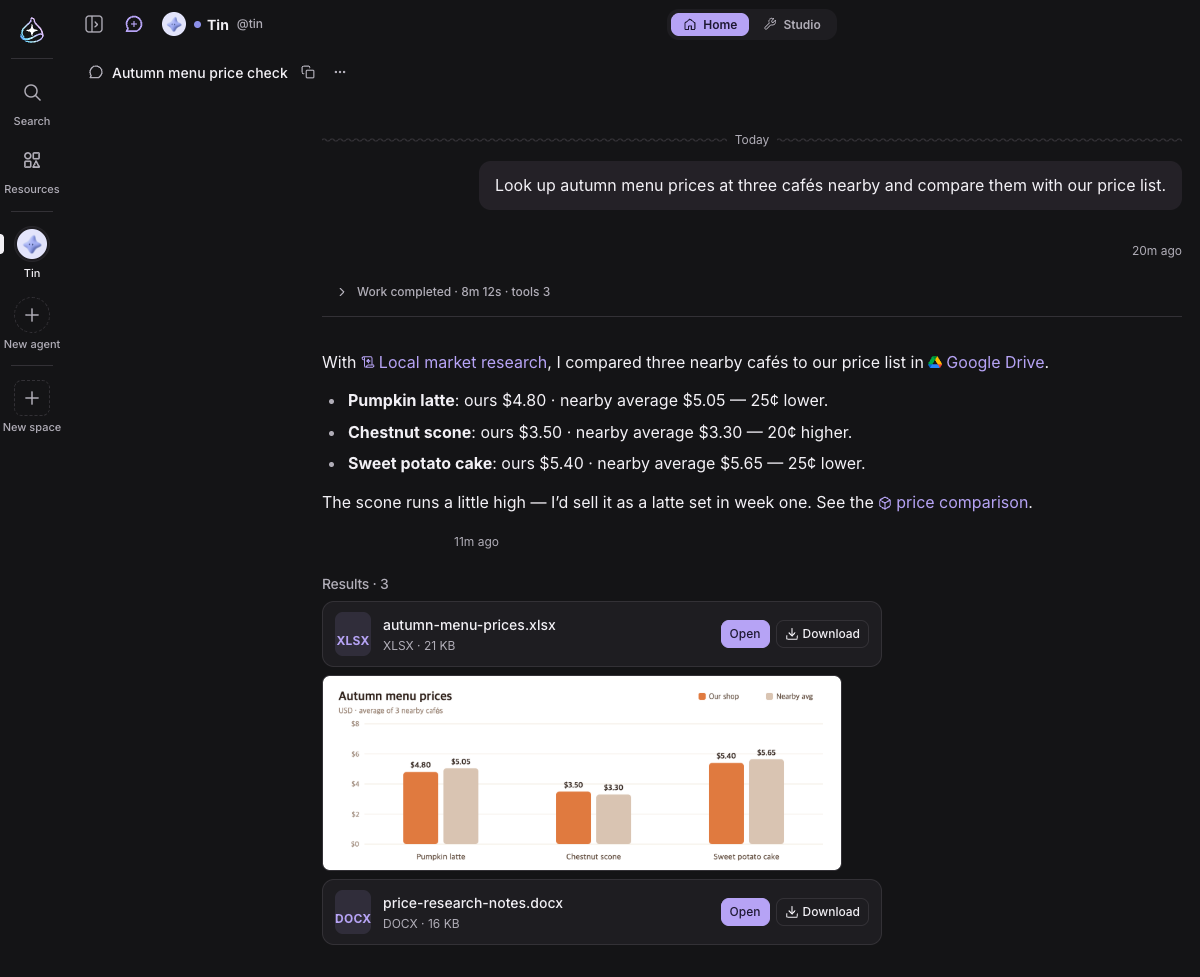
When an agent worked, its tool rows piled up longer than the answer and results were scattered across cards in the middle. Now a run folds into one line — “Work completed · time · tools” — and expands to show the thinking, progress and tools in order. Skills, connectors and outputs mentioned in the answer open from links with icons, and everything the run made gathers at the bottom of the answer.
An icon row above the composer
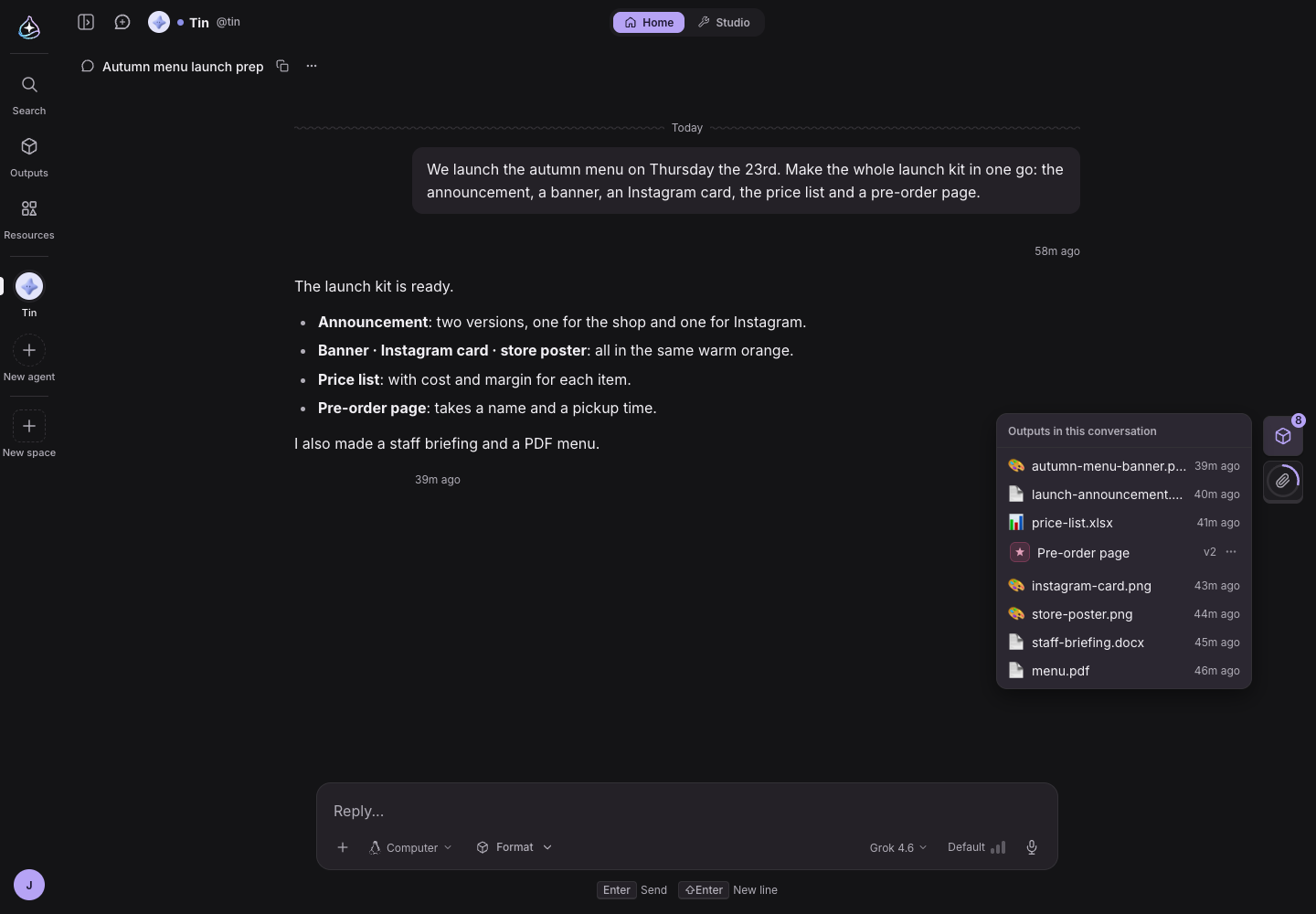
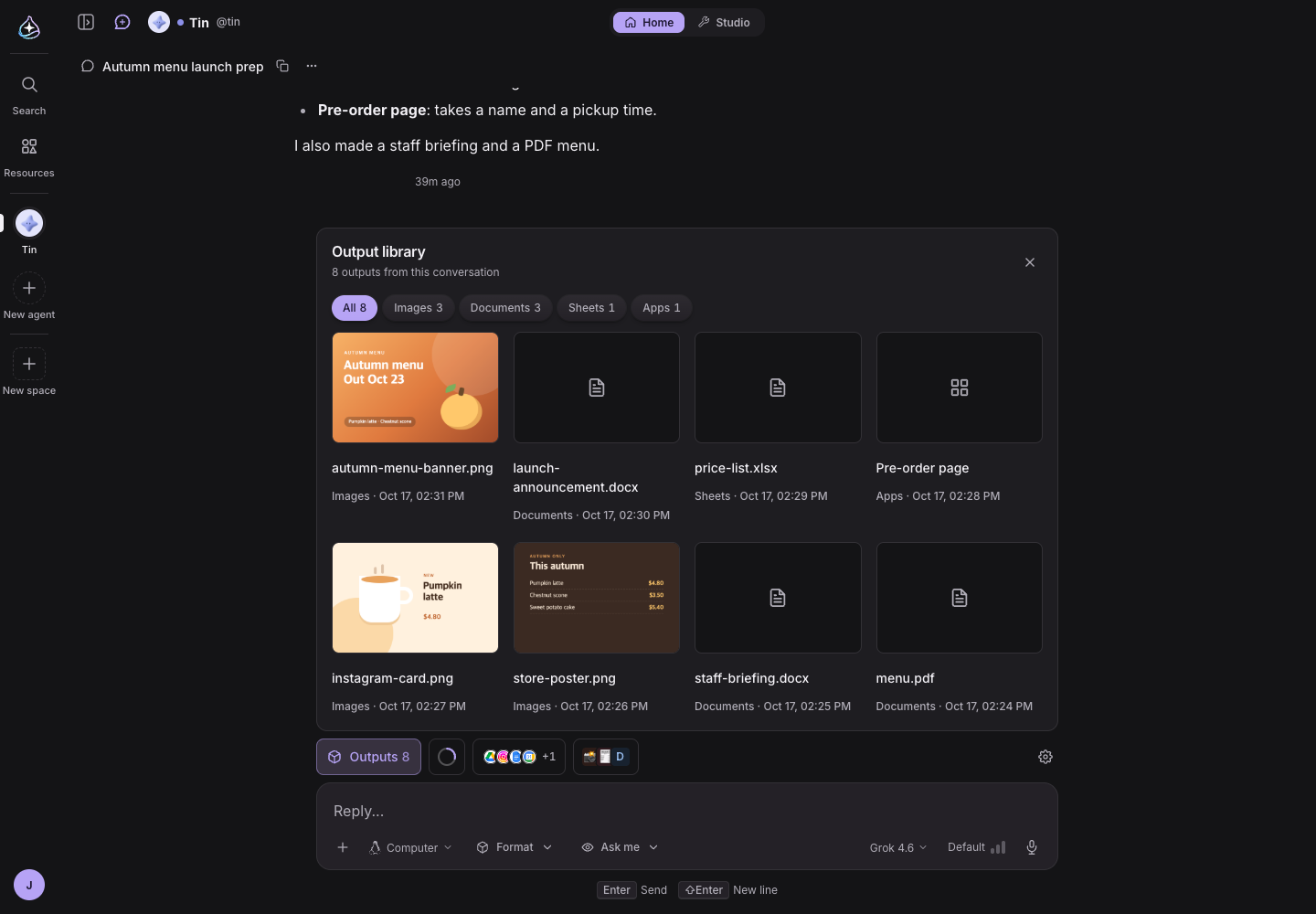
The right rail is gone. From the icon row right above the composer, the Outputs, Context, Connectors and Skills panels slide up from below. The output library shows the docs, sheets, images and apps from this conversation or room by type, and when a run makes something new, the icon row shows it right away, like “Outputs +2”.
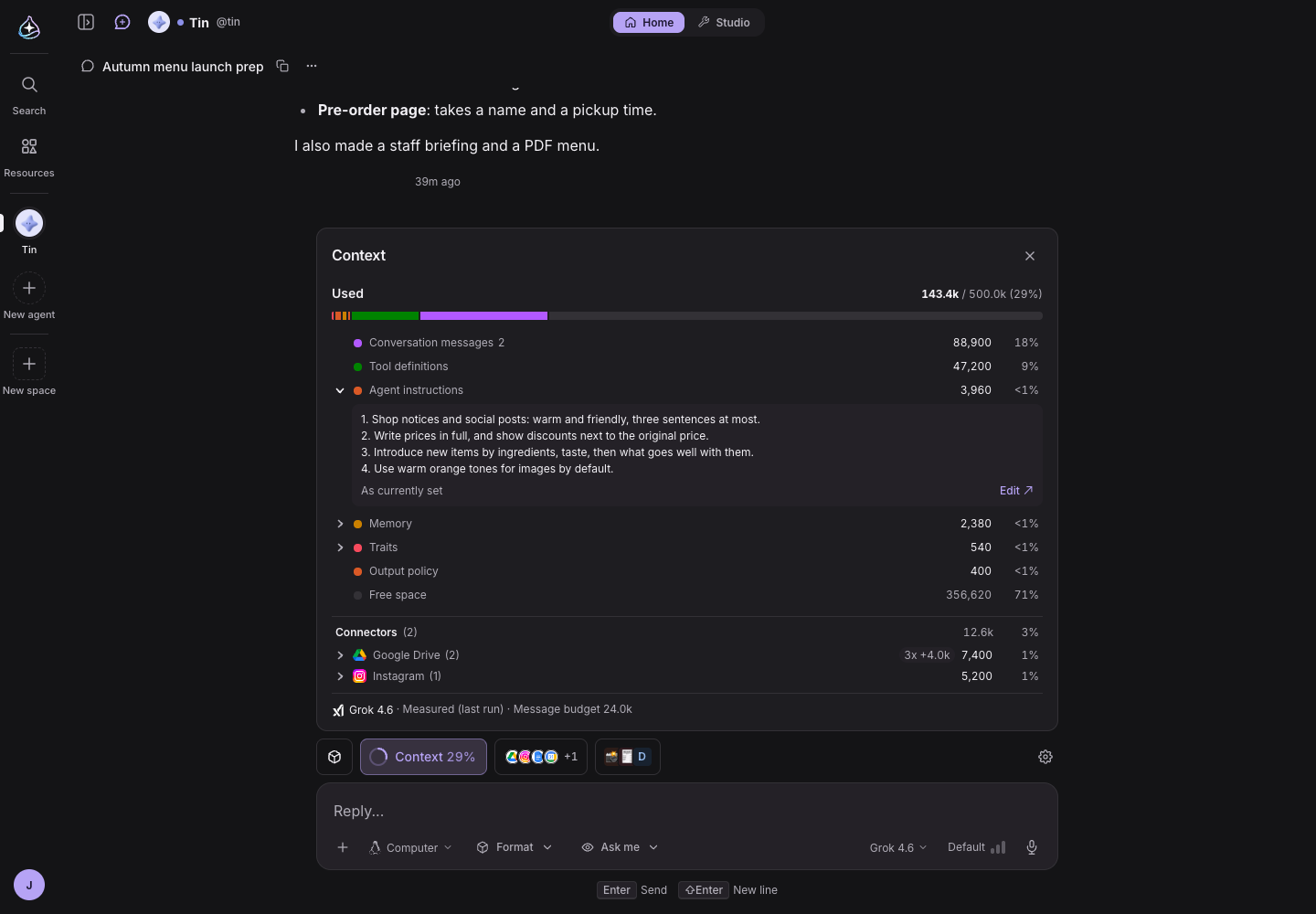
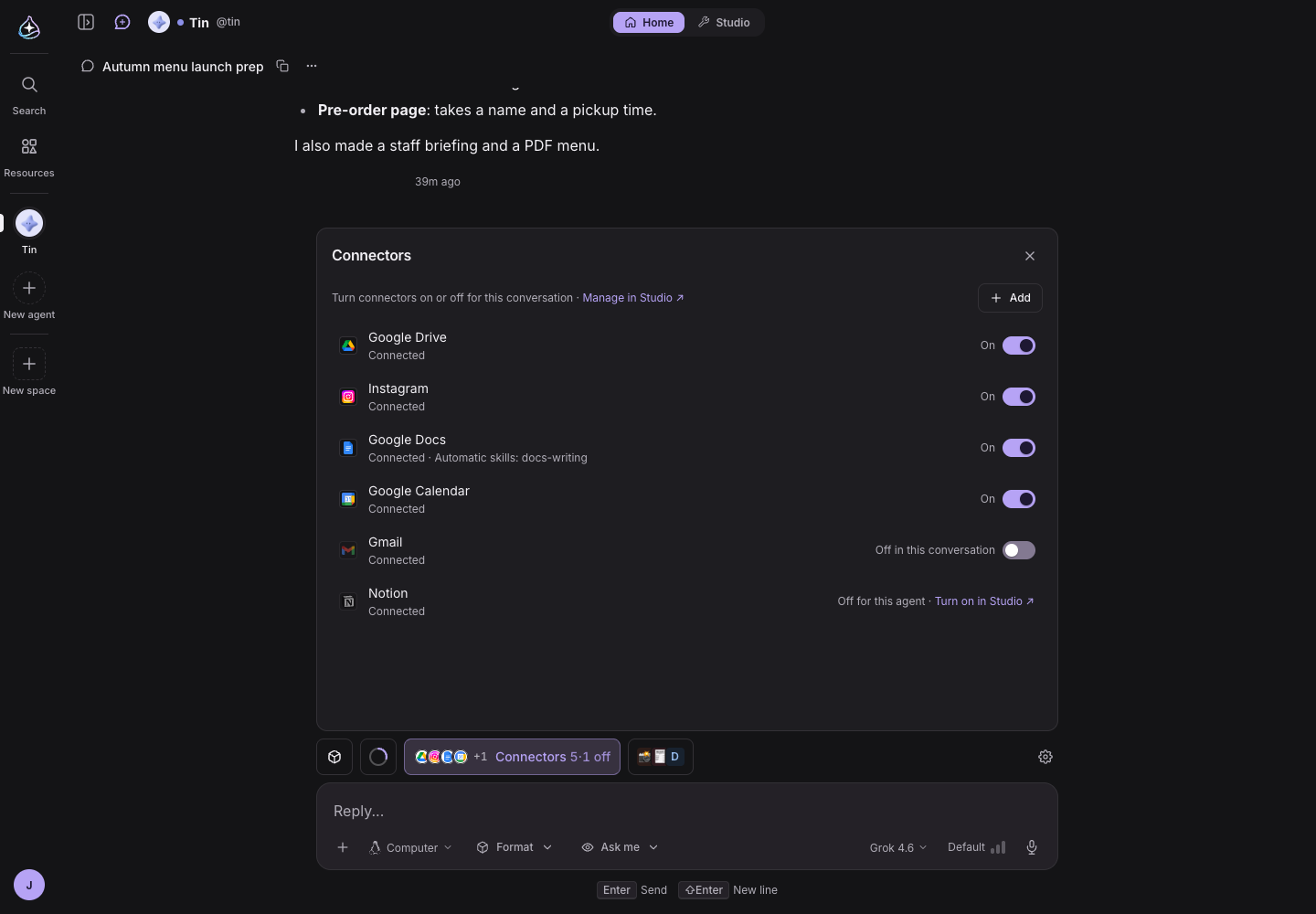
The Context panel shows the model with its provider’s logo and puts a share on every row. Expand one of your own settings, such as the agent’s instructions, to see its current content with an “Edit” link. The Connectors and Skills cells turn things on or off for this conversation only.
Confirmation questions you answer with a click
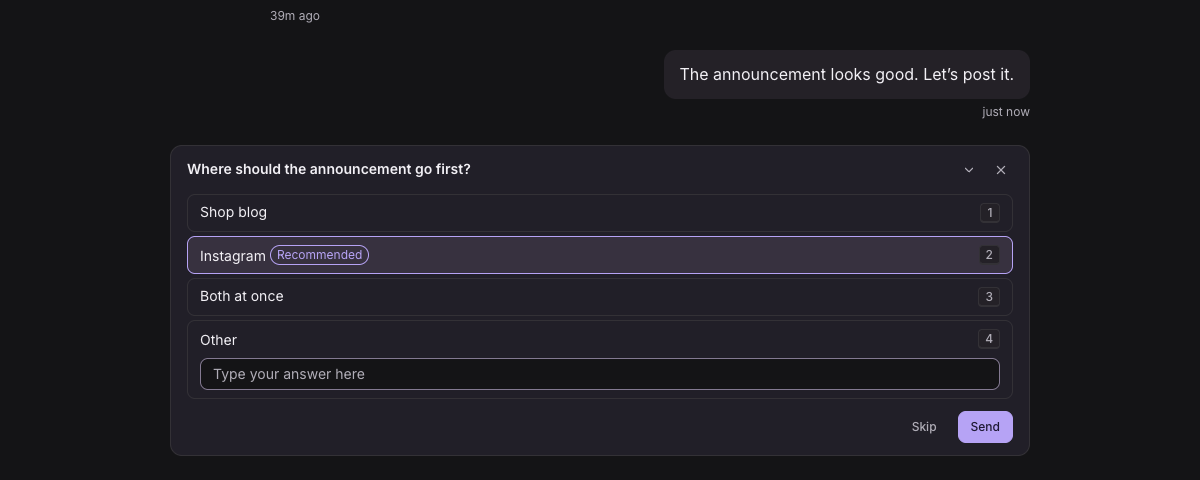
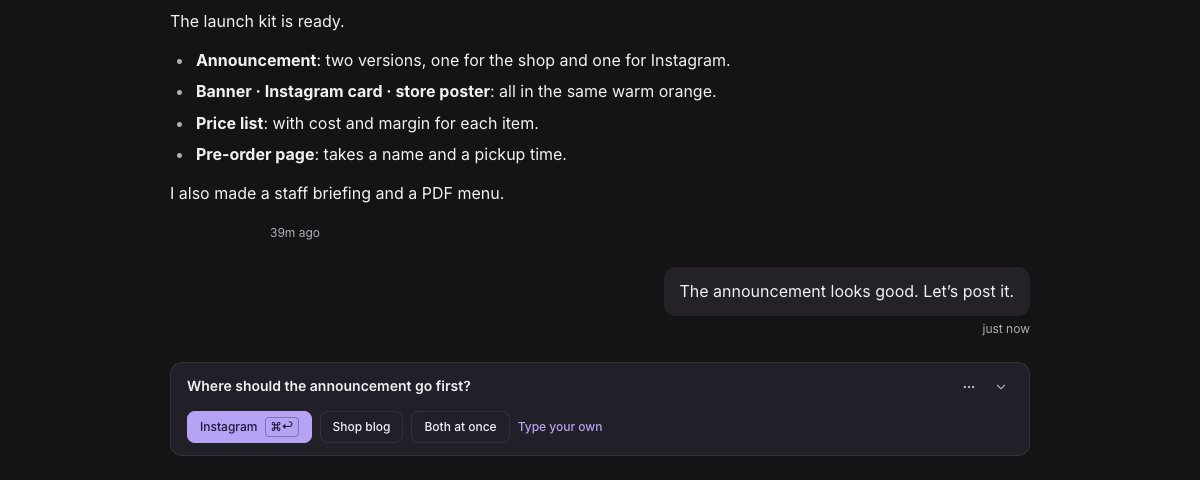
When an agent needs a decision, it now asks one question with a row of buttons. The ★ recommended answer is the first button, so ⌘↩ picks it, and “Type your own” is there for anything else.
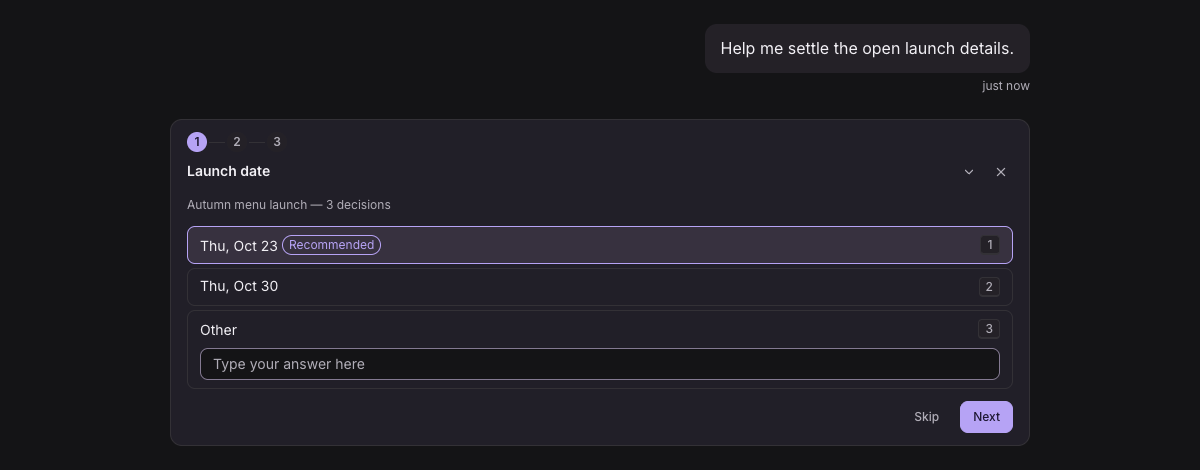
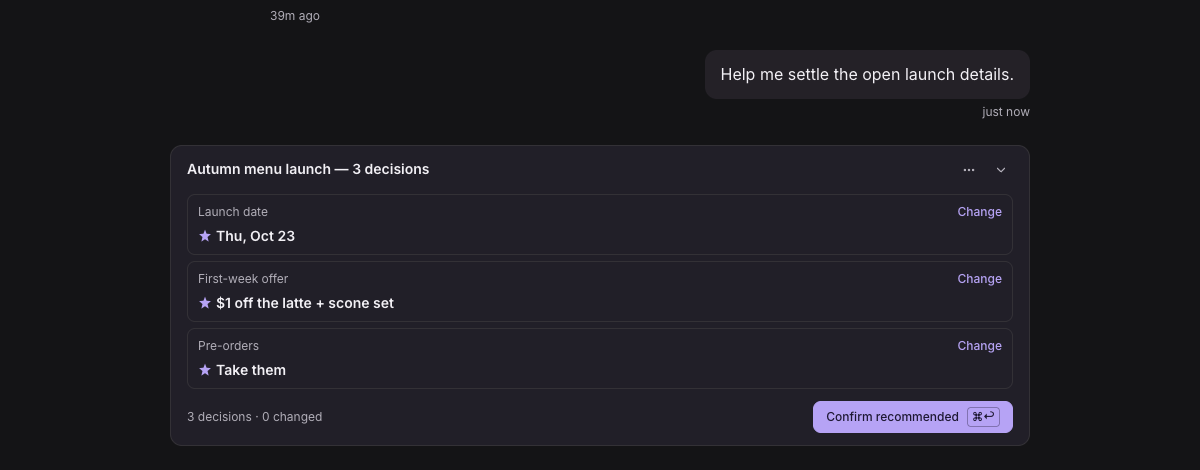
When there are several decisions, you no longer step through them one by one: one summary screen closes them all with “Confirm recommended”, and “Change” lets you pick a different answer for just the ones you want. Conversations where the agent is waiting for you get an orange dot and “Input needed”.
The sidebar
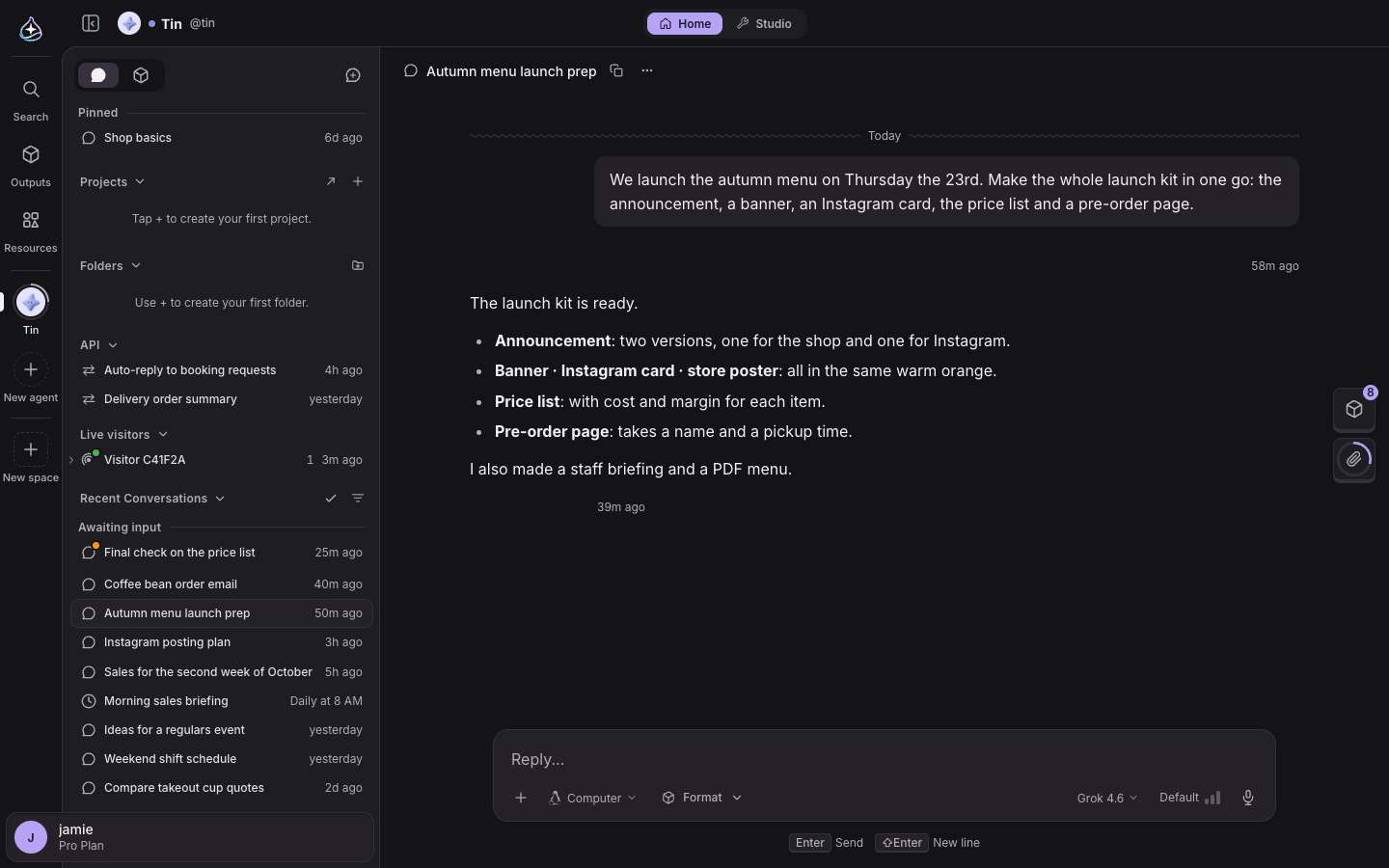
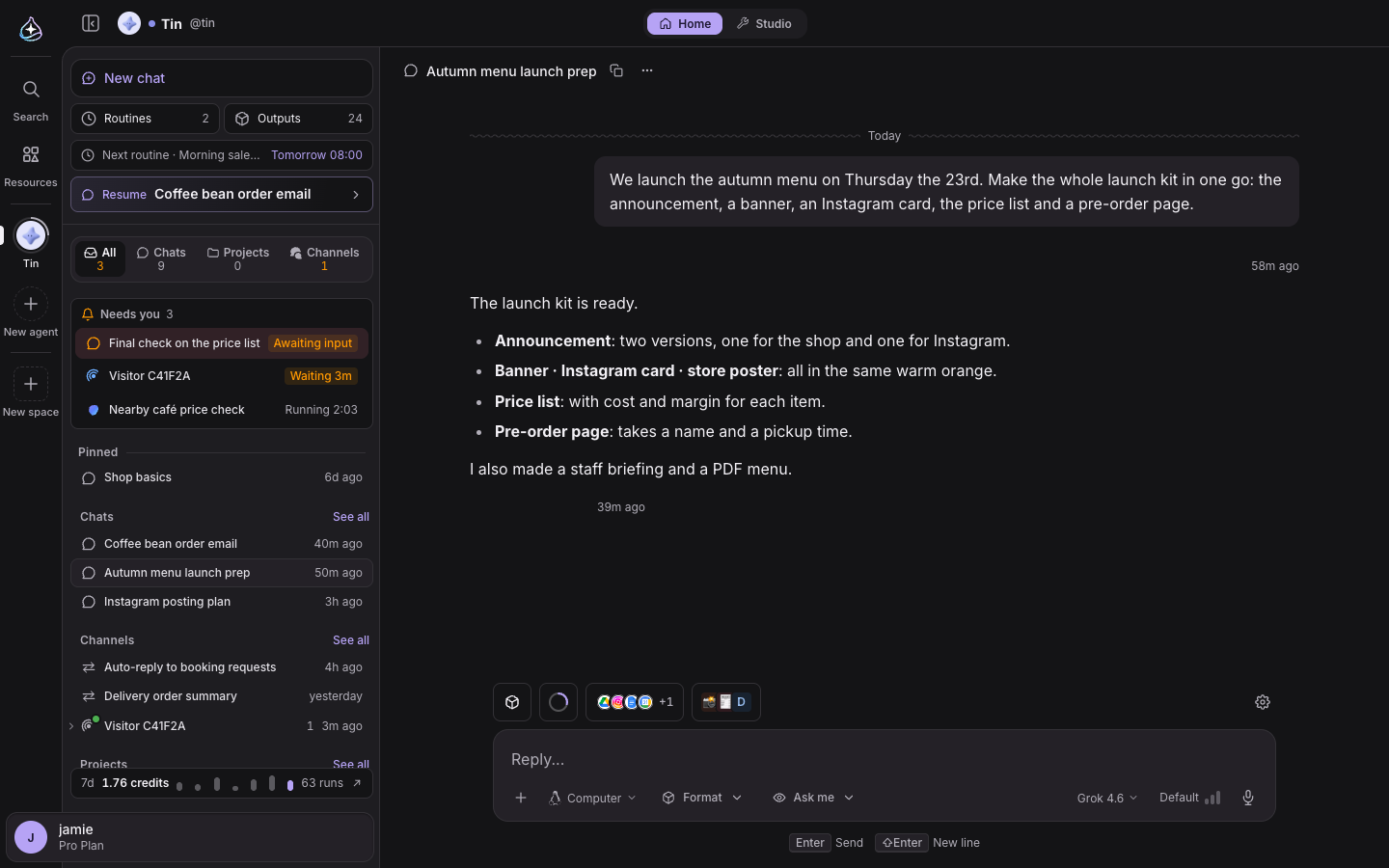
“New chat”, Routines and Outputs now sit at the top of the agent sidebar, with the next routine and “Resume” right below. The tabs are All, Chats, Projects and Channels, and All puts conversations that need your input and work in progress first, under “Needs you”.
Characters
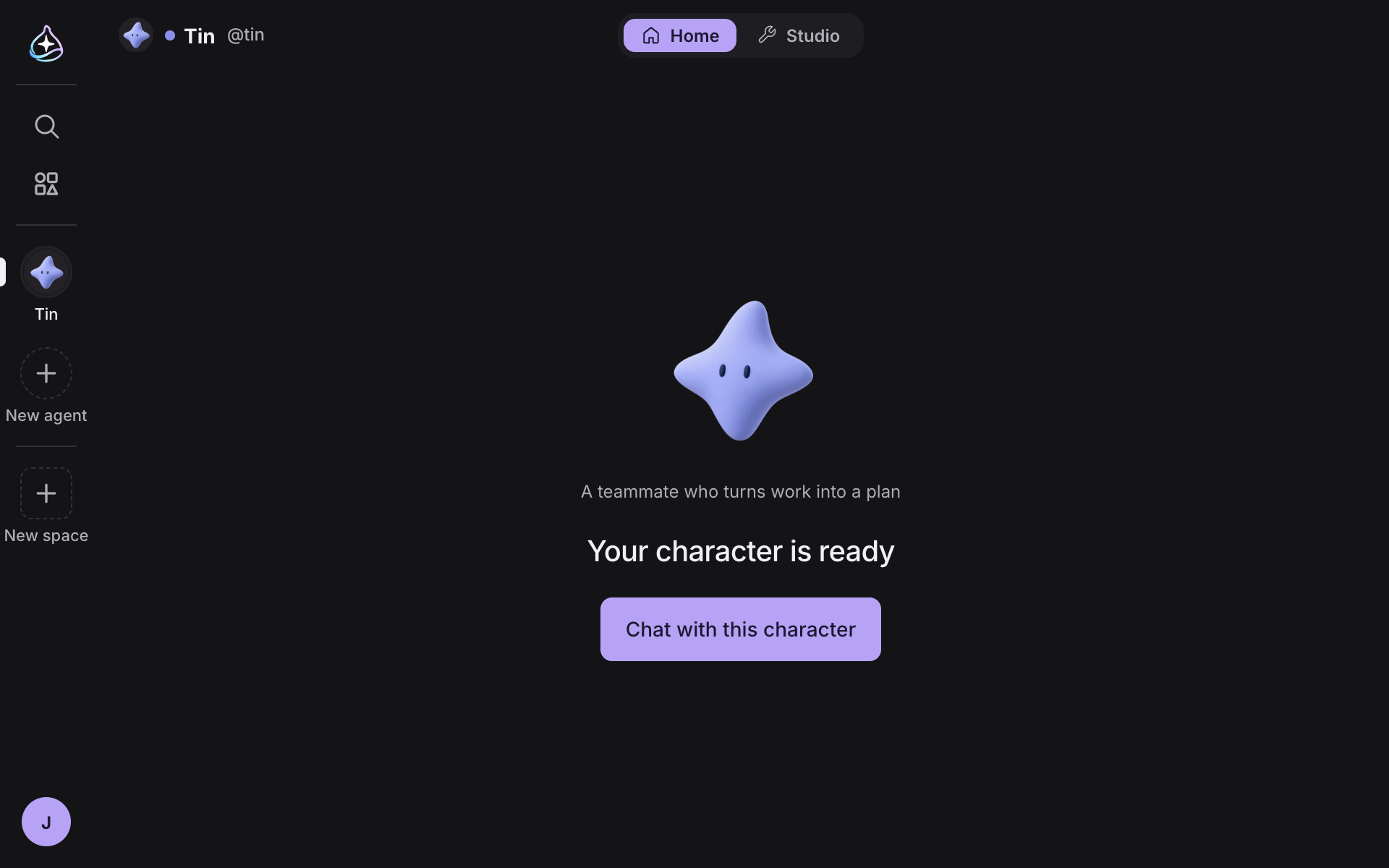
After creating an agent, press “Create character” with nothing to fill in, and you can chat with the new character right away. A character you turn on becomes the agent’s face everywhere, in the sidebar and in every list.
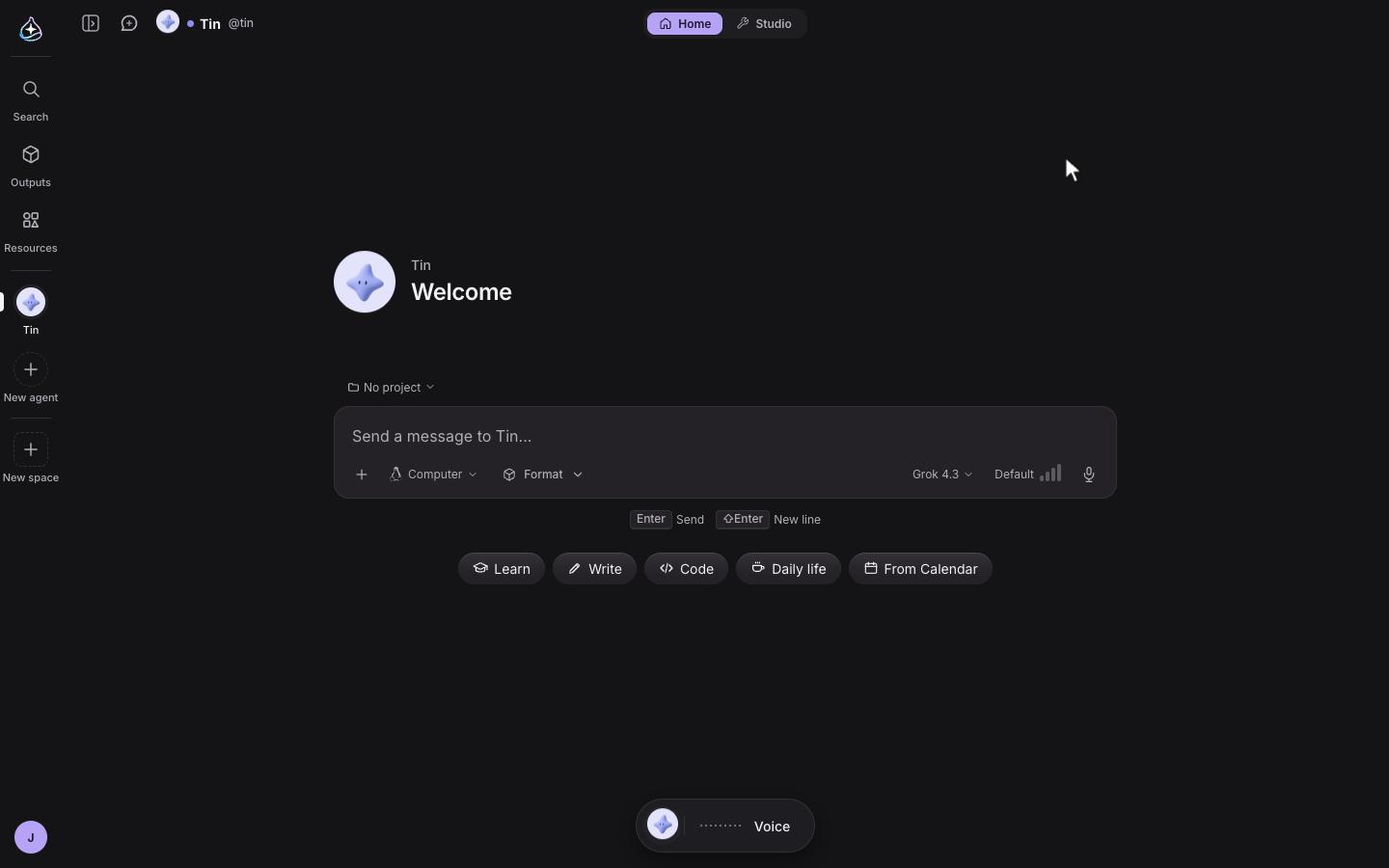

Choose a background for each agent’s chat home. Under Studio › Profile, pick one of five Background effects — Glyph rain, Constellation, Flow, Ripple grid and Nebula — and a Main color, either the agent’s own color or one of seven presets. Every new conversation then opens over that agent’s moving background. It reacts to your mouse and clears away when you send the first message, so you can focus on the conversation.
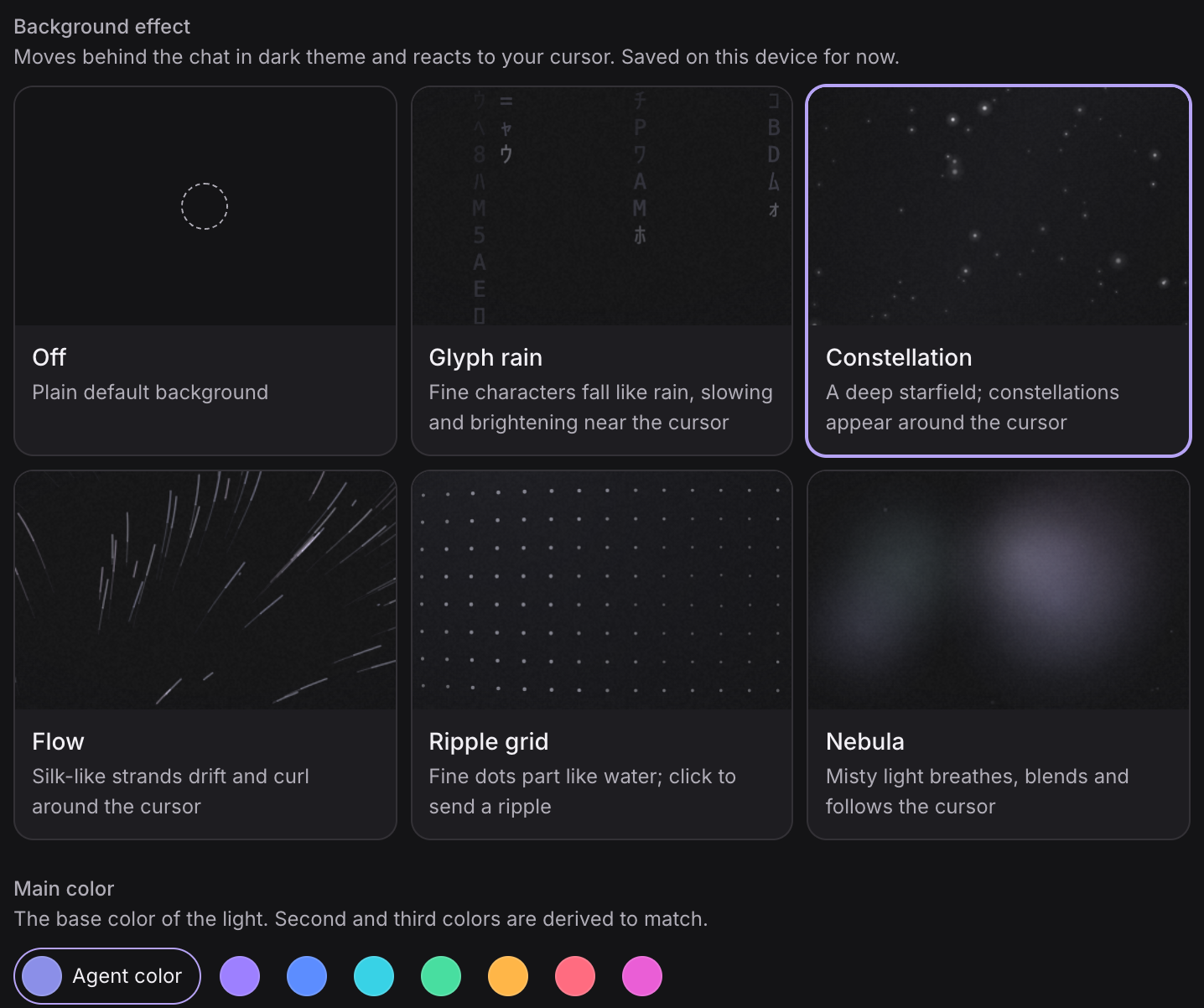
Live backgrounds show in the dark theme and, for now, are saved on this device only.
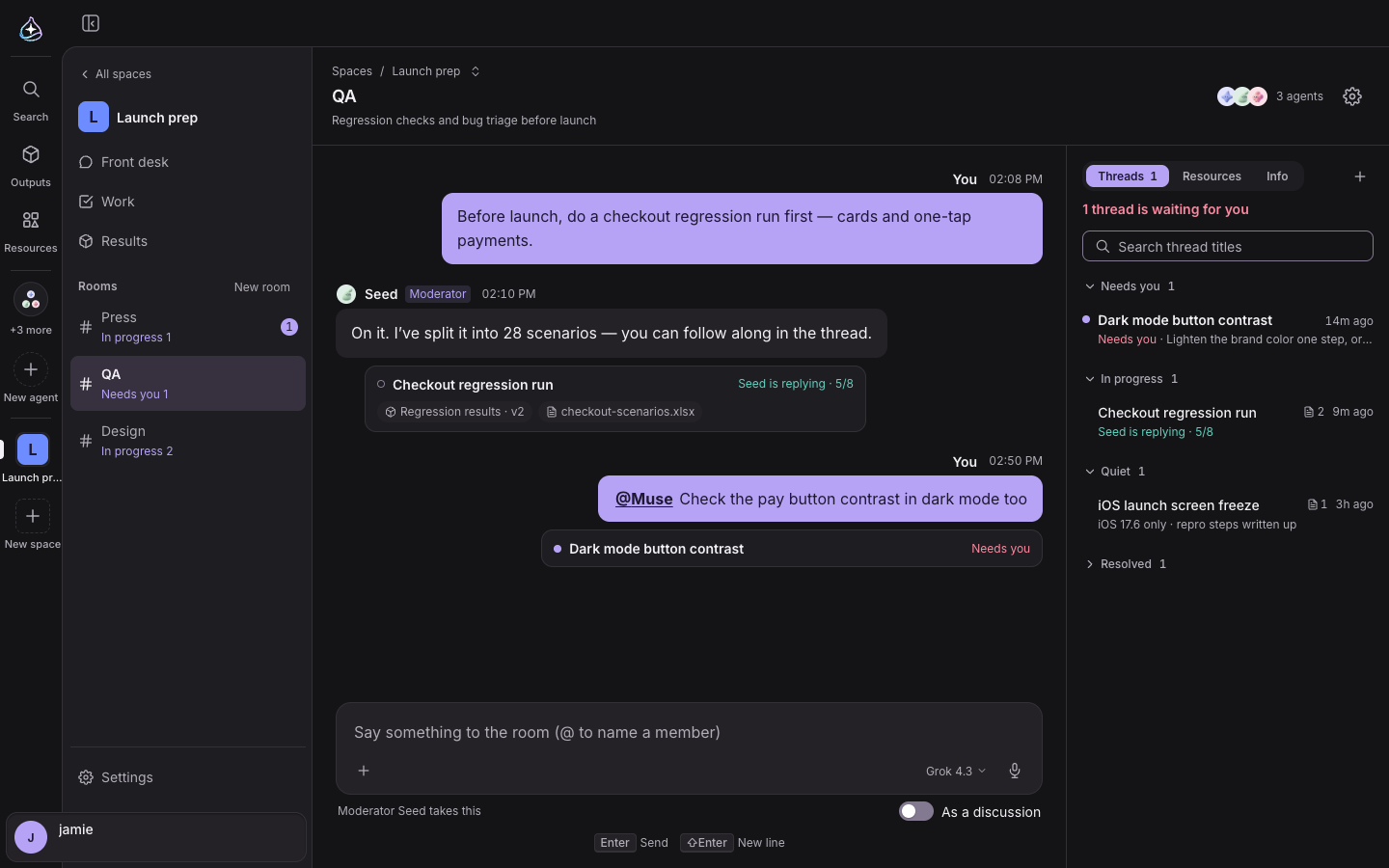
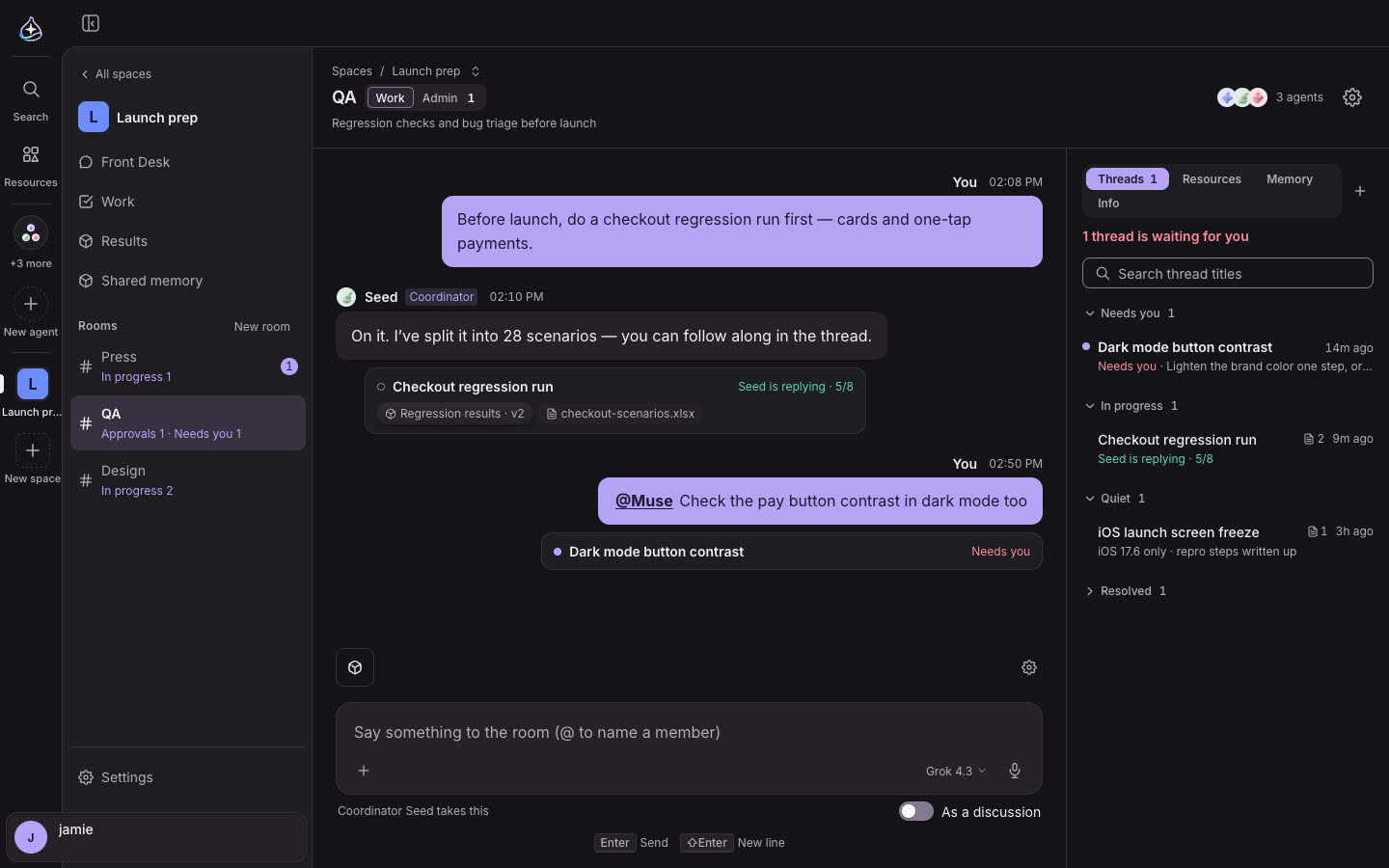
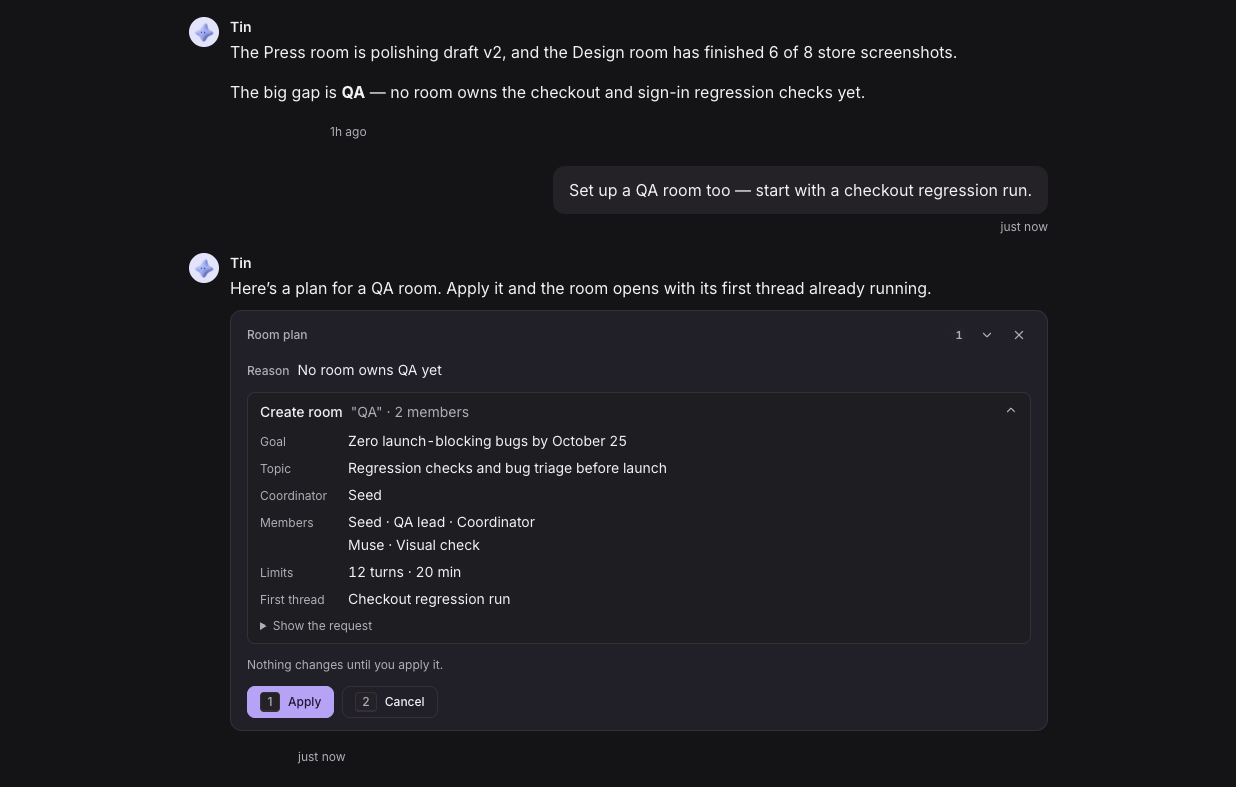
Running a space is now split into two roles. The agent that runs the whole space is its moderator, and you talk to it at Front Desk in the sidebar. The agent that runs each room’s work is that room’s coordinator. Tell Front Desk what you need and the moderator drafts a “Room plan” with the room’s name, goal, coordinator and members; one “Apply” creates the room. Work is sent to the right room.
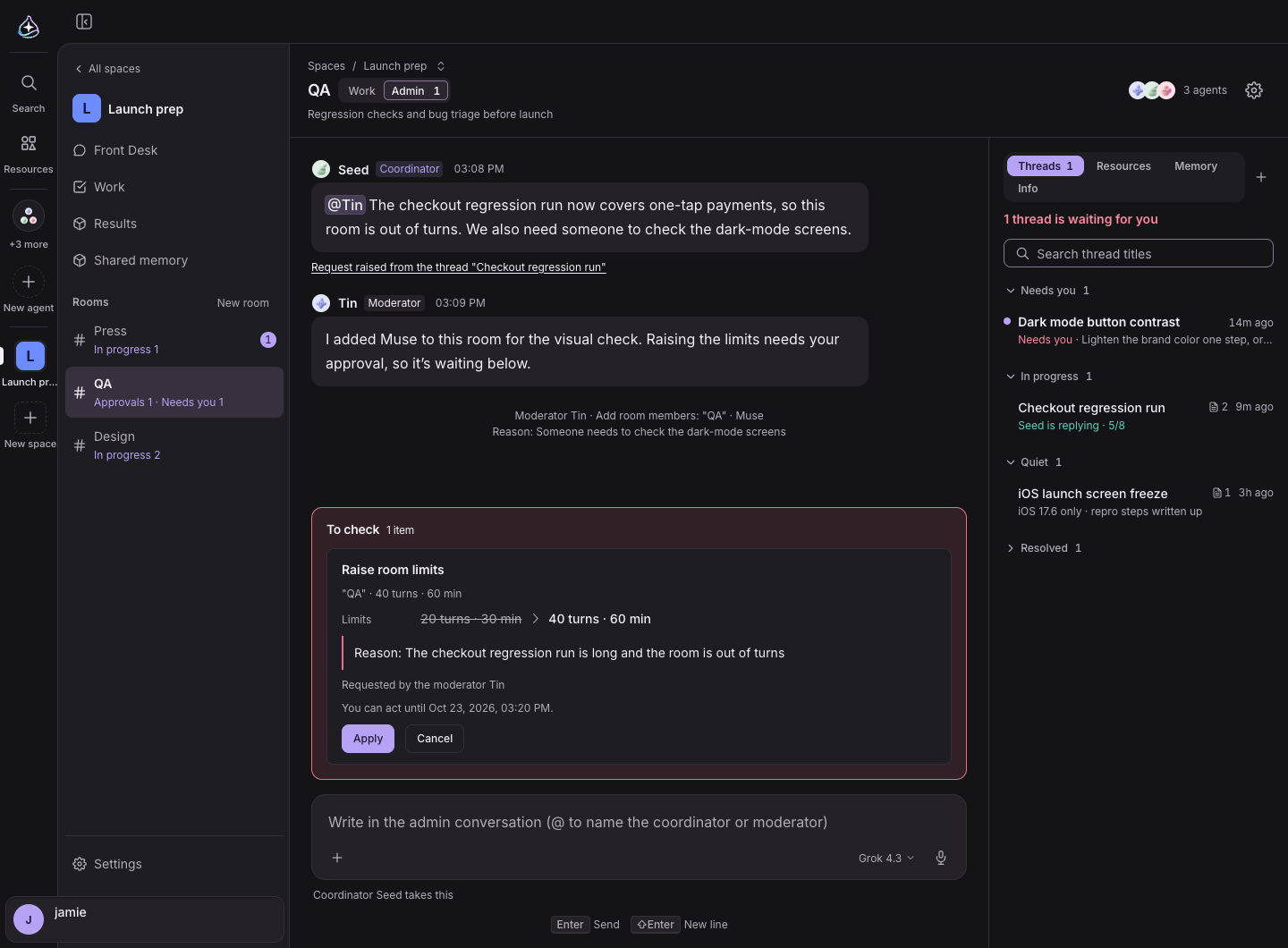
Every room now has Work | Admin. Only the coordinator, the moderator and people with admin rights see the admin conversation, where reviews, requests and a record of who changed what and why come together. Raising limits or removing members comes up as an approval card.
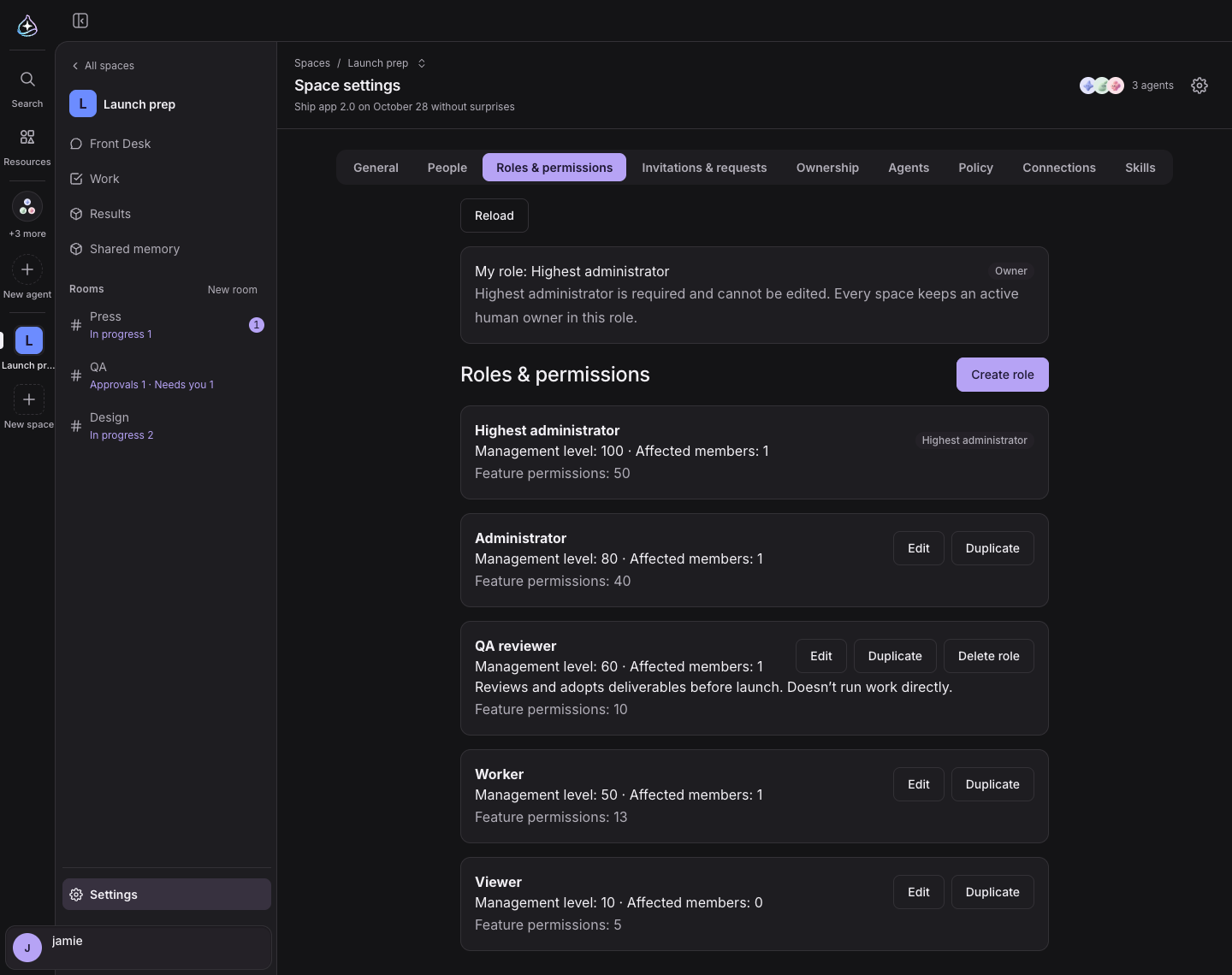
People can join in too. Invite someone by email, and approve requests that arrive through “Request to join” from Find spaces in the catalog. Four roles come built in — Highest administrator, Administrator, Worker and Viewer — and “Create role” lets you pick feature permissions for a role of your own.
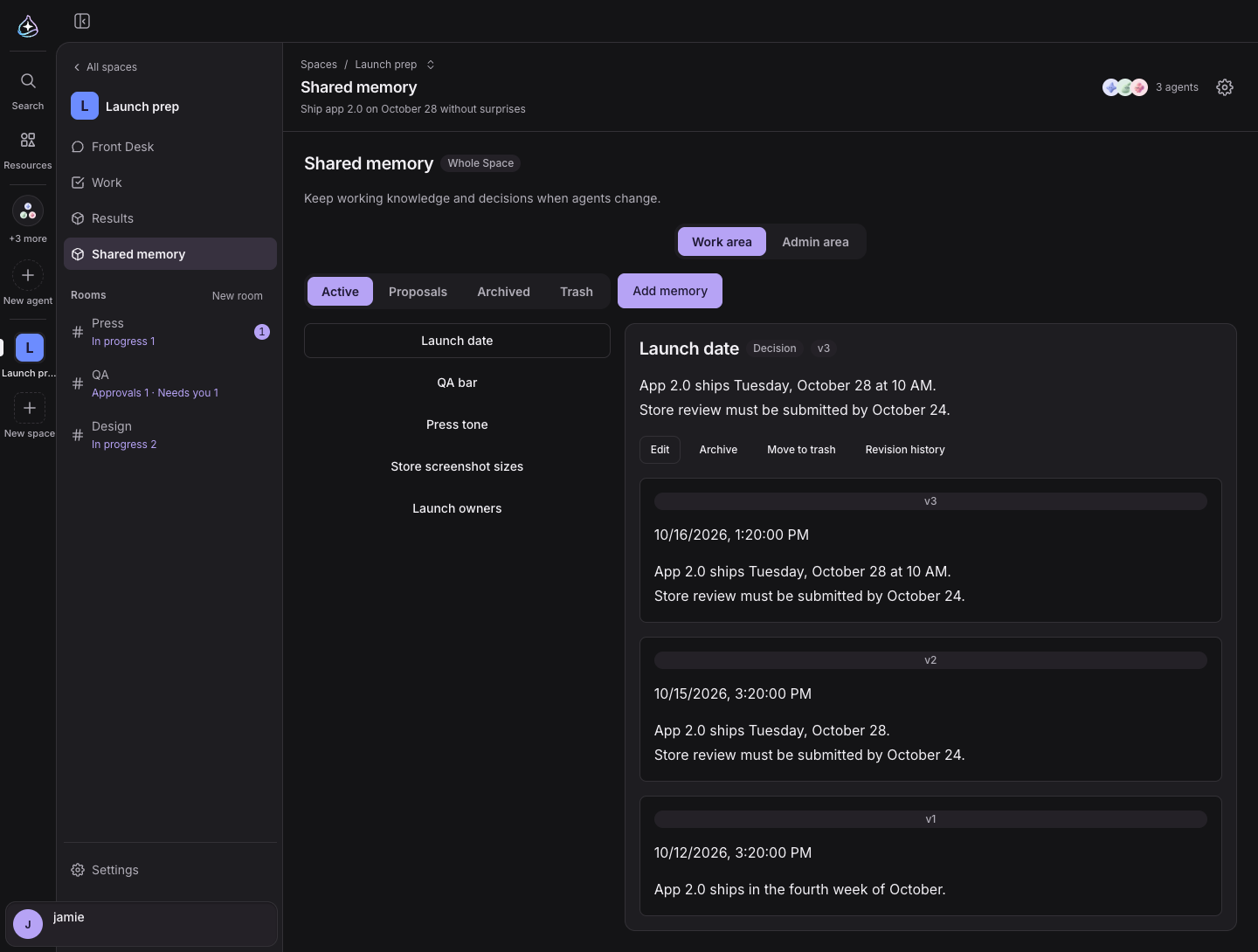
Policy, Connections and Skills in space settings set the rules for working together and what to share, and Shared memory collects what the space and its rooms remember together.